Benefits of the Enhanced 2FA System
-
Stronger Account Protection
Two-Factor Authentication adds an additional layer of security, reducing the risk of unauthorized access. -
Flexible Verification Modes
The system supports Always and New Computer modes, allowing users to choose stronger security or better convenience. -
Simplified Authentication for Regular Accounts
Common Key authentication removes the need for individual device setup, making login easier for non-administrative users. -
Dedicated High-Security Mechanism for Admins
Private Key authentication ensures that each admin has a unique, non-shared key for higher security and accountability. -
Secure Device-Based Setup
Admins can link their mobile devices through QR code scanning, ensuring only authorized devices generate valid OTPs. -
Time-Based One-Time Codes
Authenticator apps generate automatically refreshing OTPs, preventing reuse or interception of expired codes. -
Convenient Login Experience
In New Computer mode, the system only asks for OTP on new devices—reducing friction for users who log in frequently. -
Improved Security Traceability
Unique private keys for admins help track critical actions more accurately and securely. -
Centralized Management for Organizations
Common Key authentication allows organizations to manage regular user security without requiring individual setup steps.
Conclusion:
The enhanced 2FA system strikes a balance between security and usability, offering robust protection for sensitive accounts while keeping everyday login processes simple and efficient. It ensures higher accountability for administrative actions, simplifies management for organizations, and strengthens overall system security without compromising user convenience.
Overview
Our software includes an enhanced Two-Factor Authentication (2FA) module to improve account security. This enhancement introduces Comman key-based verification, and Private key–based authentication for administrative users.
The system supports both:
- Common (shared) authentication
- Private (user-specific) authentication
2FA Modes Explained
2FA Trigger Options
Users can have one of the following 2FA trigger settings:
Always
- The user must verify a 6-digit OTP on every login
- Even if the login is from the same device
- Recommended for high-security users
New Computer
- 2FA is required only when the device changes
- Same device login does not require OTP again
- Improves usability while maintaining security
Common Key Authentication (For Regular Users)
If a user’s 2FA mode is set to:
Always OR New Computer and the Two-Factor Type is set to Common
Then:
The user is authenticated using a common shared key
This key is:
- Stored in the system
- Same for all common users
The user does not need to set up their own device
This method is suitable for:
- Standard users
- Non-administrative roles
- Organizations requiring simple centralized control
Private Key Authentication (For Admin Users)
If the User twofactype = Admin, then:
- The user must be authenticated using a private key
Each user has:
- Their own unique private key
- Private keys are not shared between users
This ensures:
- Higher security
- Individual accountability
- Protection of critical system access
Private Key Setup – Add Device (Admin Only)
Private keys are configured by an administrator using the Add Device screen.
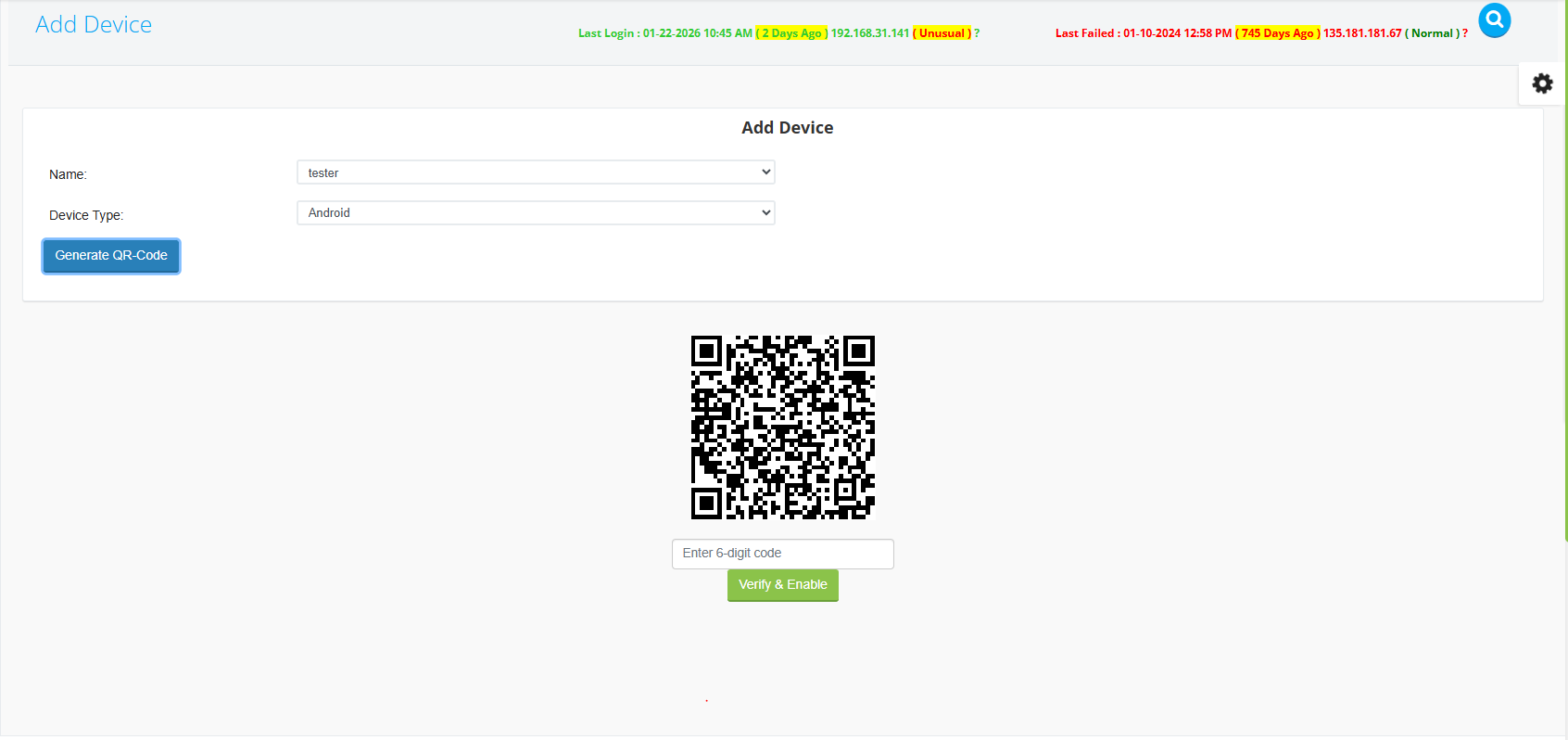
Steps:
- Open Add Device scree
- Select:
- User name
- Device type (Android / iOS)
- . Click Generate QR-Code
- The system generates a unique QR code for that user
QR Code Verification & Activation
Verification Process:
- Open Google Authenticator on the mobile device
- Scan the generated QR code
- Google Authenticator starts generating 6-digit OTP codes
- Enter the current 6-digit code in the system
- Click Verify & Enable
The private key is now enabled and linked to that specific user and device.
Login Flow with Private Key Enabled
Once the private key is active:
- User enters username & password
- System redirects the user to the 2FA verification screen
- User opens Google Authenticator
- User enters the current 6-digit OTP
- Login is completed successfully
This process occurs:
- On every login (Always mode) Or only on new devices (New Computer mode)
Security Rules & Notes
- OTP codes are time-based and auto-refresh
- Expired codes cannot be reused