Manufacture Multiple:
First click on Inventory, then click on Data Entry and now click on Manufacture Multiple.
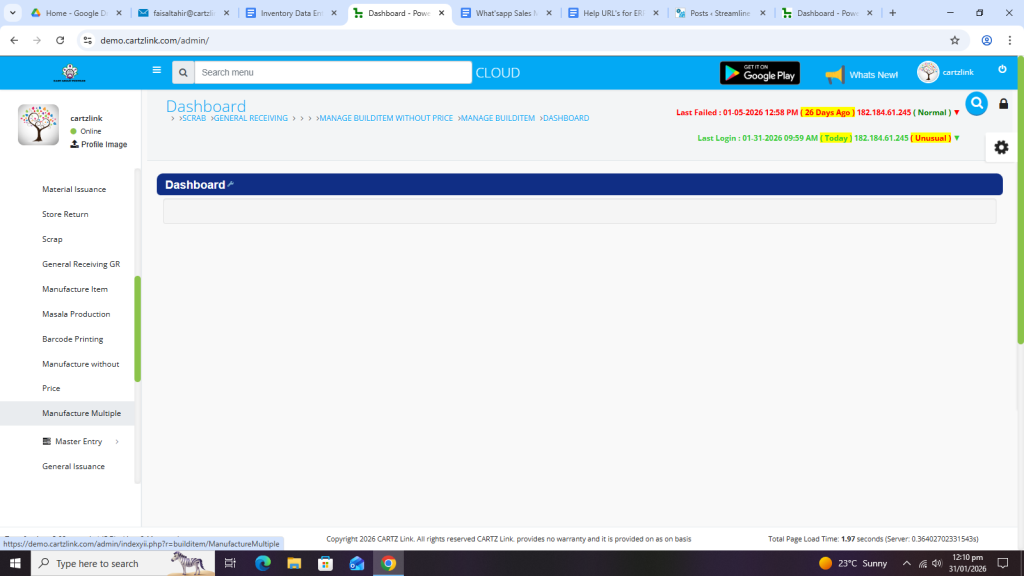
The following page will open as shown in the screen shot below.

First select the product with the Formula available in the system.
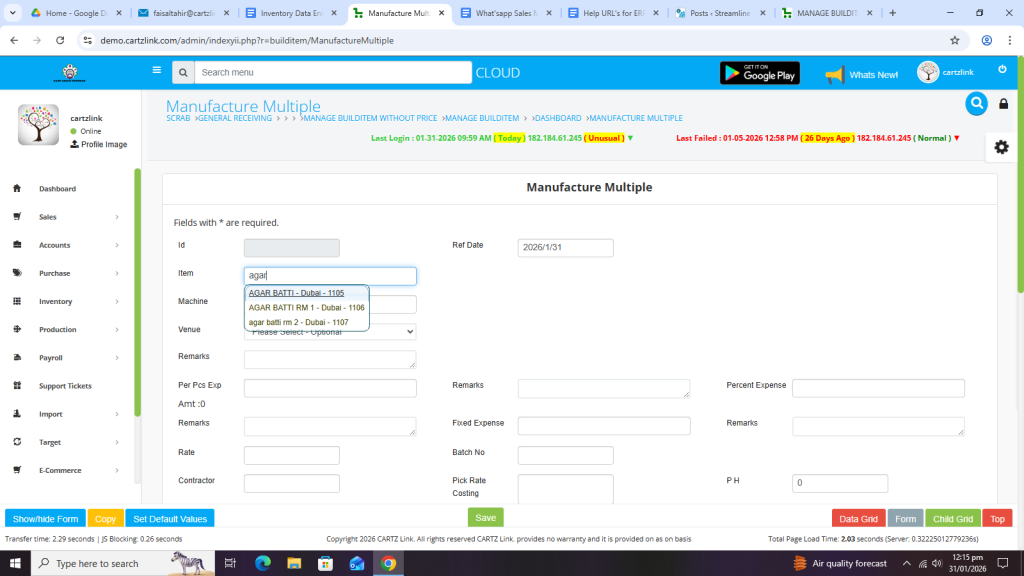
If the product’s formula is not available in the system, then the system will give the error. No Formula Found.
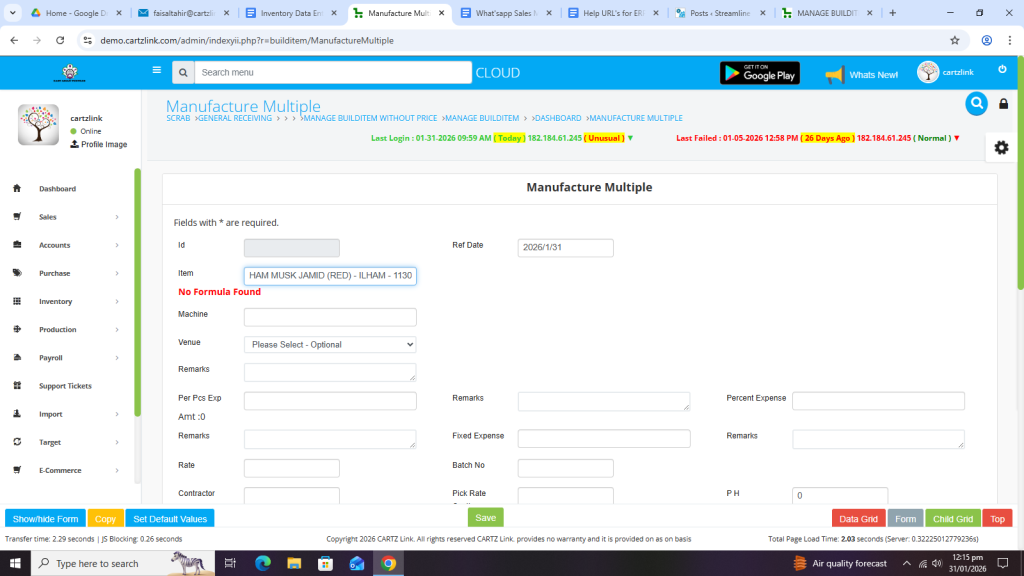
In this case select another product with formula.

Select Venue.
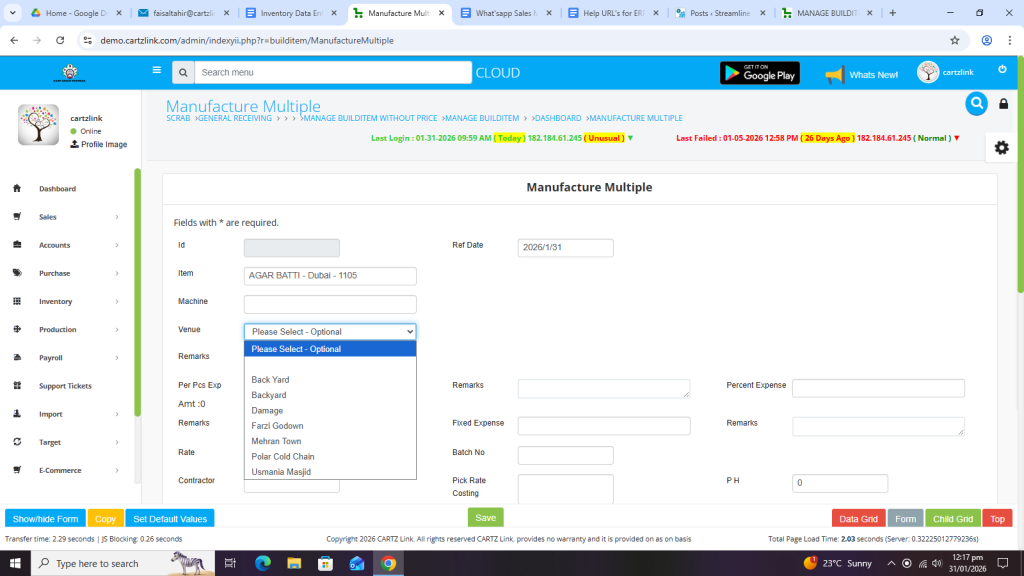
You may define the Rates also.
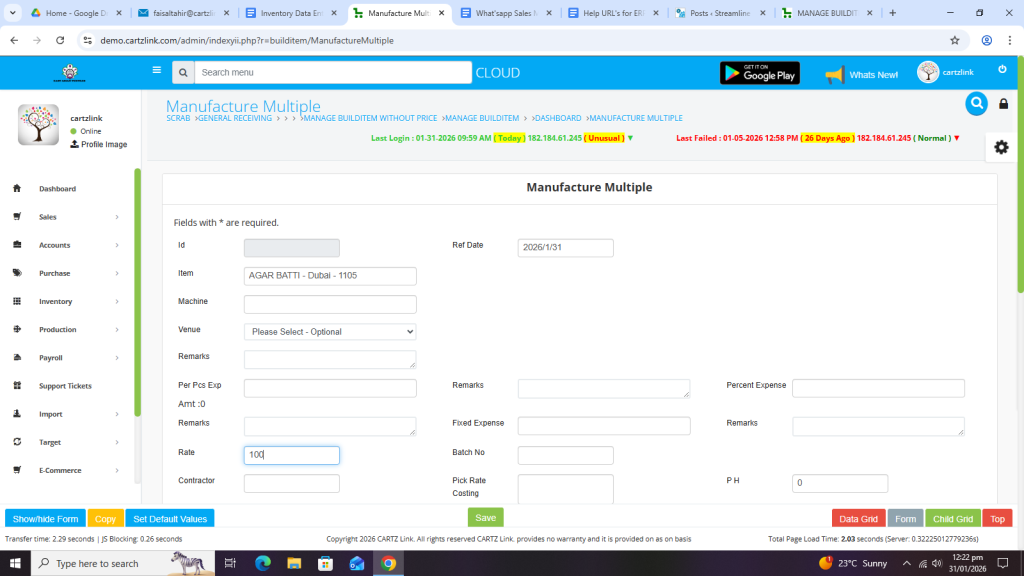
Enter Quantity.
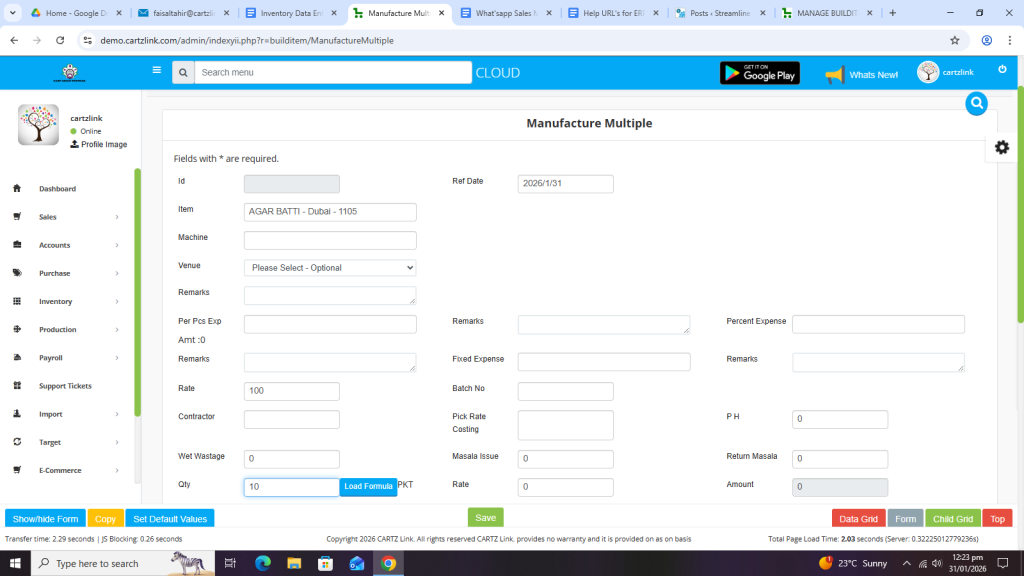
Now click on the Blue Load Formula Button.
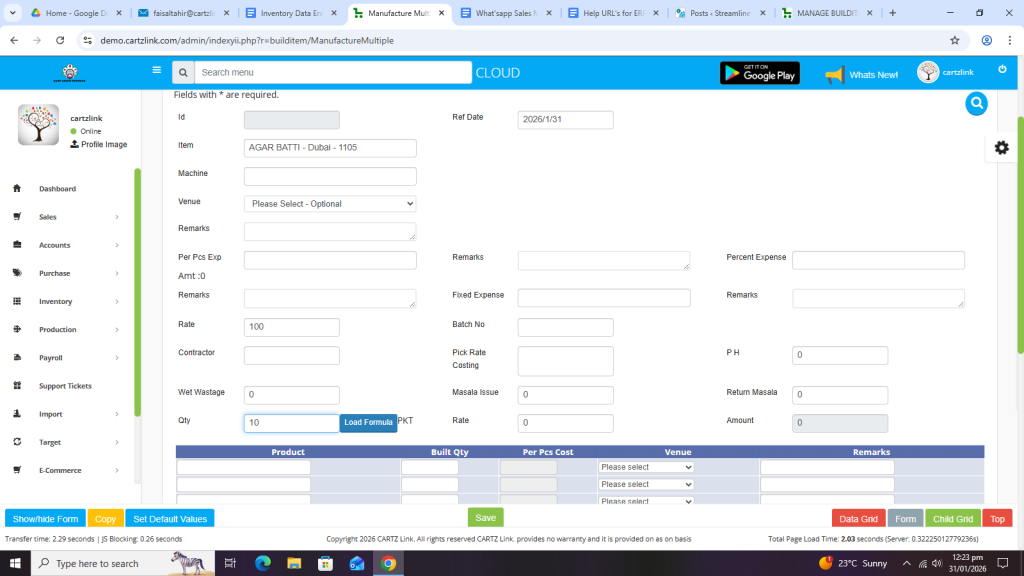
The details for the product will appear automatically.

Once all information is completed, click on the Green Save button at the bottom.
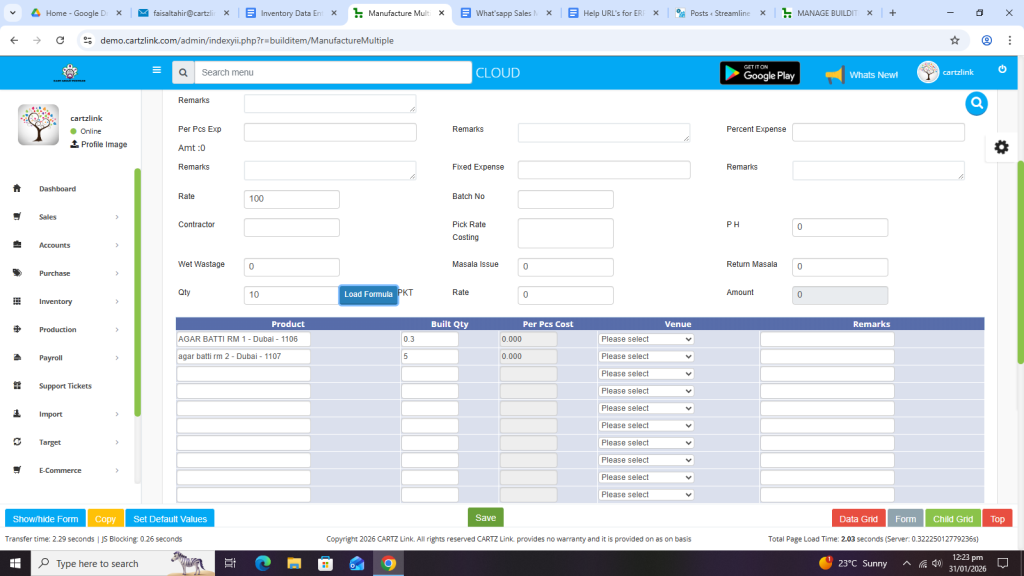
Your record has been Saved.

You may edit it by clicking on the update button against this record.
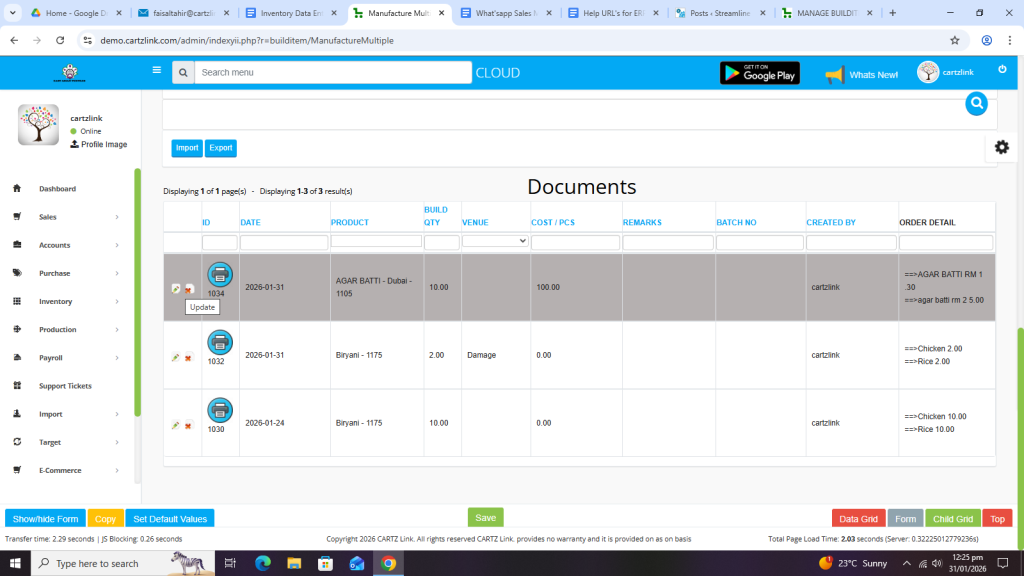
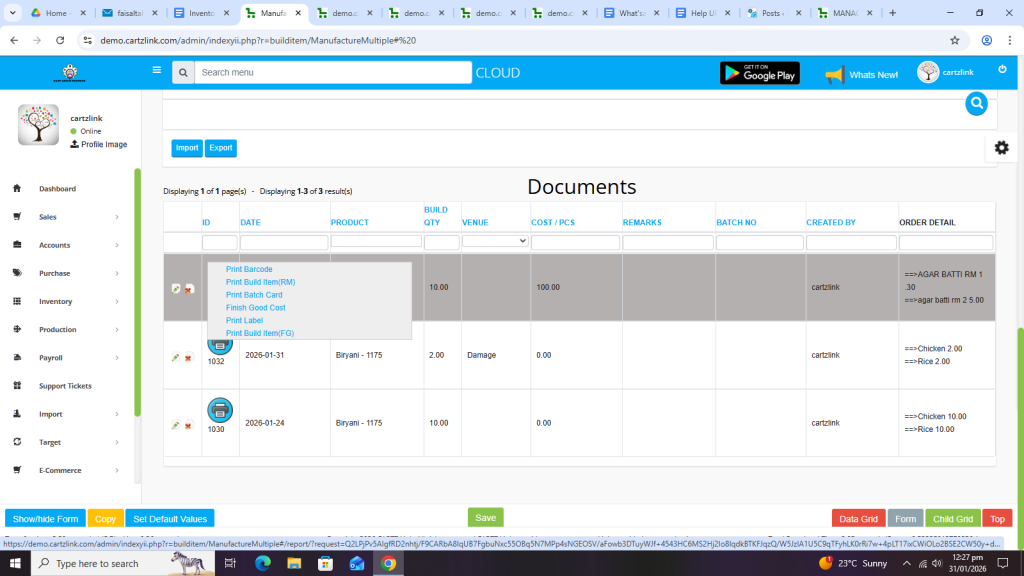
Various printing options are also available. Just click on the Printer Icon.
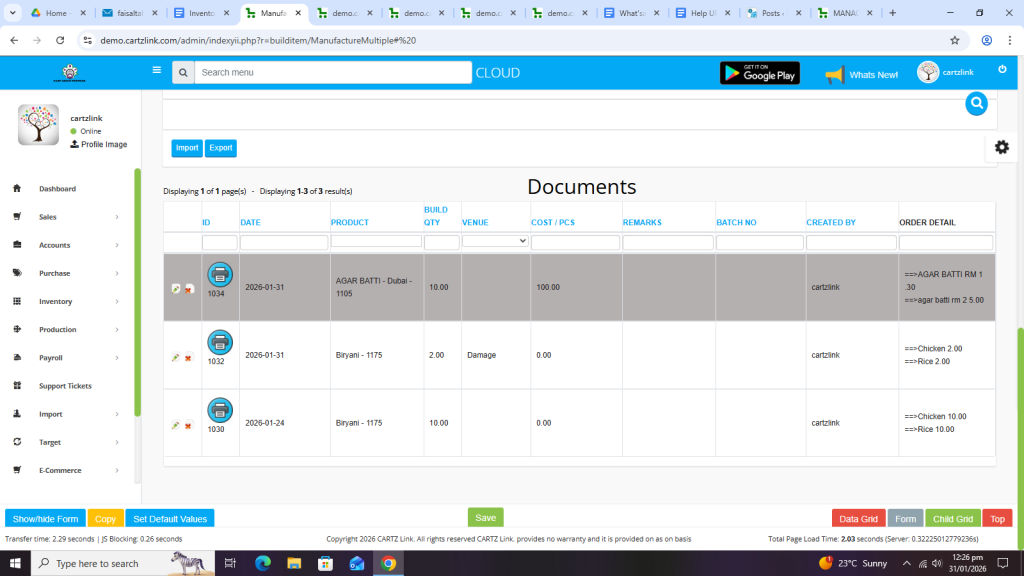
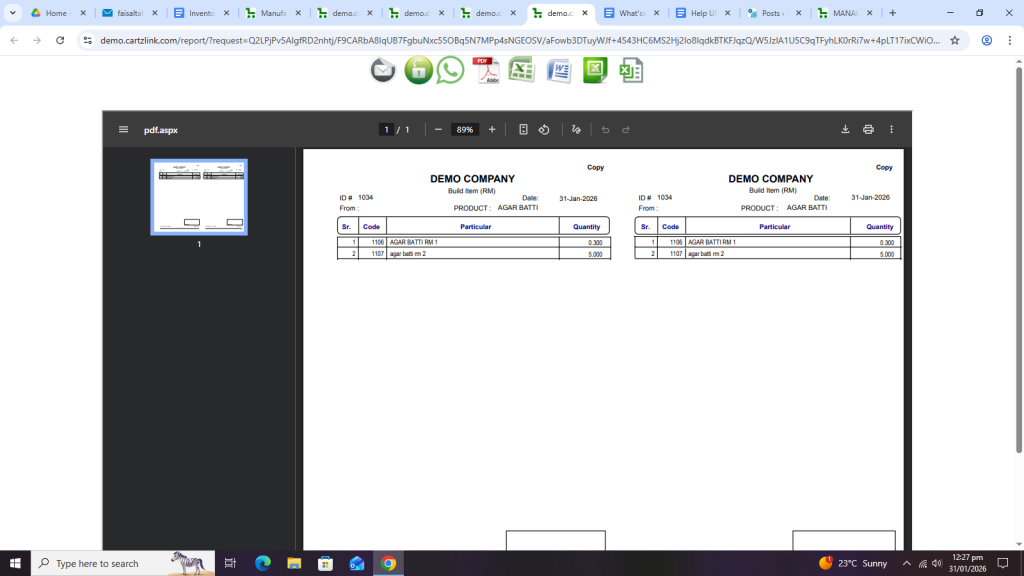
Click on Print Build Item (RM).
Another window will open with Print / Save options.
Click on Print Batch Card.
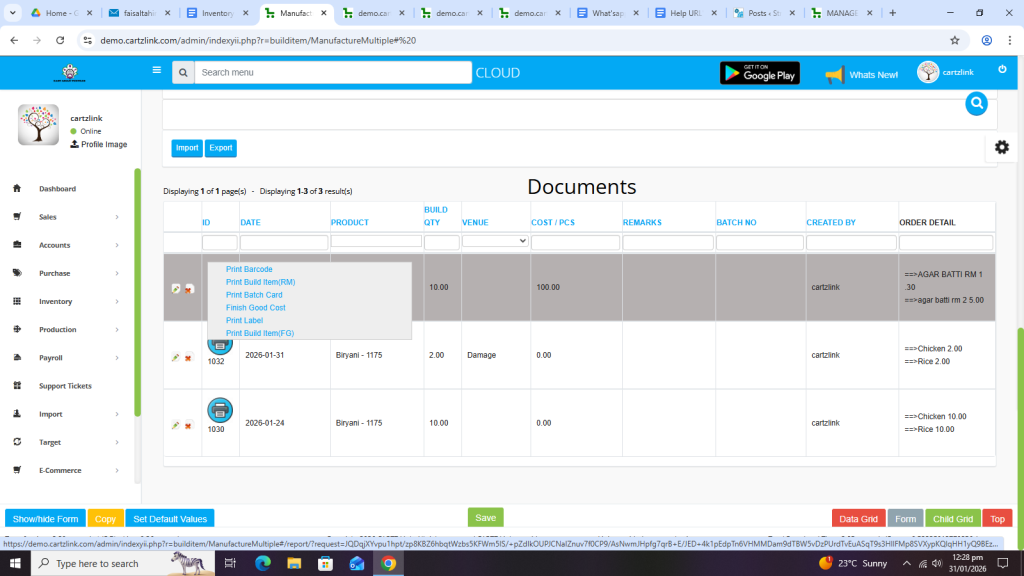
Production Batch Card will appear in another window with Print / Save options.

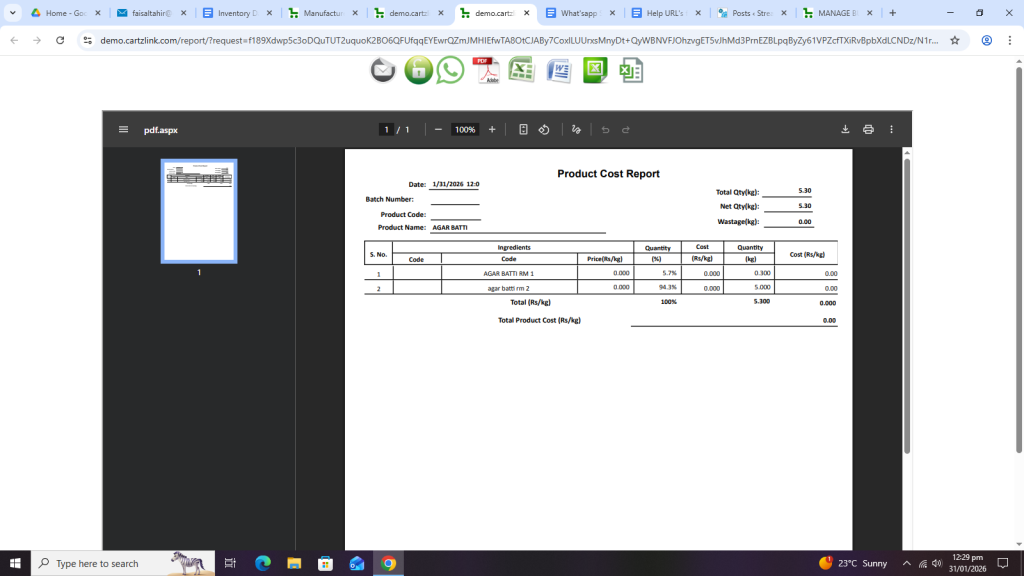
Click on Finish Good Cost.
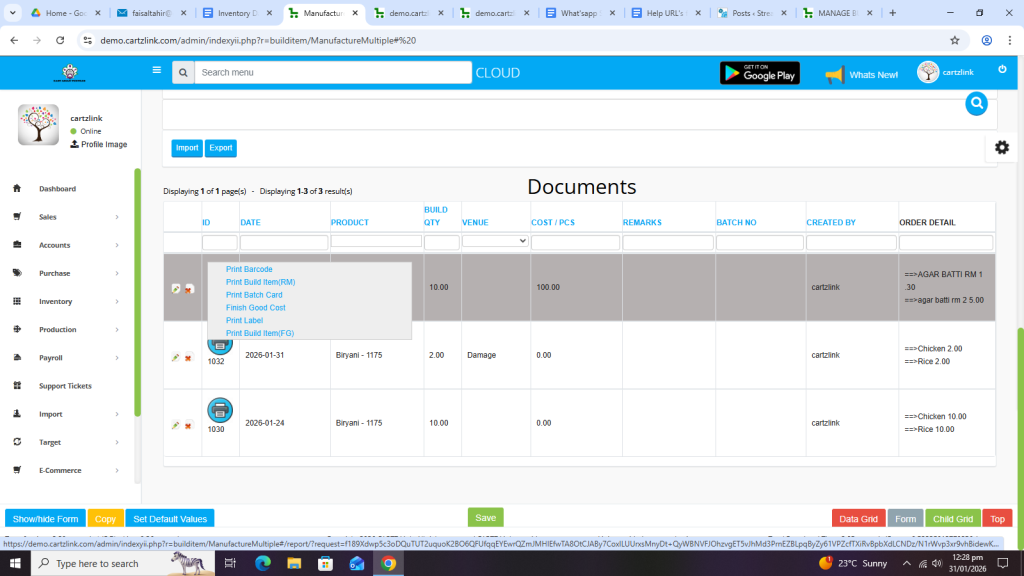
Another window will open with Print / Save options for Product Cost Report but without showing any Price.
Click on Print Build Item (FG).
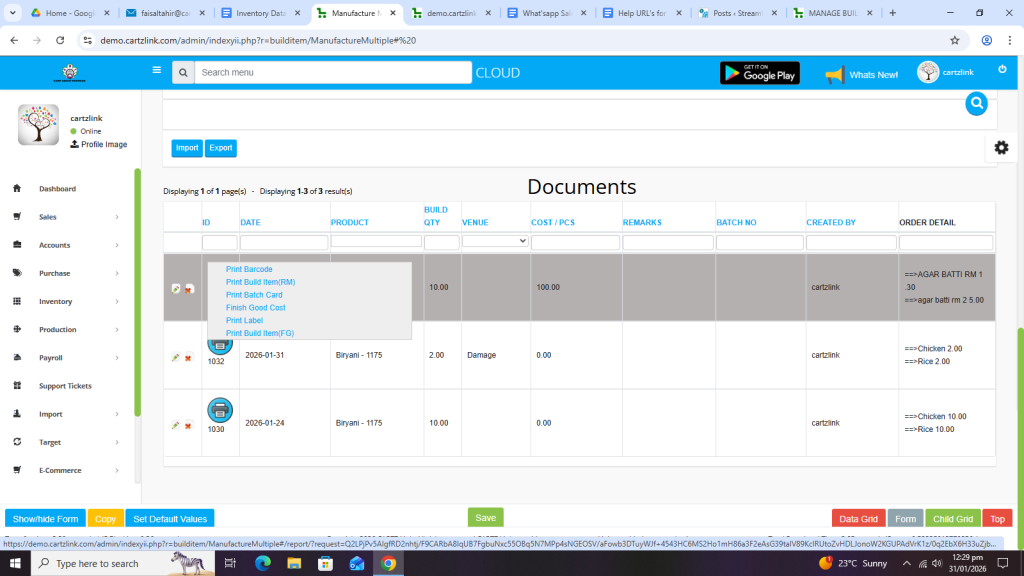
Another window will open with Print / Save options.

