Price List (Clients):
In this feature we can also check and print the price list of our products with various Tax options.
This feature /report is available both in Sales and in Inventory module.
Option 1 through Sales Module:
Go to Sales then click on Daily Output and then click on Price List (Clients).

Option 2 through Inventory Module:
Go to Inventory, then click on Reports and now click on Price List.
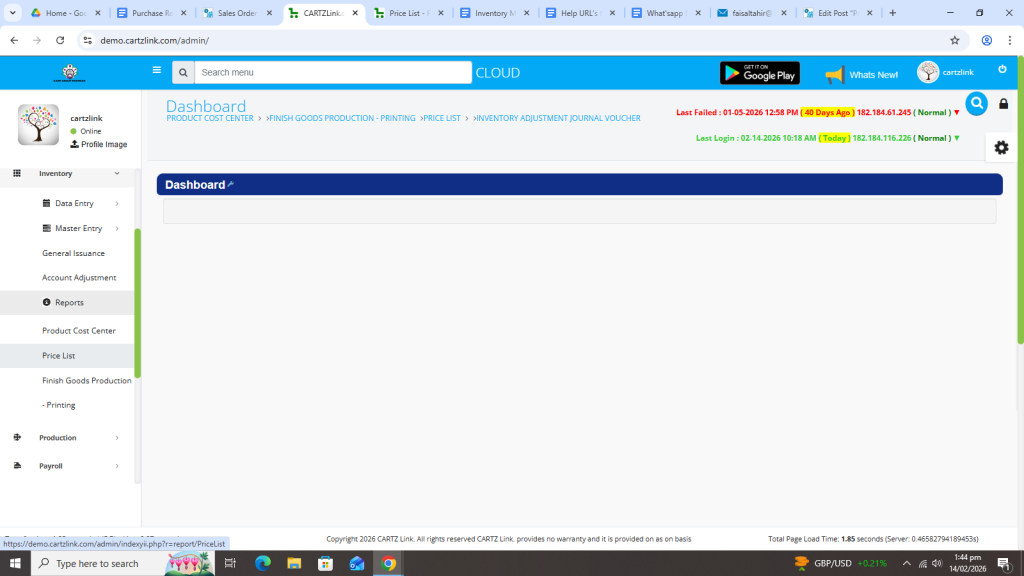
Following page will open as shown in the screenshot below.

Now select the product for which the price list breakup is required.

Check the sales tax required percentage and click on the Report button at the bottom.


Your desired price list will open in the next window with save / print options.

Now if you want to change the percentage of Sales tax then you may change it and have a new price list.

After changing the desired percentage of Sales Tax, click on the Report button at the bottom.

Your desired price list with new Sales Tax percentage break up will open in the next window with save / print options.

Additionally, if you want to add Additional Sales Tax and WHT Tax, you may add the desired value percentage and click on the Report button at the bottom.

Your desired price list with added Additional Sales Tax and WHT Tax percentage will open in the next window with save / print options.

