Purchase Report:
In order to view the daily purchase report, you can review it in the Purchase Menu and then by clicking on Reports and then click on Purchase Report.
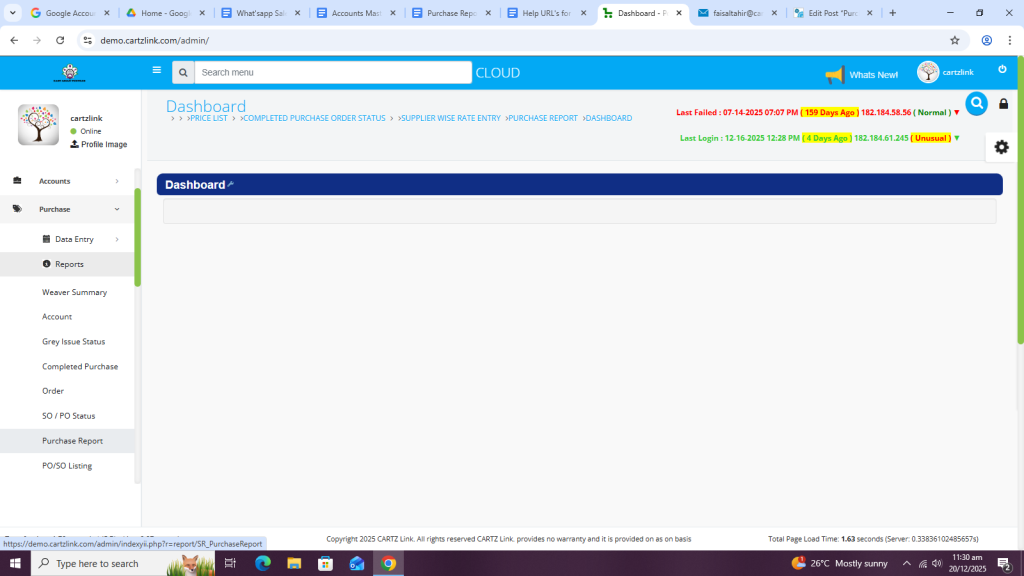
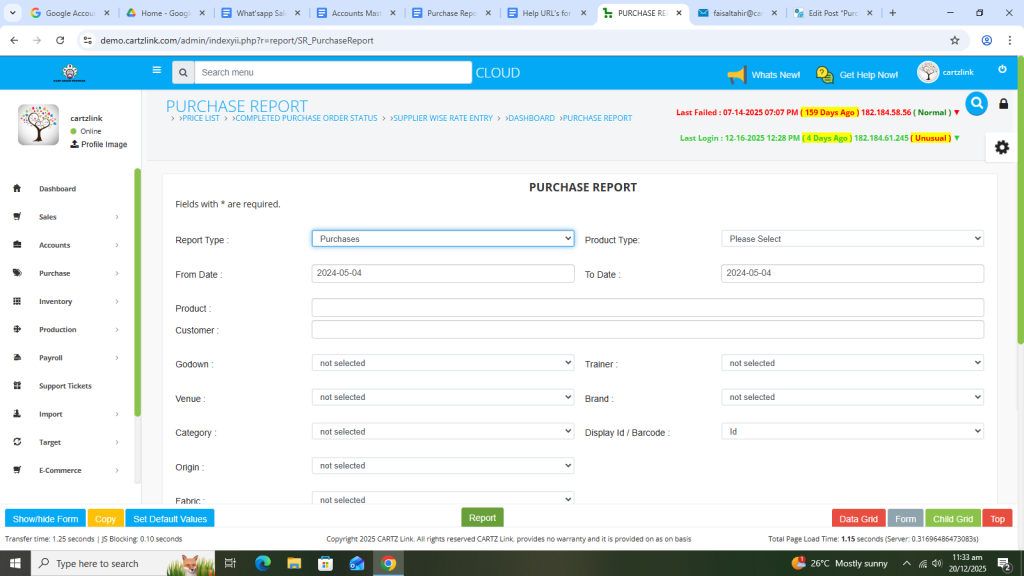
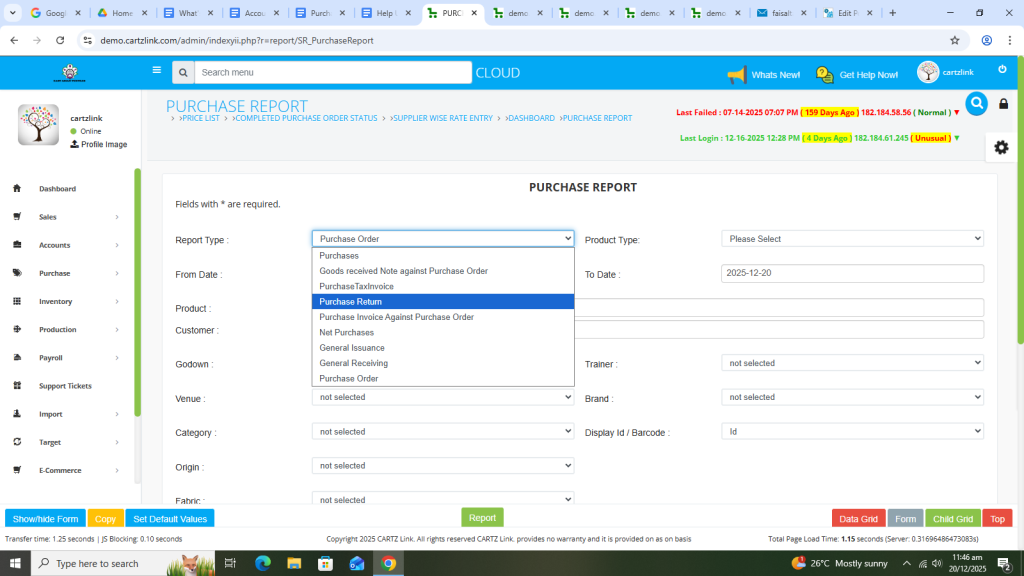
A new page will appear as shown in the below screenshot.
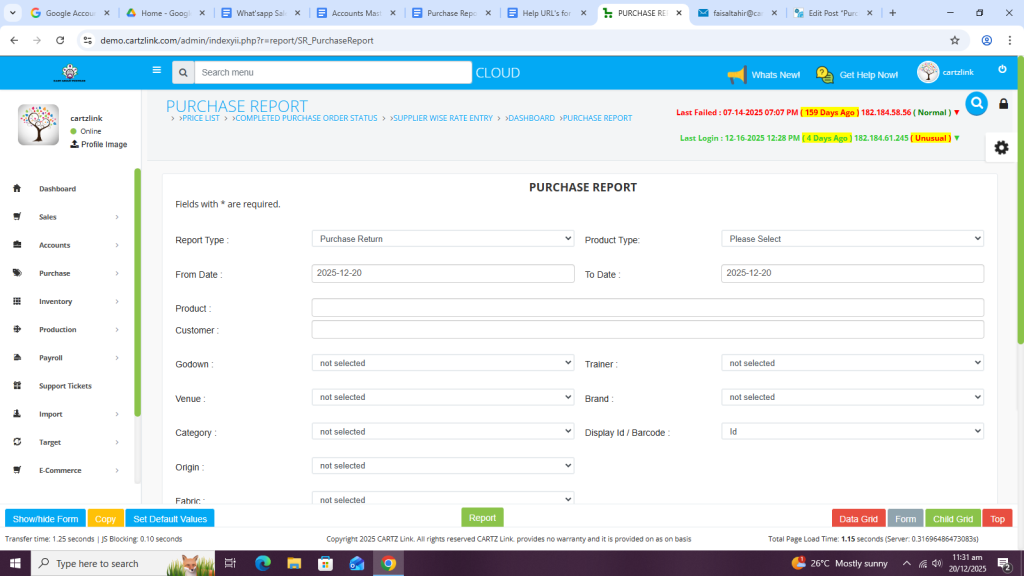
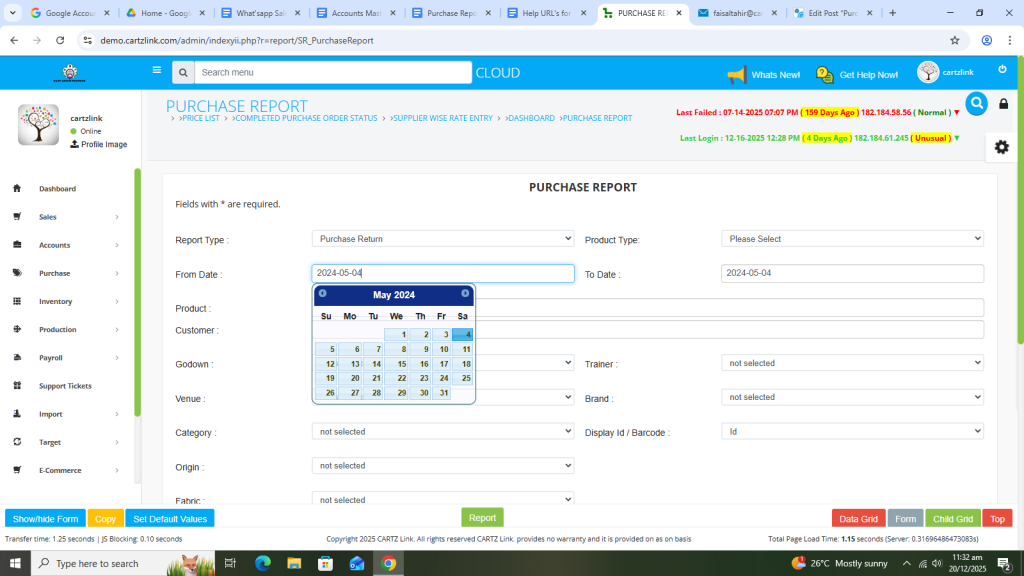
First select the date range required for the report.
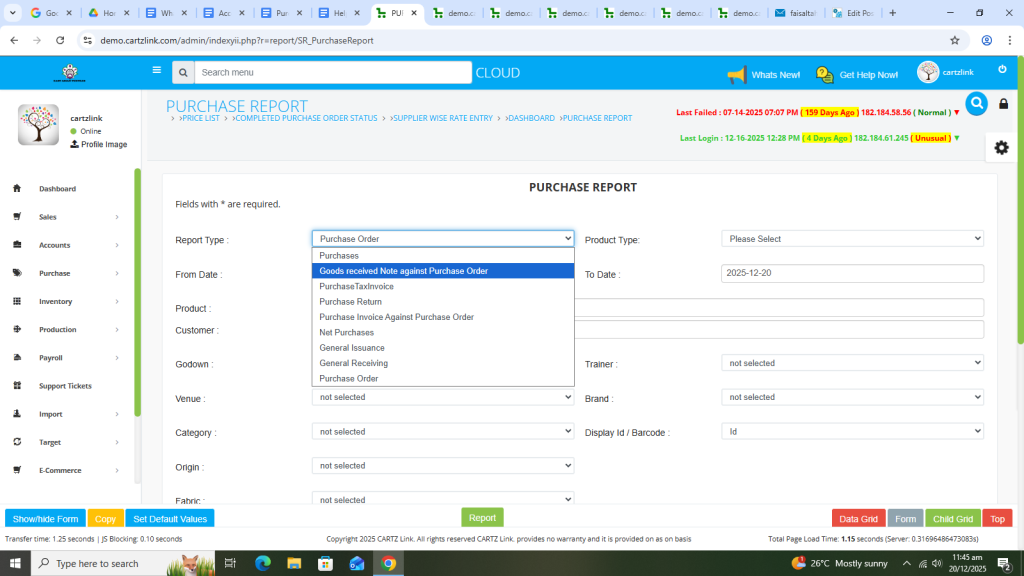
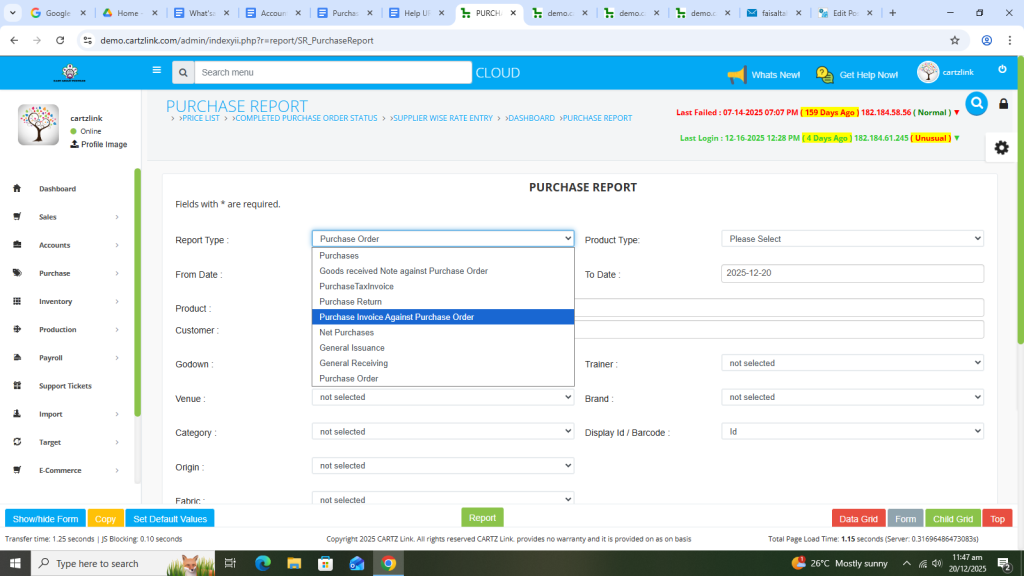
Now select the report type required.
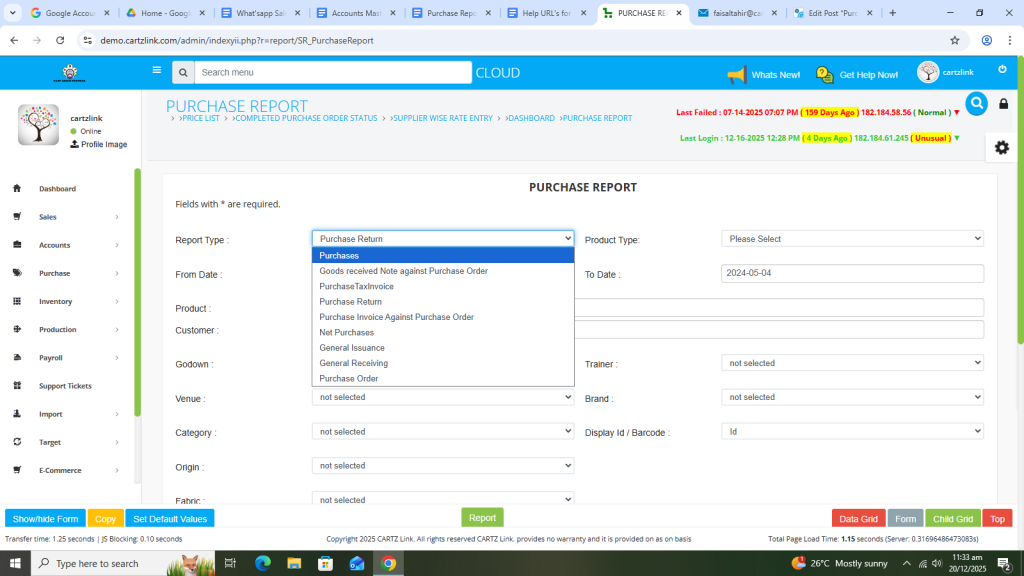
Once you have entered the period for which the purchase report is required and selected the desired report type, click on the Green Report Button at the bottom.
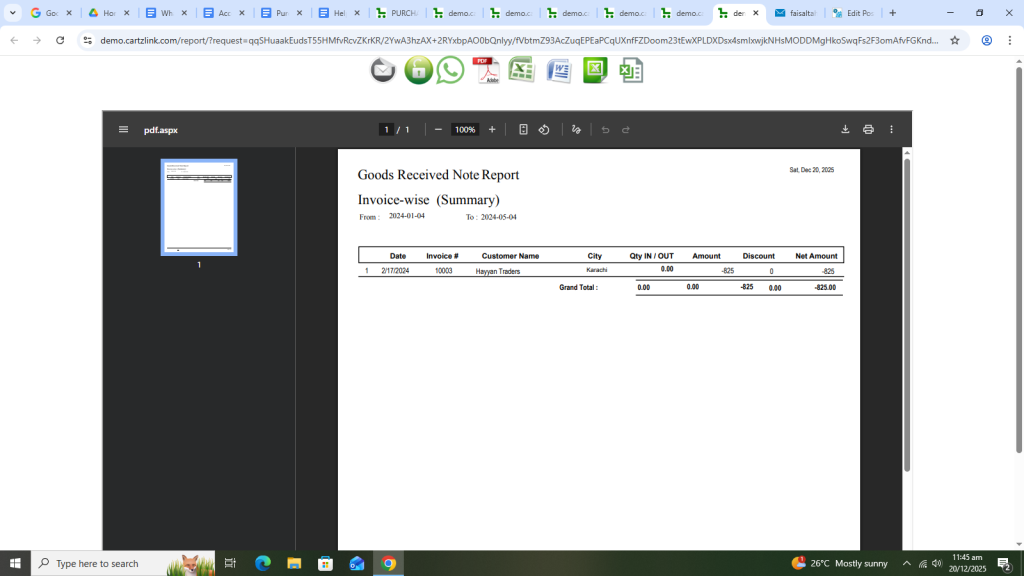
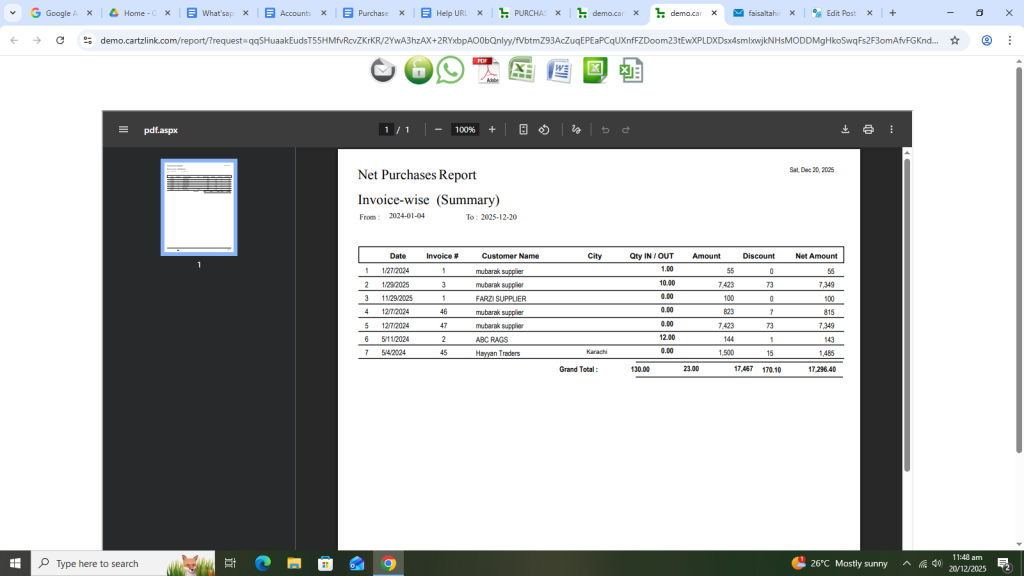
Your desired report will appear in the next window which can be saved or printed as per the requirement.

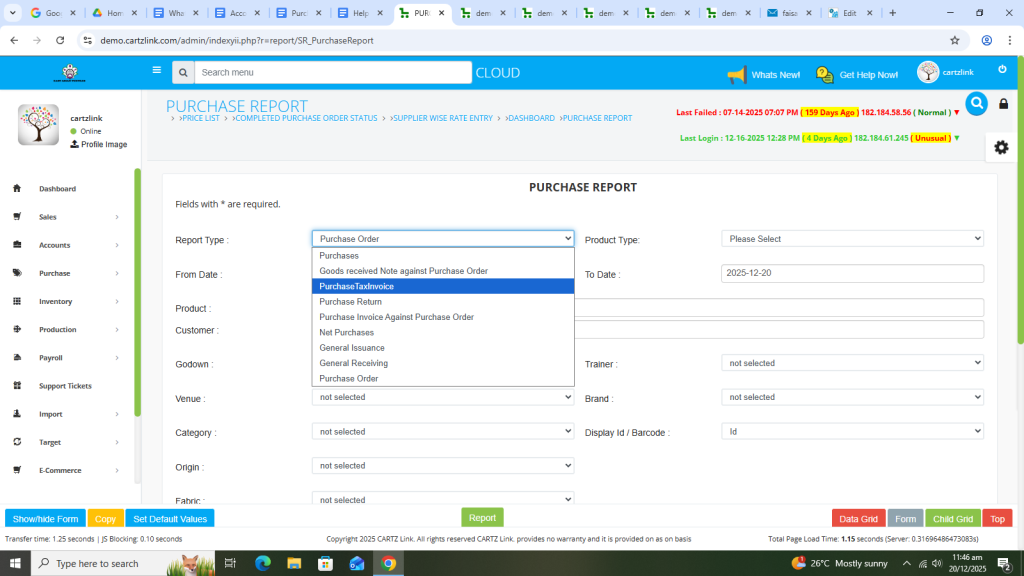
Now if other purchase reports are required then go to the previous page and select the desired report type, date range and click on Green Report button at the bottom.
Goods Received Note against Purchase Order.
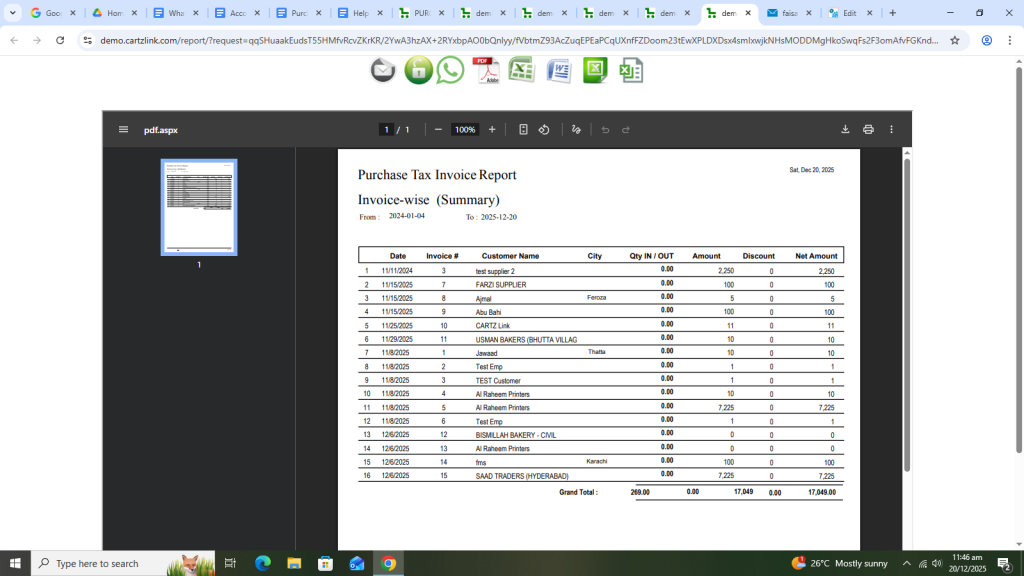
Purchase Tax Invoice.
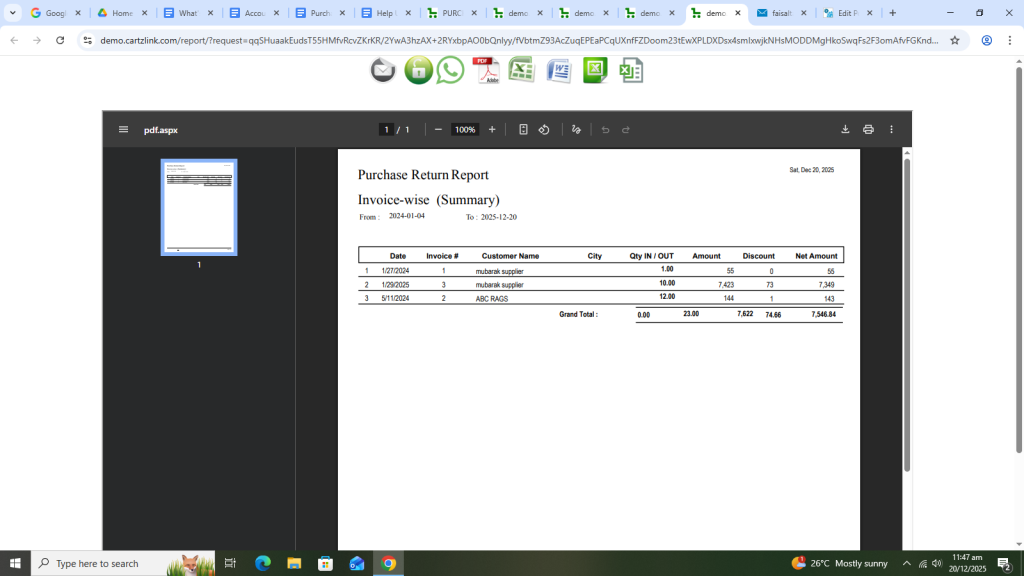
Purchase Return.
Purchase Invoice Against Purchase Order.

Net Purchase.
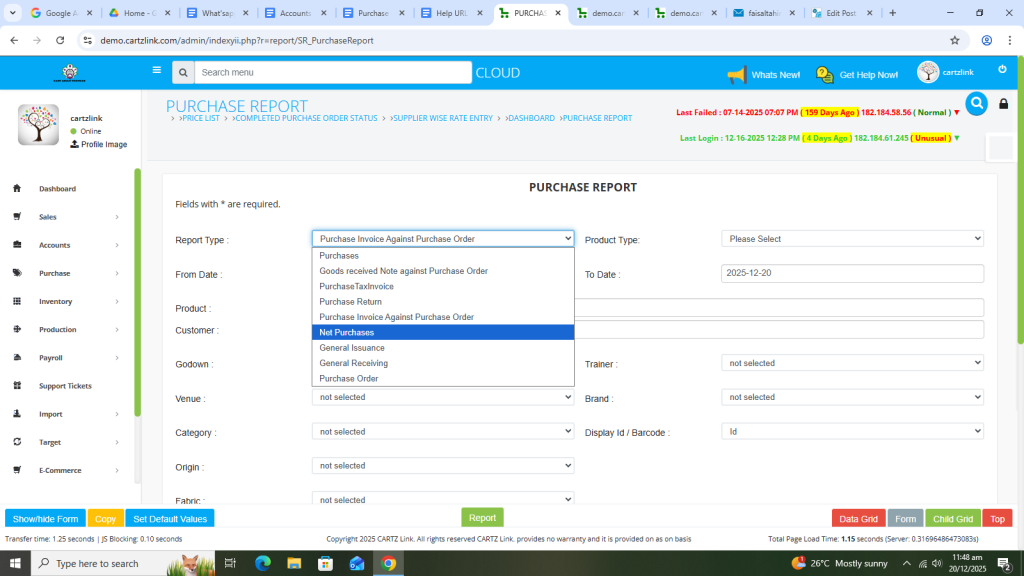
Purchase Order.


The video tutorial for purchase report can also be viewed by clicking on the following URL.
