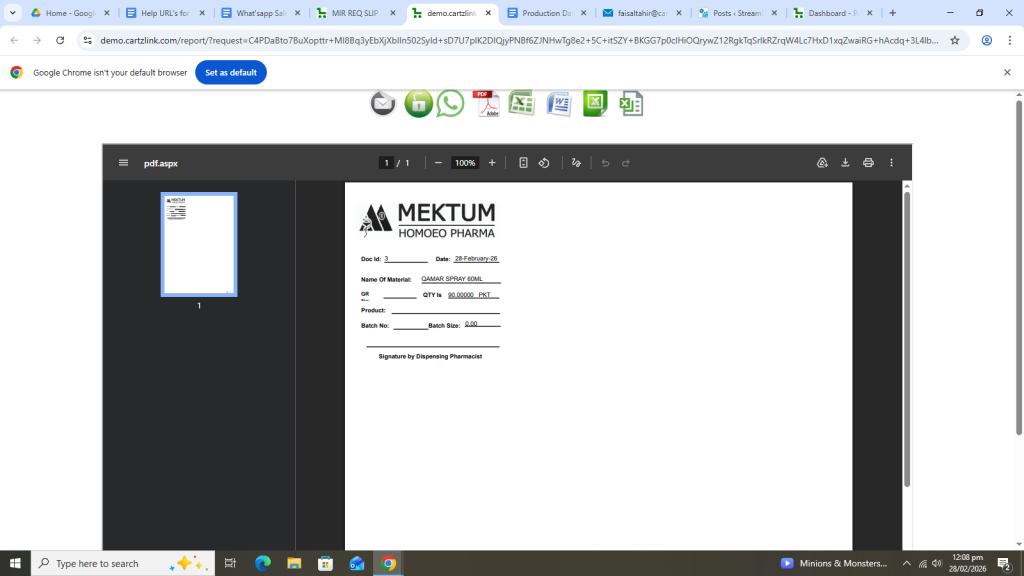
Requisition Slip:
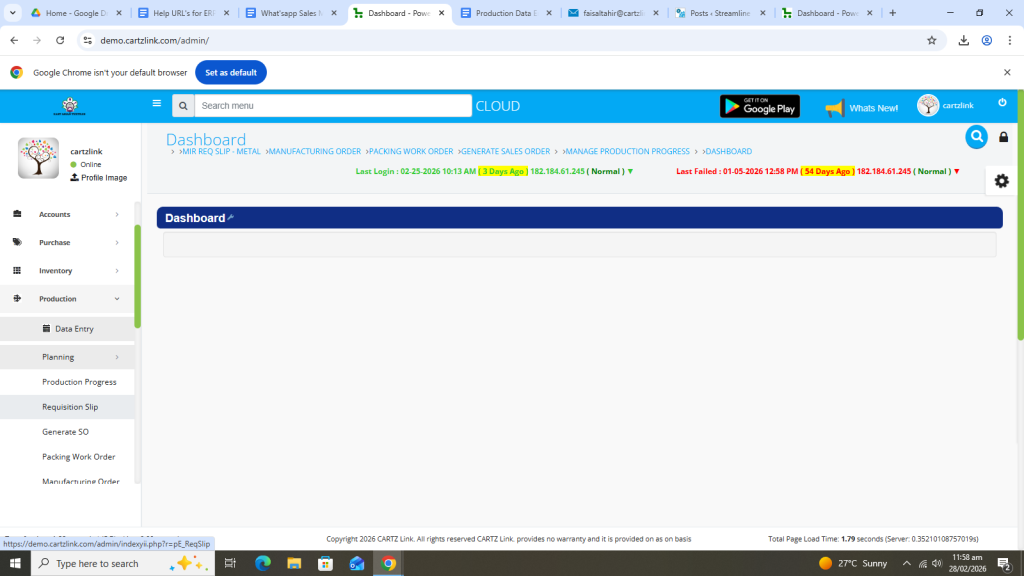
First click on Production, then click Data Entry and now click on Requisition Slip.
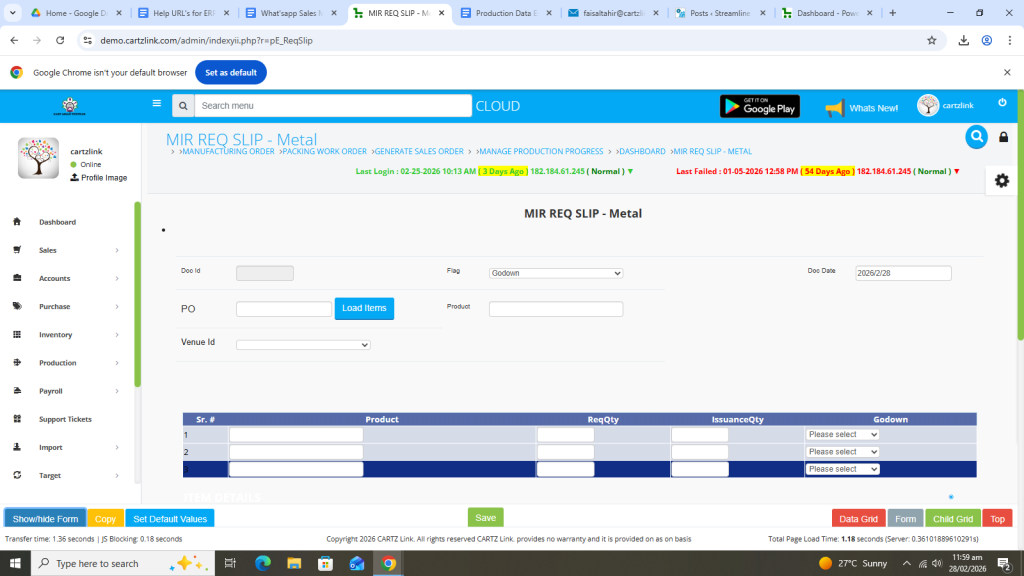
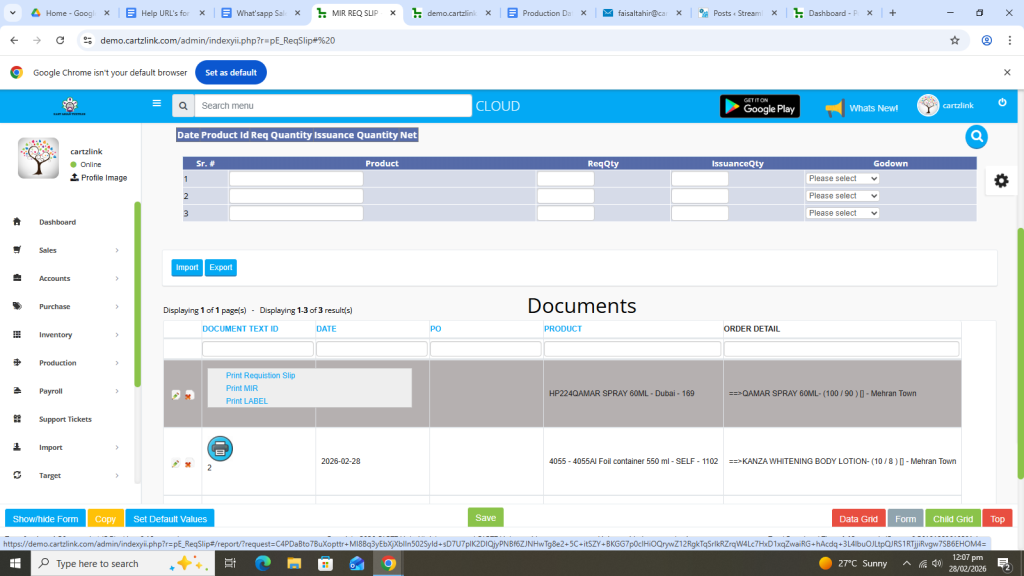
The following page will open as shown in the screen shot below.
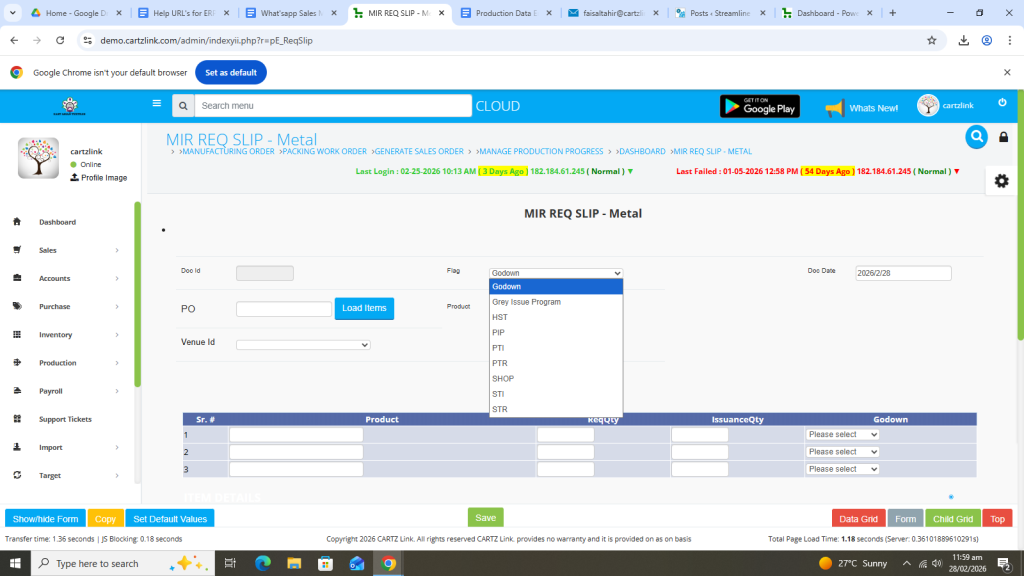
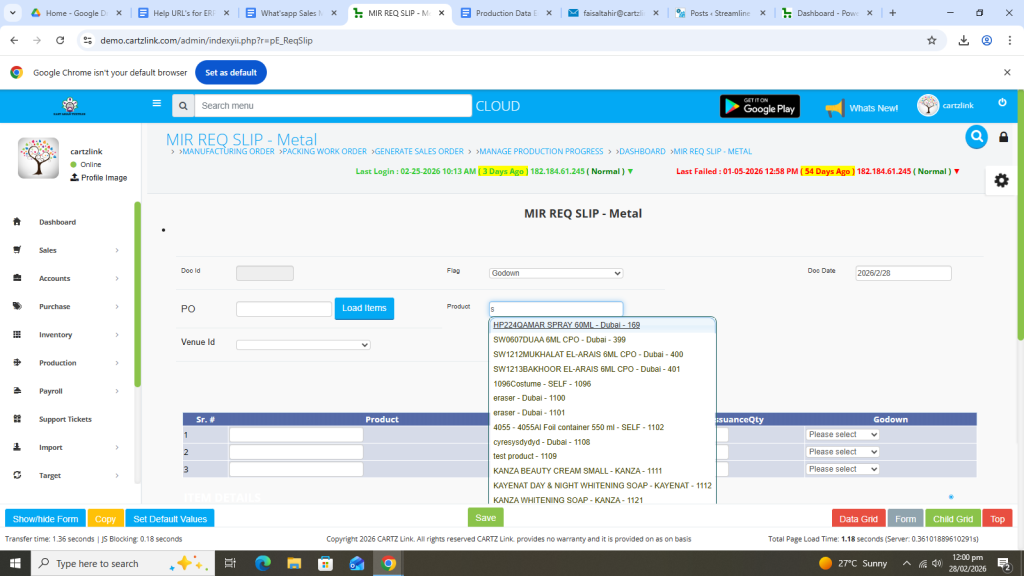
First select Flag for internal use.
Select Product.
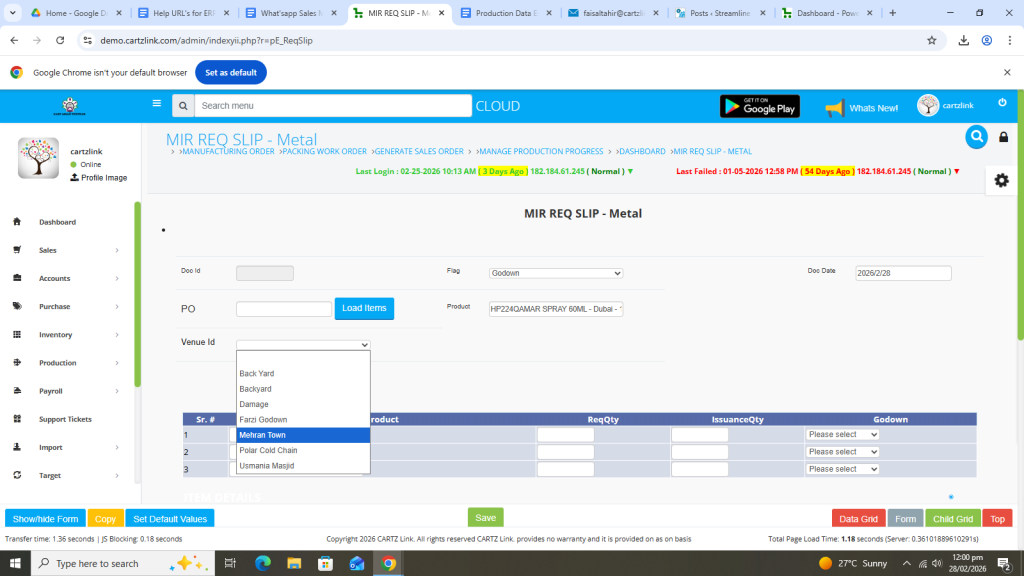
Now select Venue.
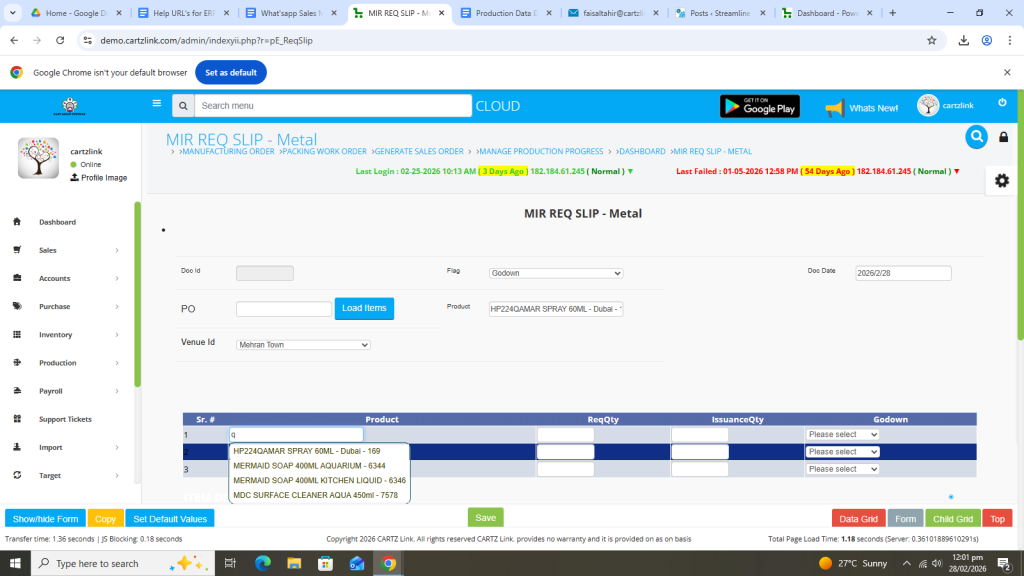
Select Product.
Enter required Quantity.
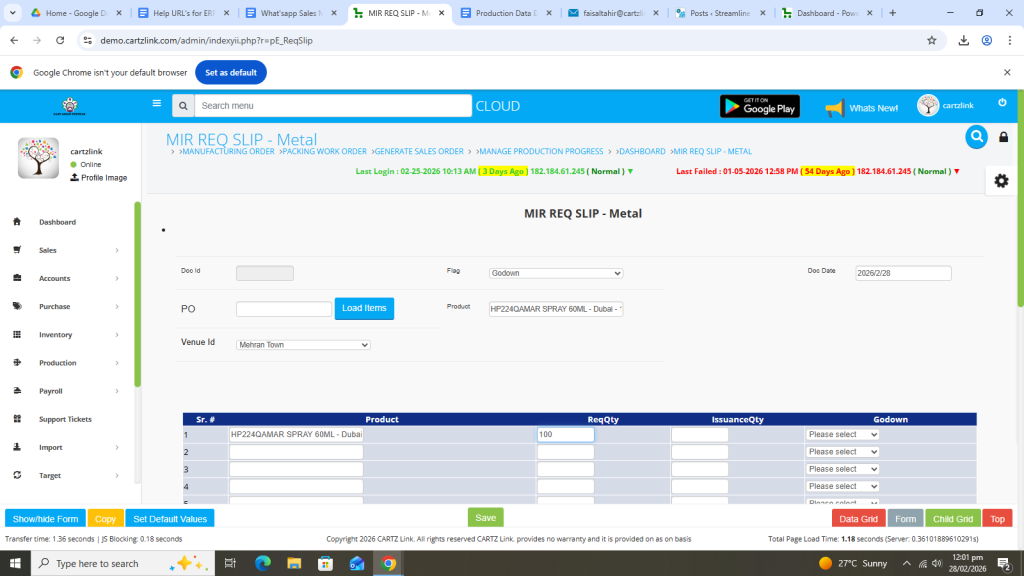
Now enter issuance Quantity.
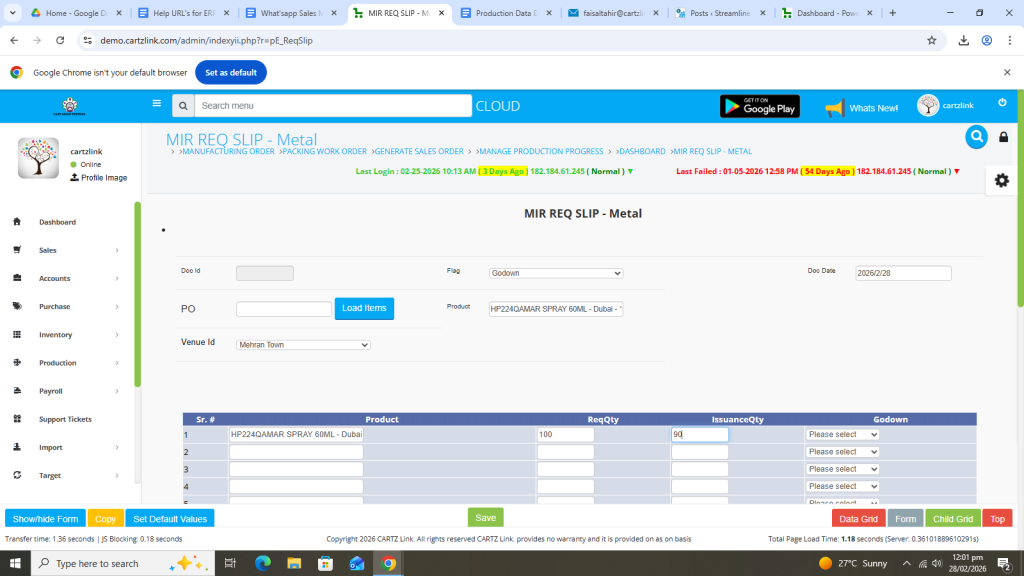
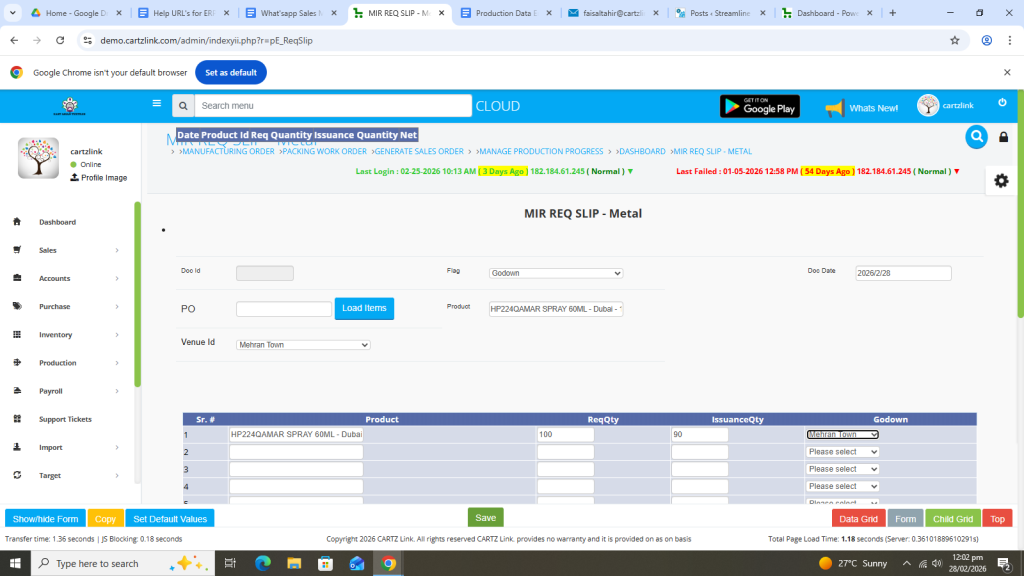
You may again select the Godown.
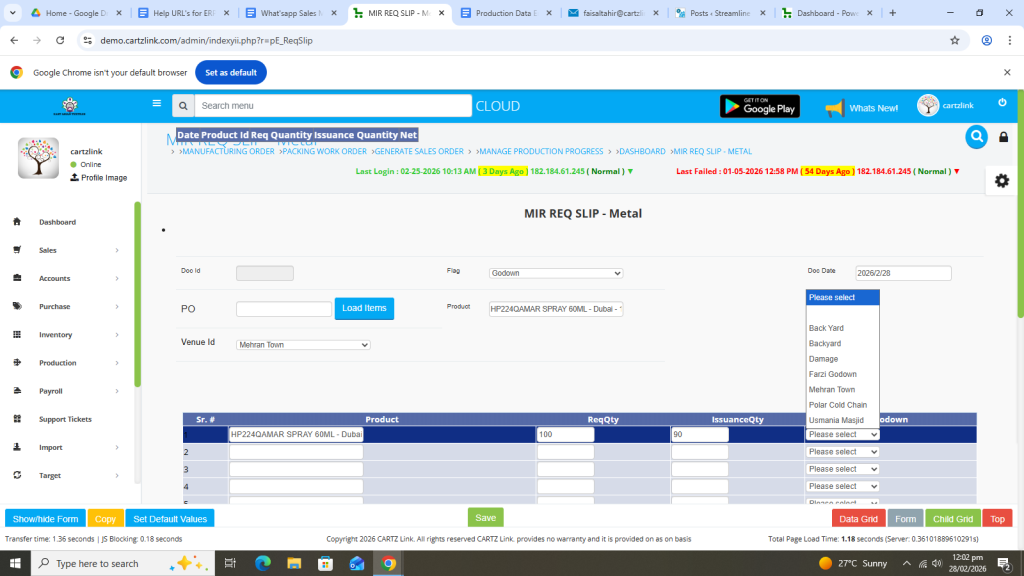
Once all information is completed, click on the Green Save button at the bottom.
Your entry has been Saved.
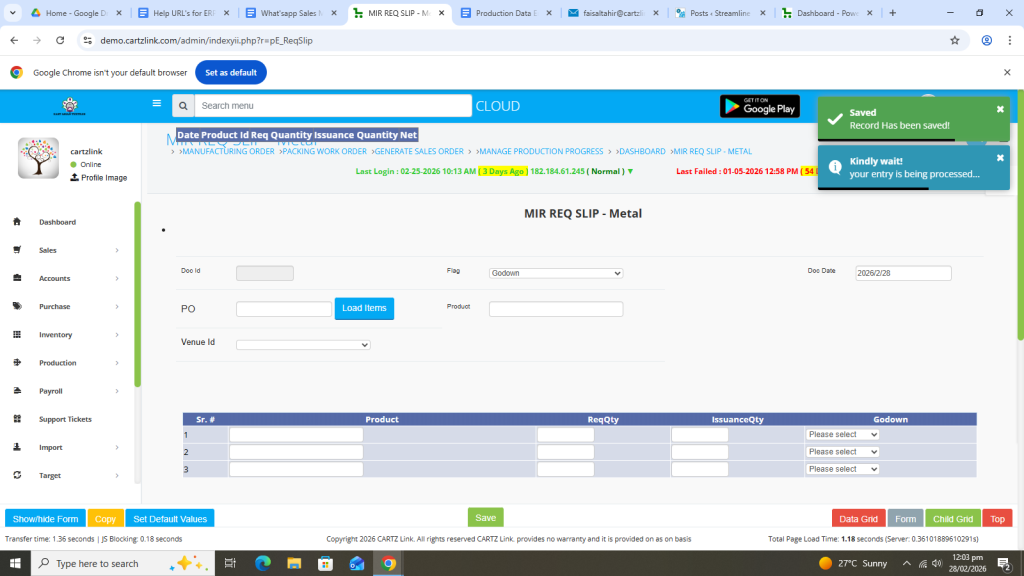
You may edit it by clicking on the update button against this record.
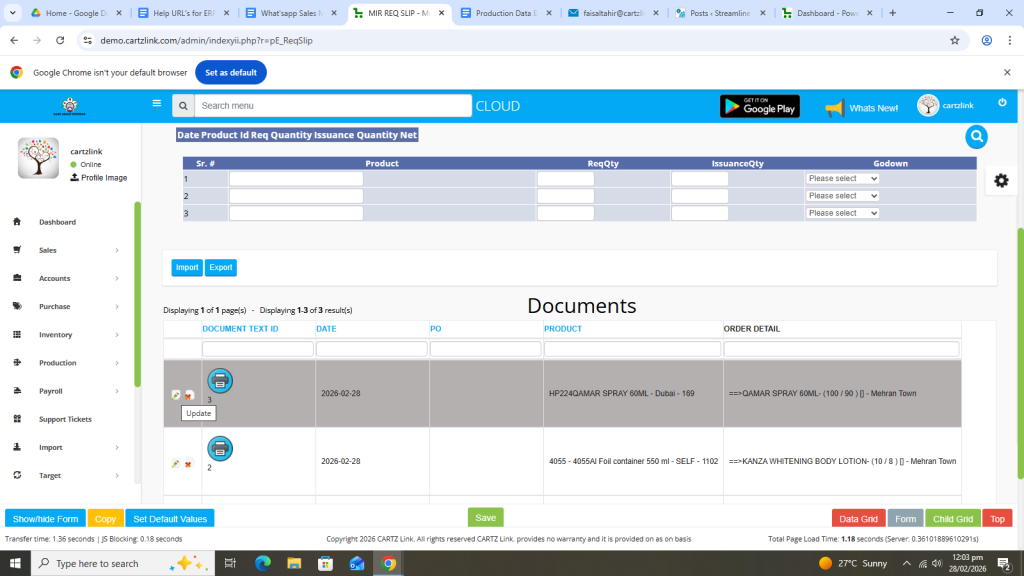
Various printing options are also available against this Requisition Slip. Just click on the Printer Icon against this entry.
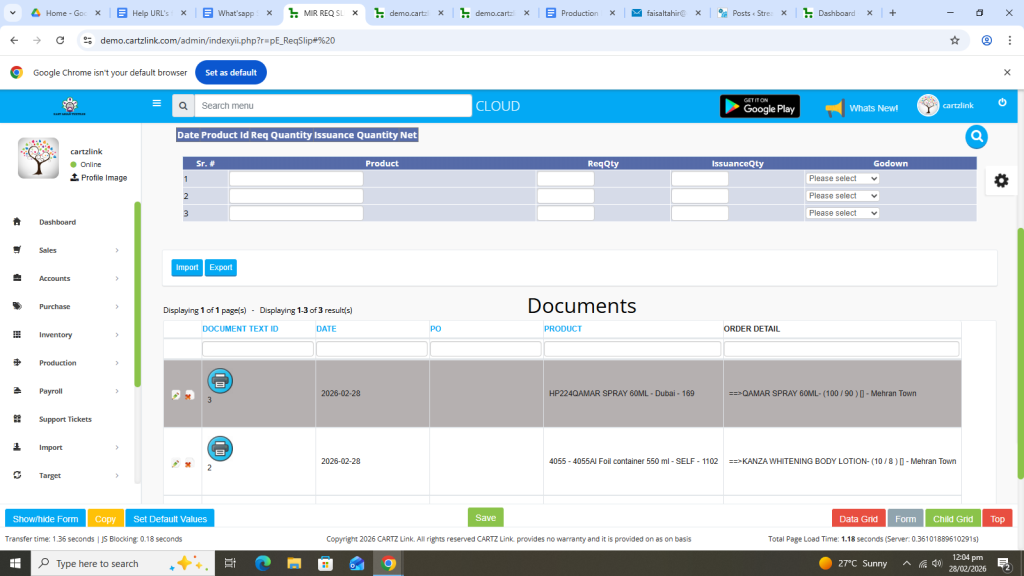
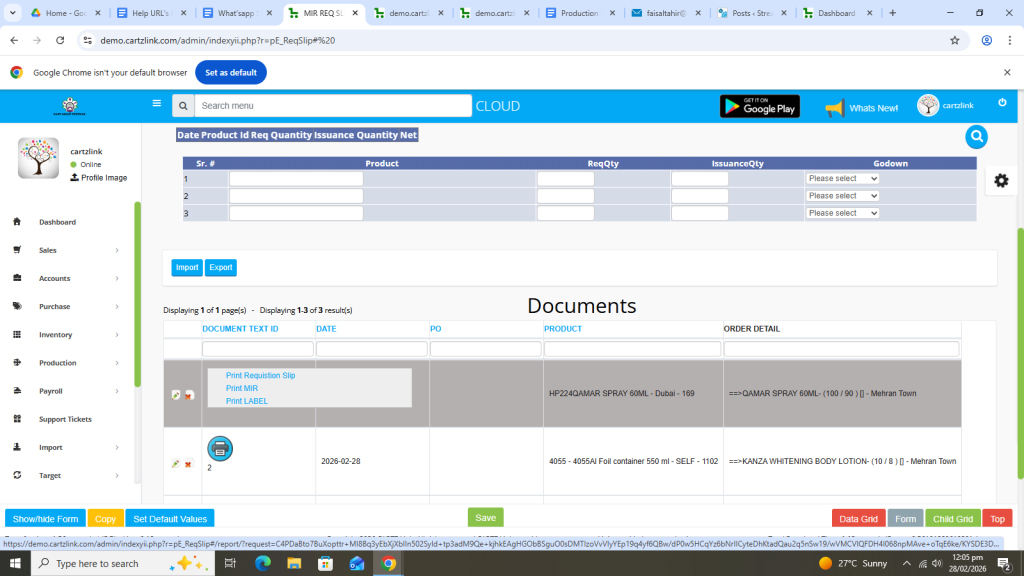
Now click on the Print Requisition Slip.
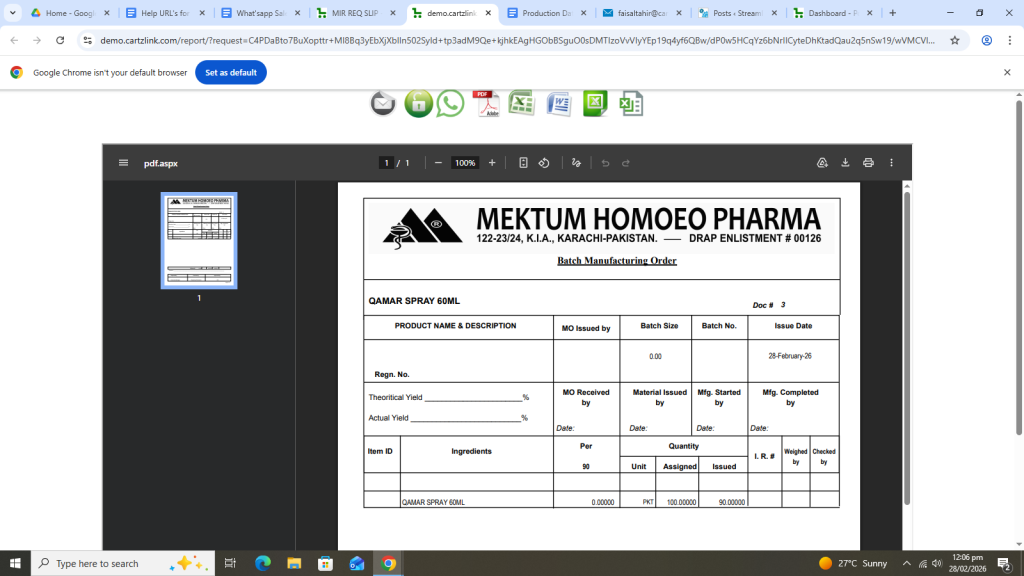
The Requisition Slip will open in a new window with Print / Save options.
If only labels are required then click on Print LABEL against the Printer Icon.
Required Requisition Label will open in a new window with Print / Save options.