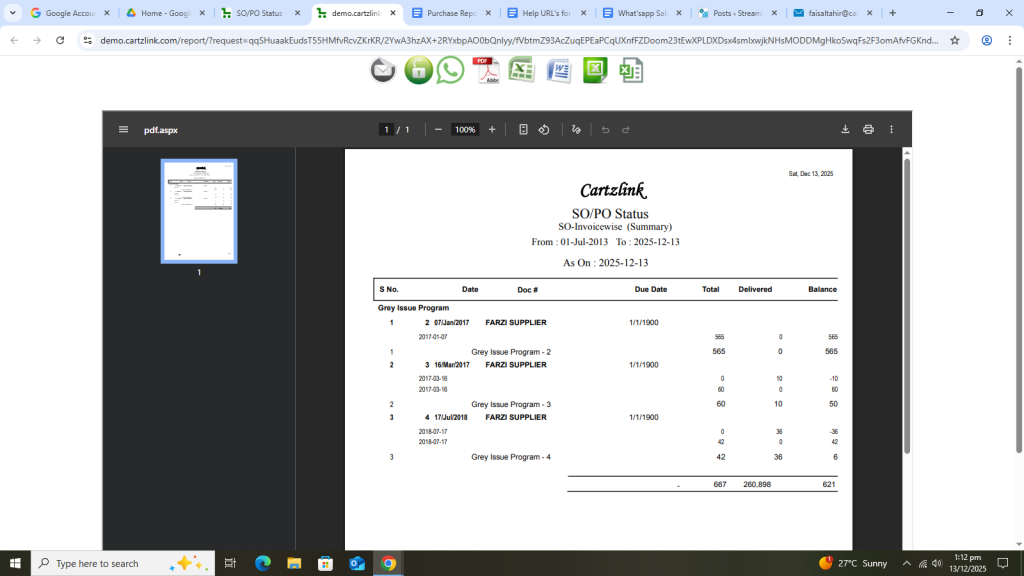
SO / PO Status:
This report can be viewed through the following steps. First click on Purchase, now click on Reports and then click on SO/ PO Status.
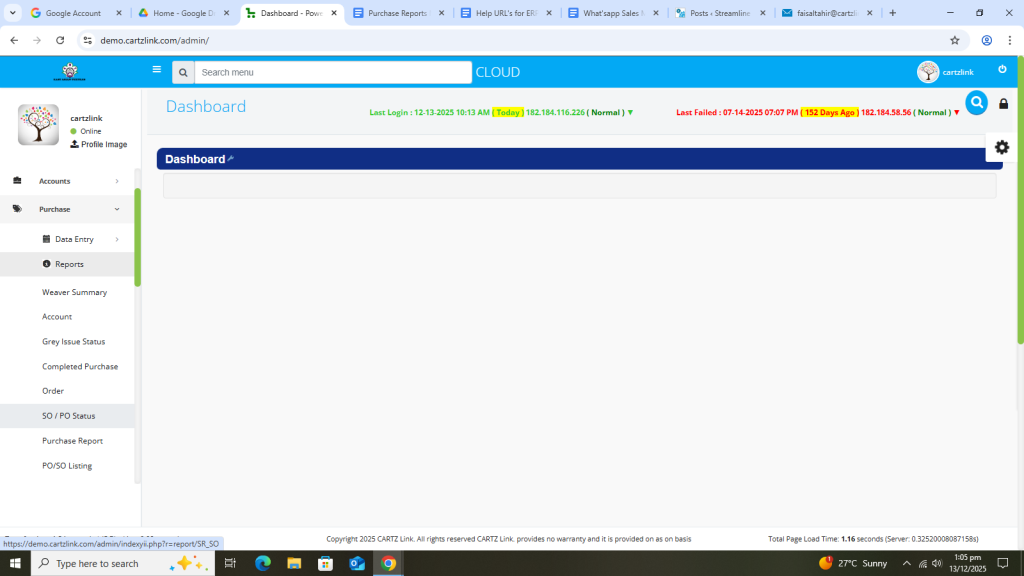
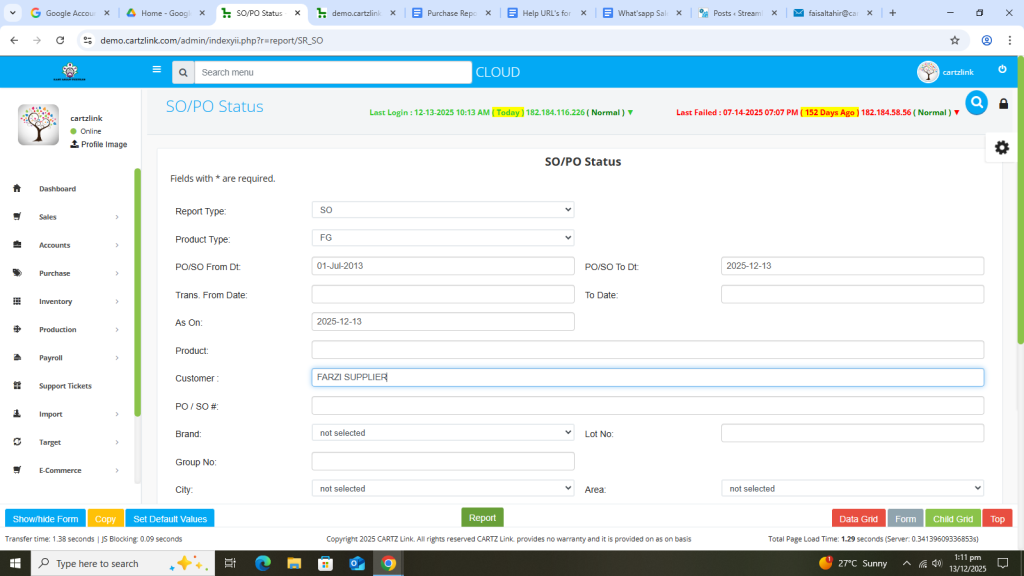
The following page will open as shown in the screenshot below.
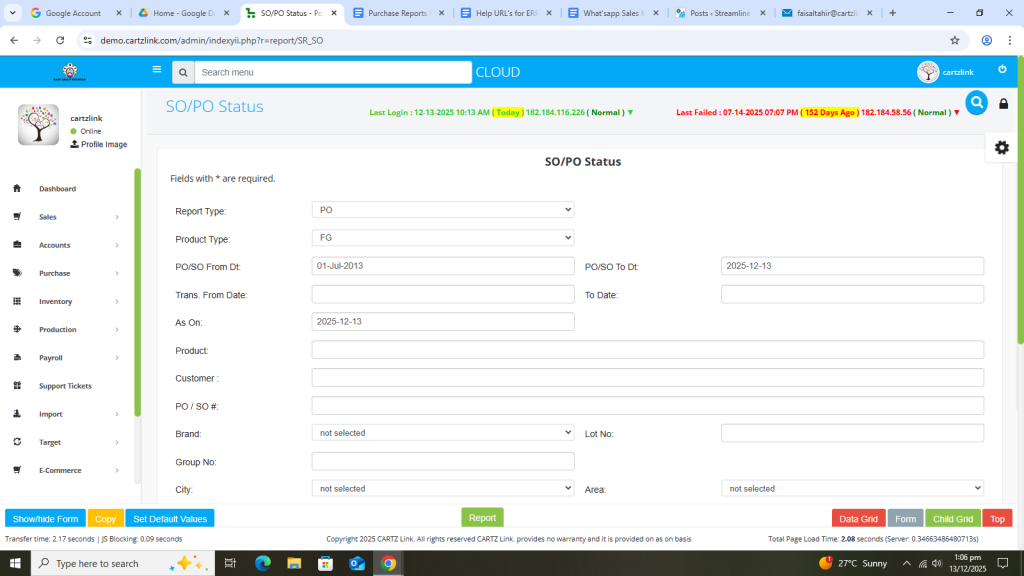
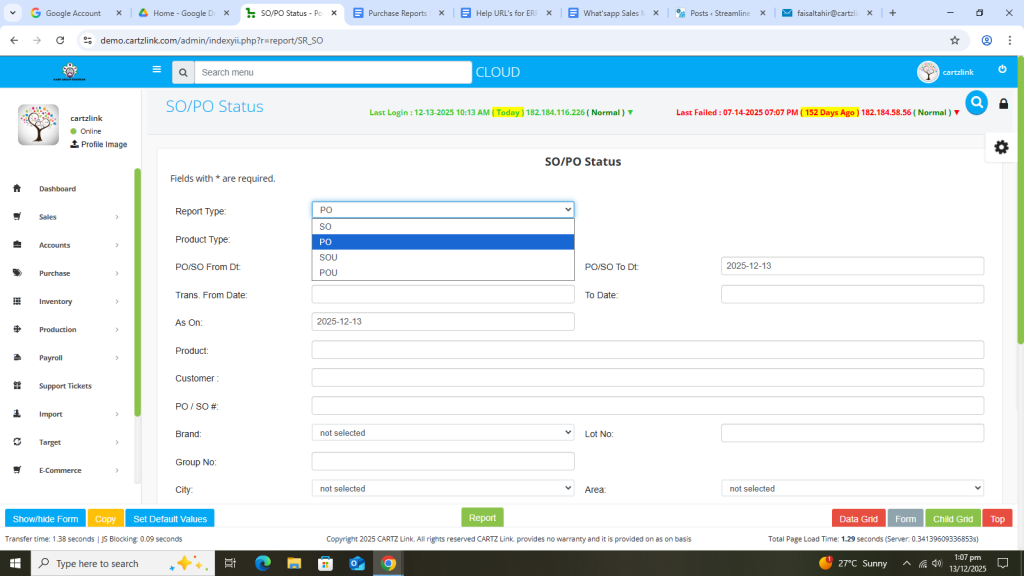
Here you have the option to select and generate report for both SO or PO as per the requirement.
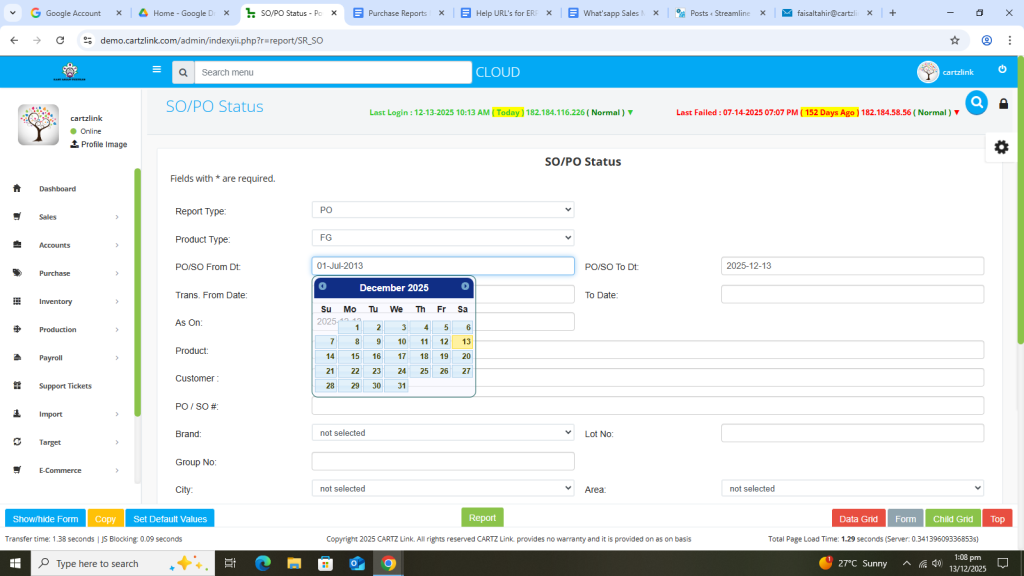
Now select the From Date.
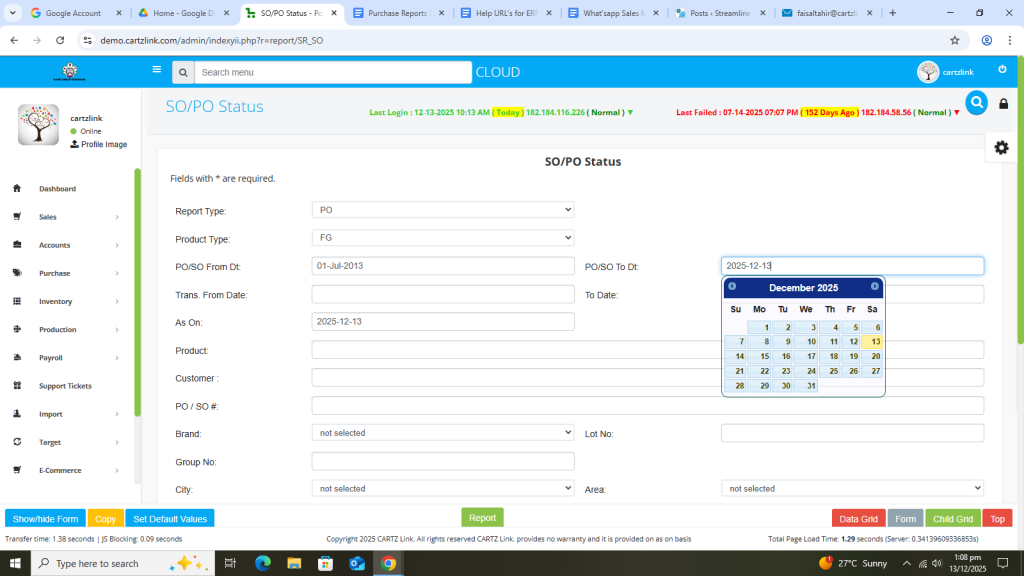
Also select the To Date.
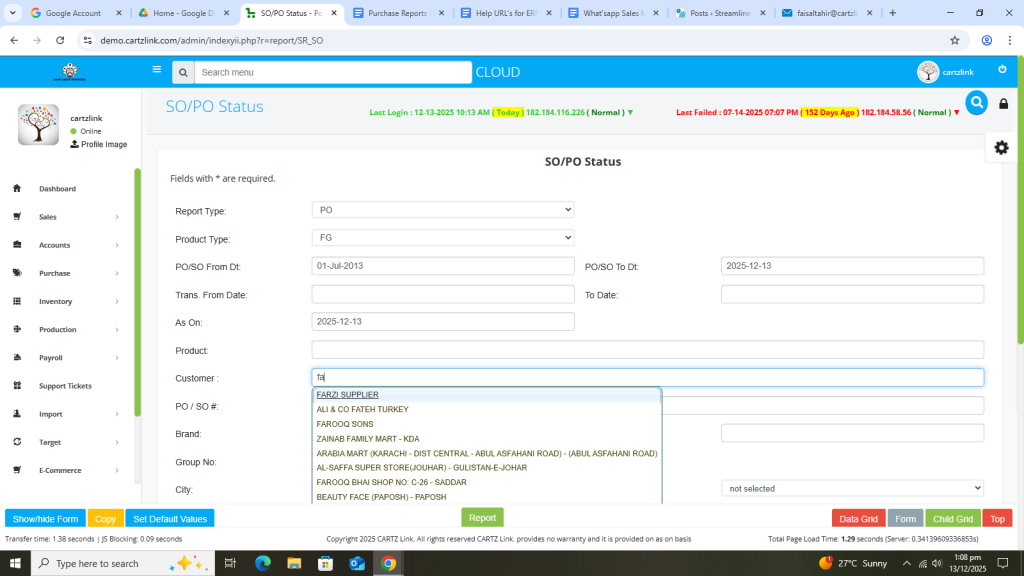
Enter Customer Name.
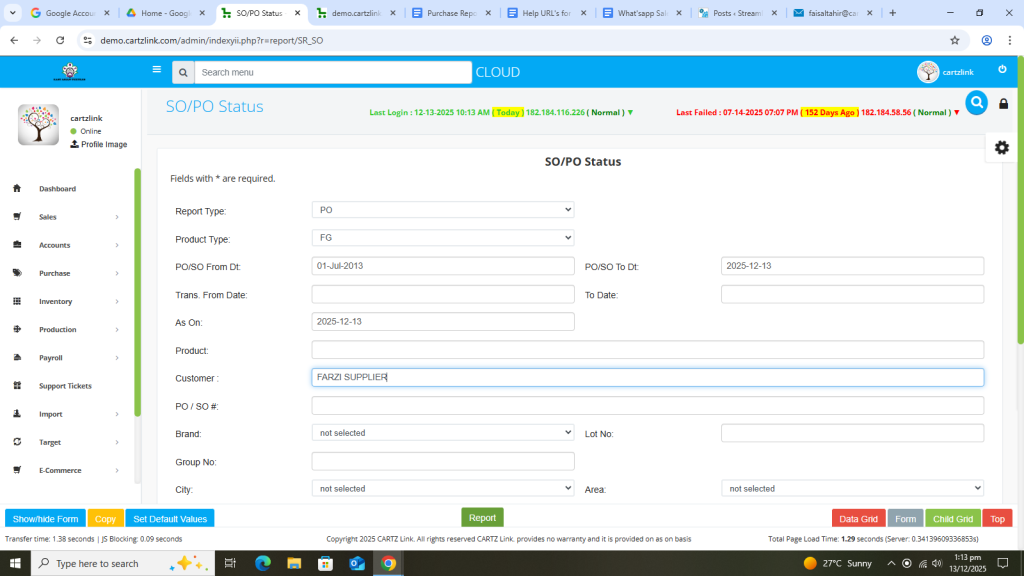
Once all information is completed, click on the Green Report button at the bottom.
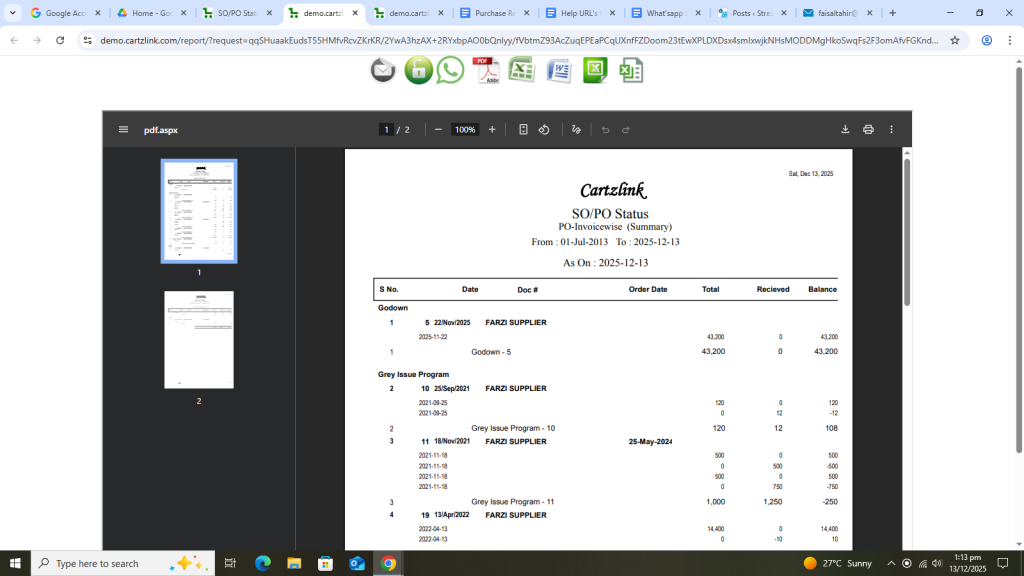
Your desired PO report will open in a new window with Print / Save options.
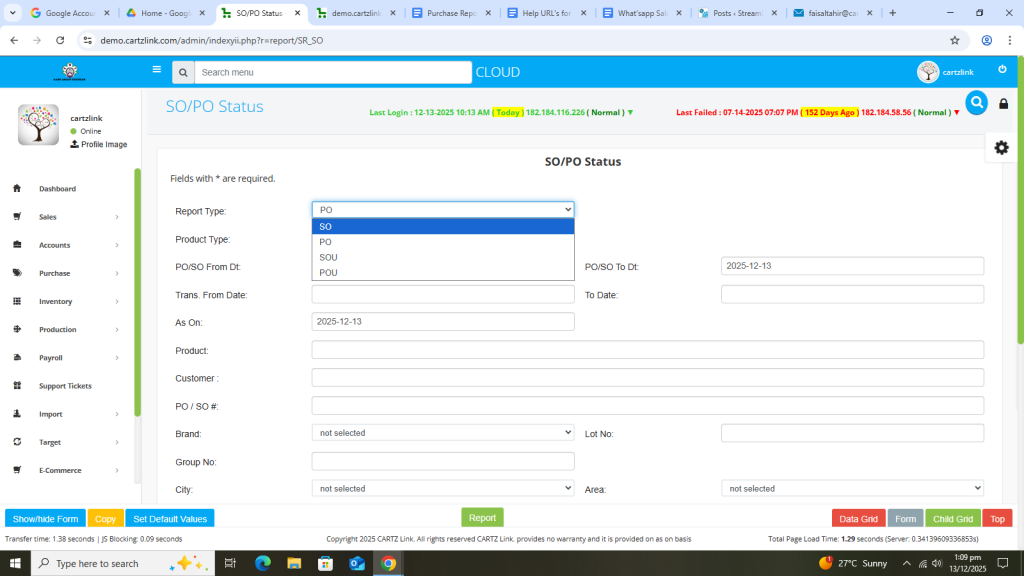
Now if SO report is required then again go to the previous page and select SO in report type option.
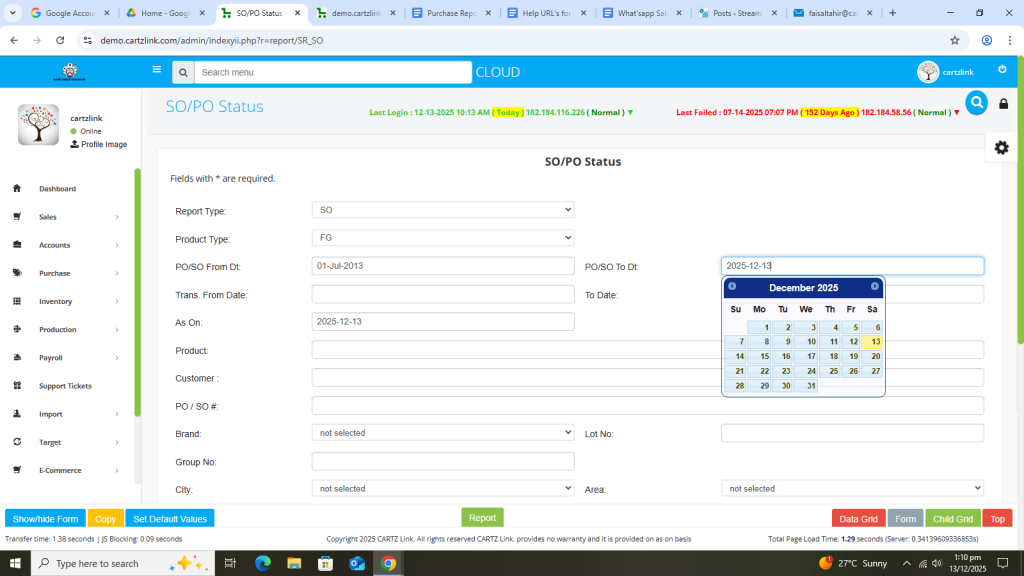
Now again select the date range required for this report.
Also enter the customer name.
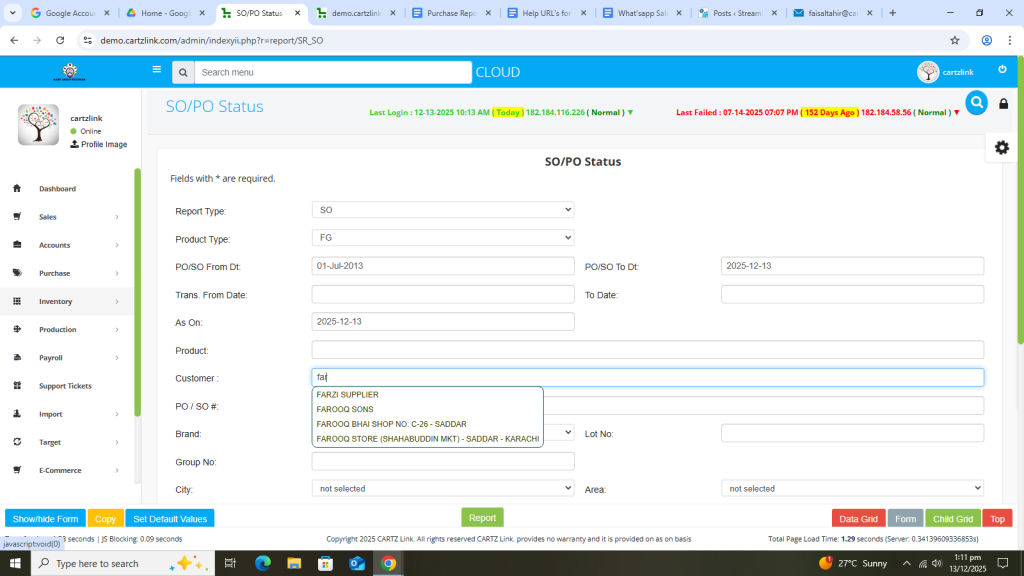
Once all information is completed, click on the Green Report button at the bottom.
Your desired SO report will open in a new window with Print / Save options.