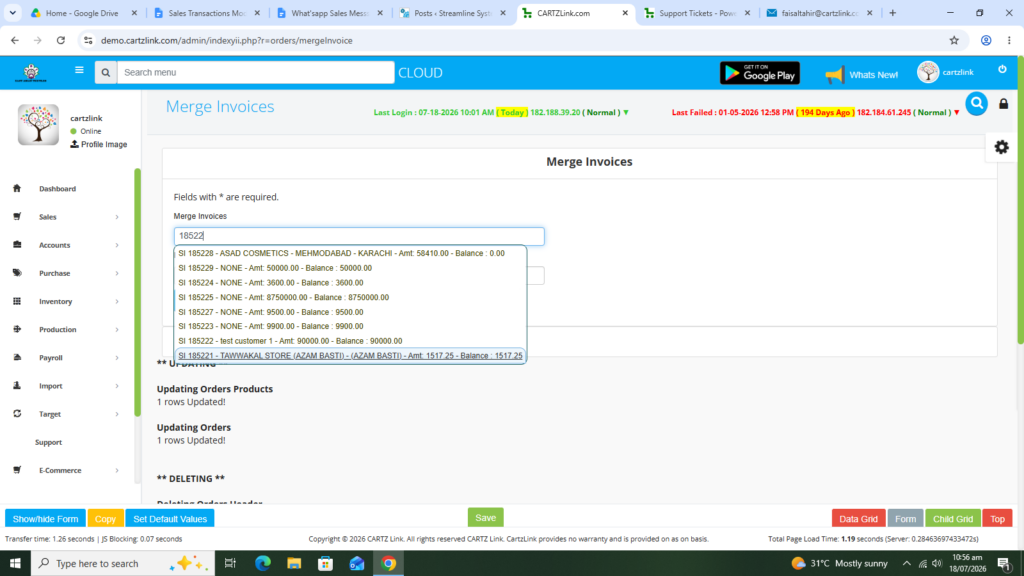
Merge Invoice:
This feature allows you to merge any two invoices, such as Sales Invoices, Purchase Invoices, and others.
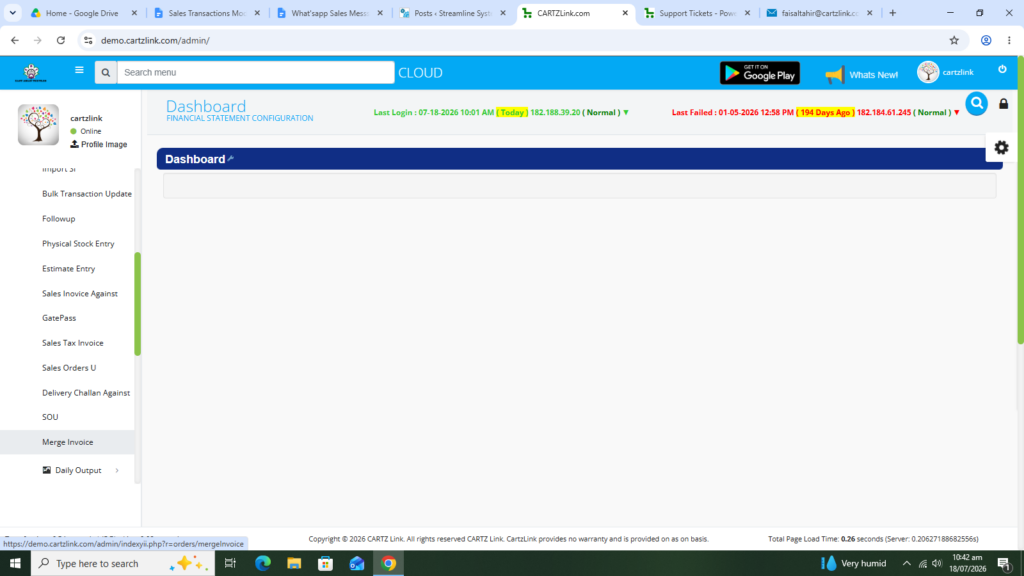
Go to Sales then click on Transactions and then click on Merge Invoice.
The following page will appear as shown in the screen shot below.
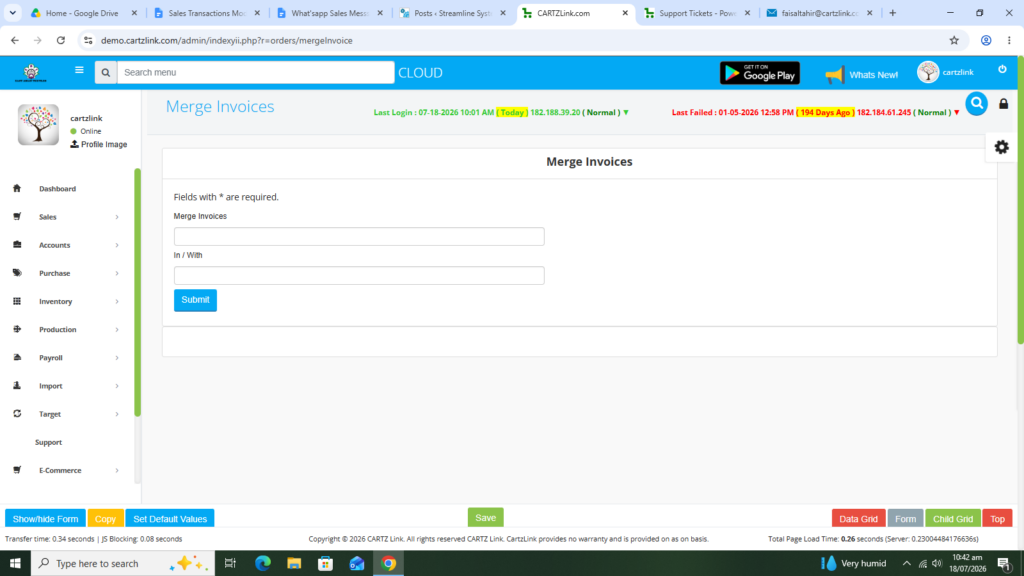
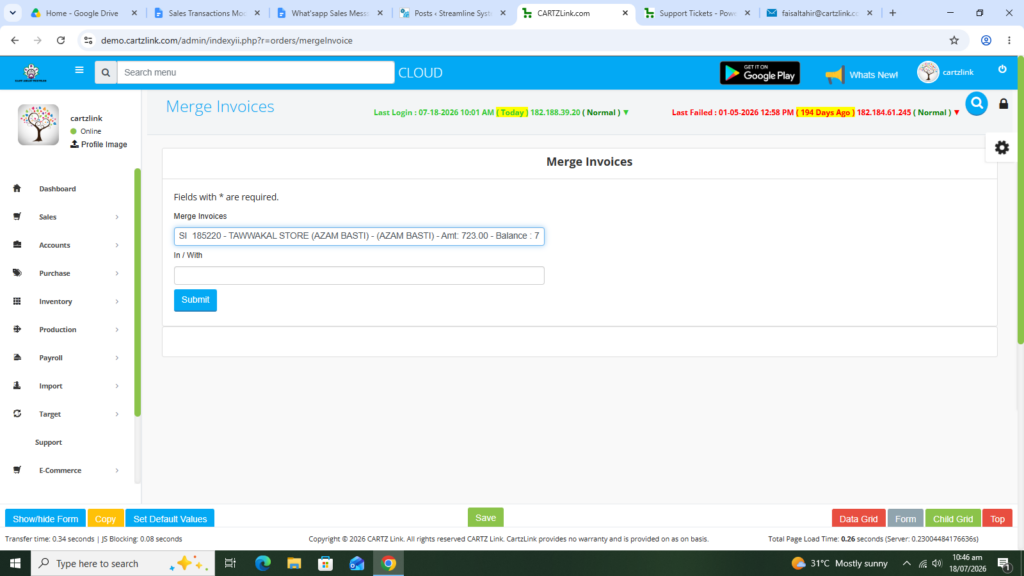
In the first field named as Merge Invoices, select the invoice which is required to be merged and will no longer be available in the system after merging.
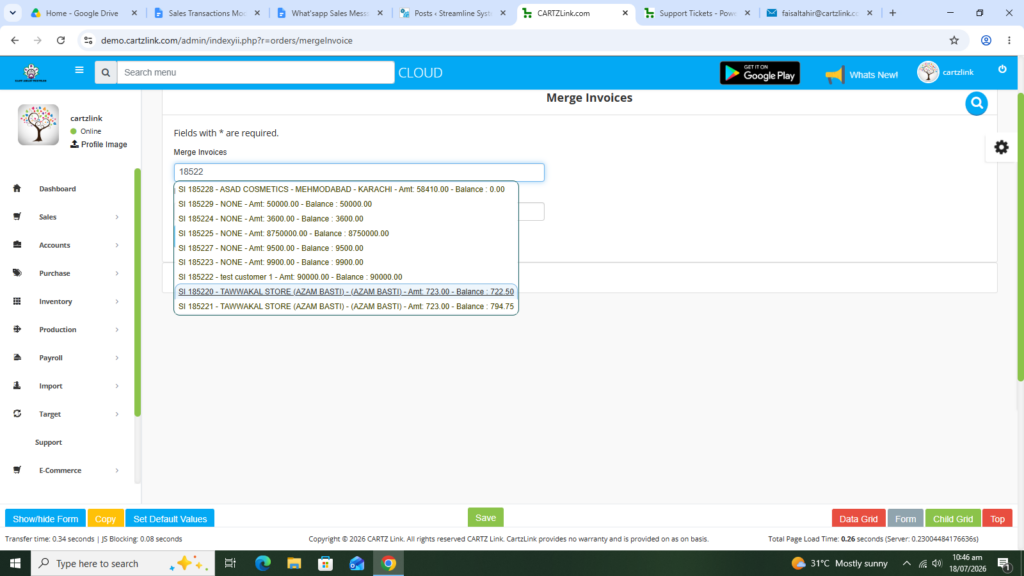
The required invoice has been selected in the below screen shot.
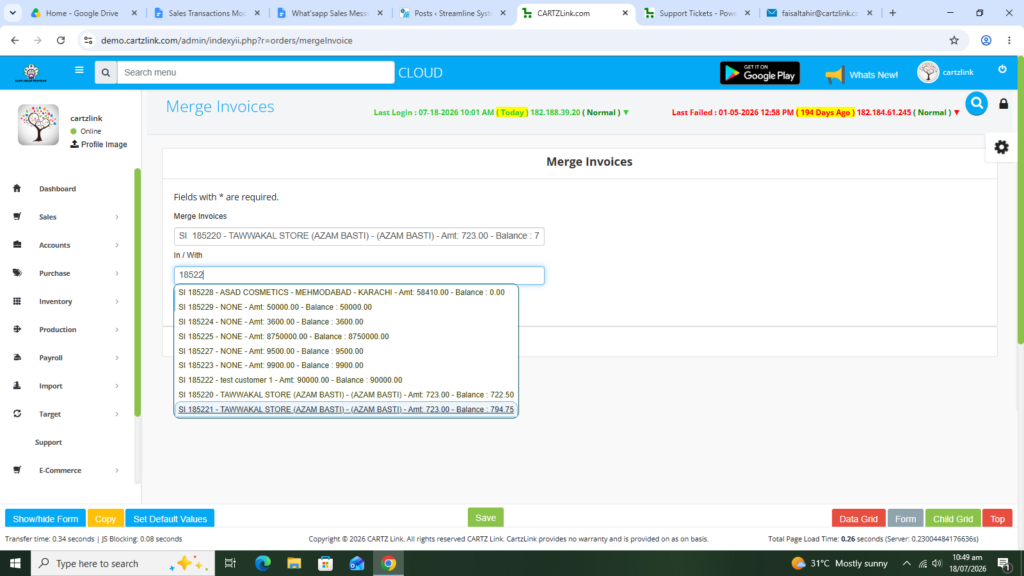
Now in the next field In / With select the Invoice with which the previously selected invoice is required to be merged and will remain in the system with new values.
Here we have selected both the invoices now. In this case SI185220 has been selected to be merged with SI185221.
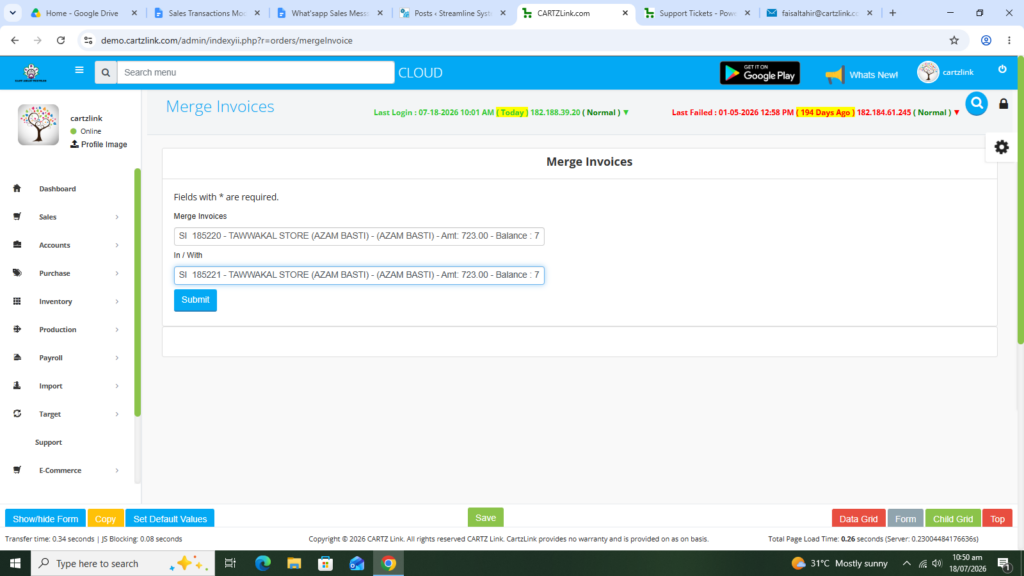
Once both the invoices have been selected, click on the Blue Submit button below the second field option.
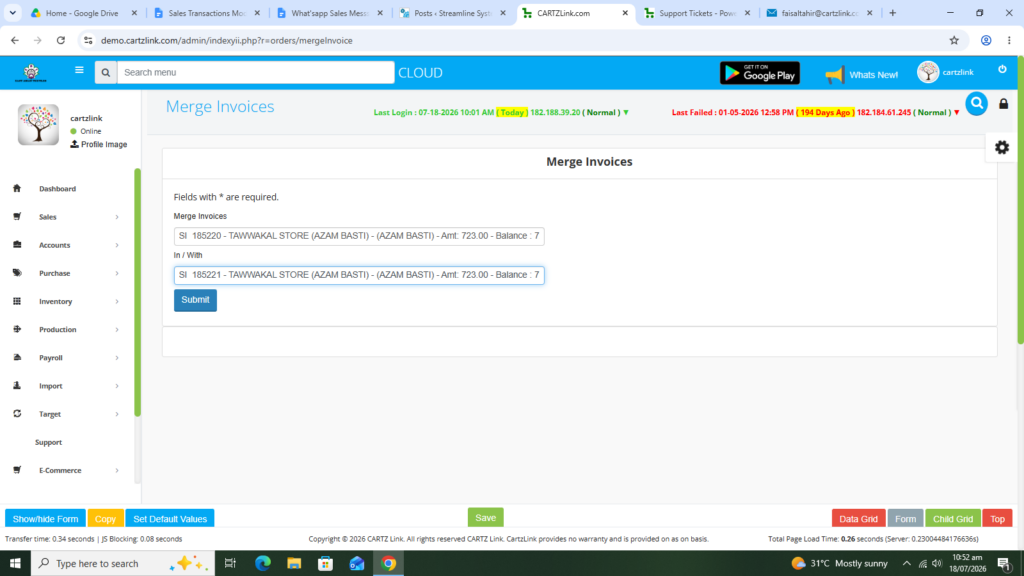
The invoices are merged now and the following message will appear. In this particular case SI185220 (Deleted) has been merged with SI185221 (Invoice with updated values).
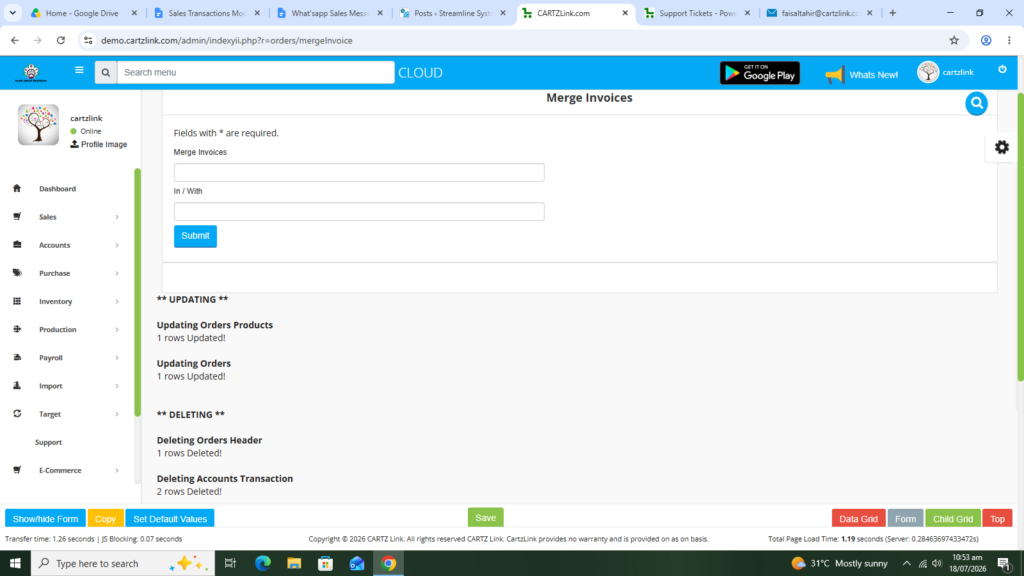
If you want to recheck, you can see that SI185220 has been deleted in this case and SI185221 has been updated with the new amount containing the values of both the previous invoices.