Manufacture Item:
You can add manufacture items also provided that the formula of the product is already available in the system. Basically you can check the Raw Materials against the Finished Goods /Product through this feature. Go to Inventory then click on Data Entry and then click on Manufacture Items.

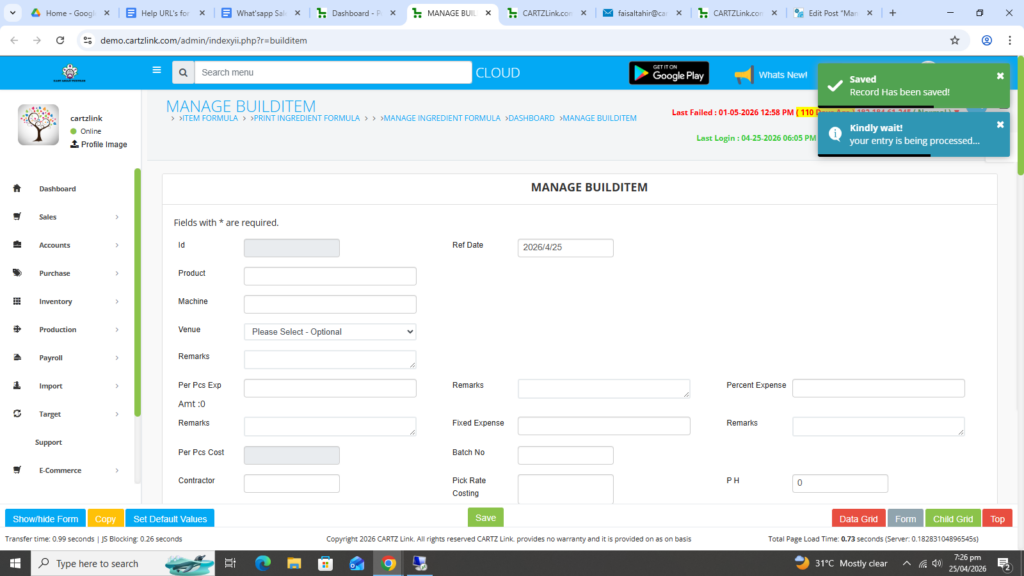
A new form will appear as shown below.

Select the product and input all necessary details such as rate, venue etc.
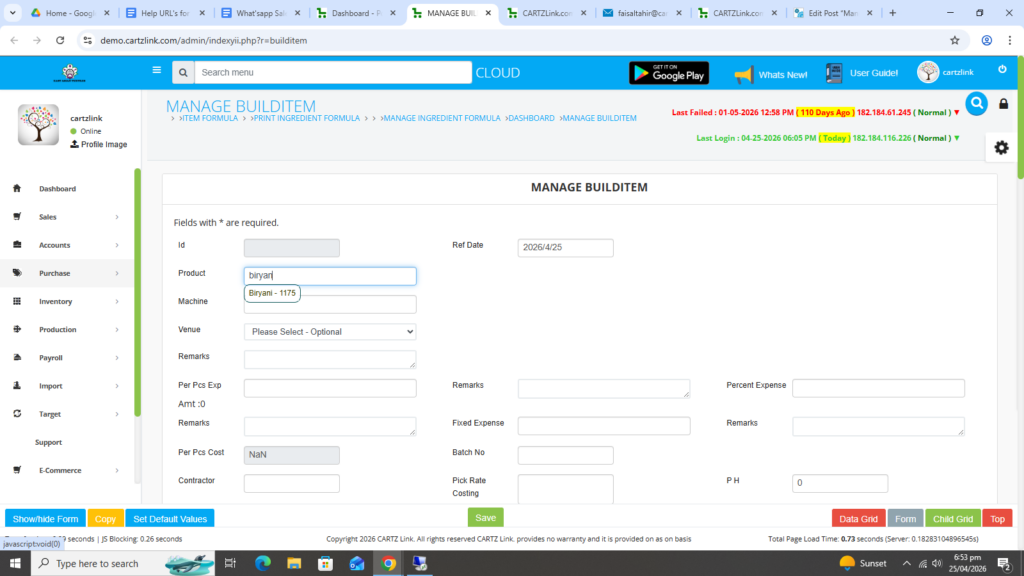
Also make sure the selected product’s formula is updated in the system.
Now in Built Qty field enter the number of quantities required for ingredients against this product.
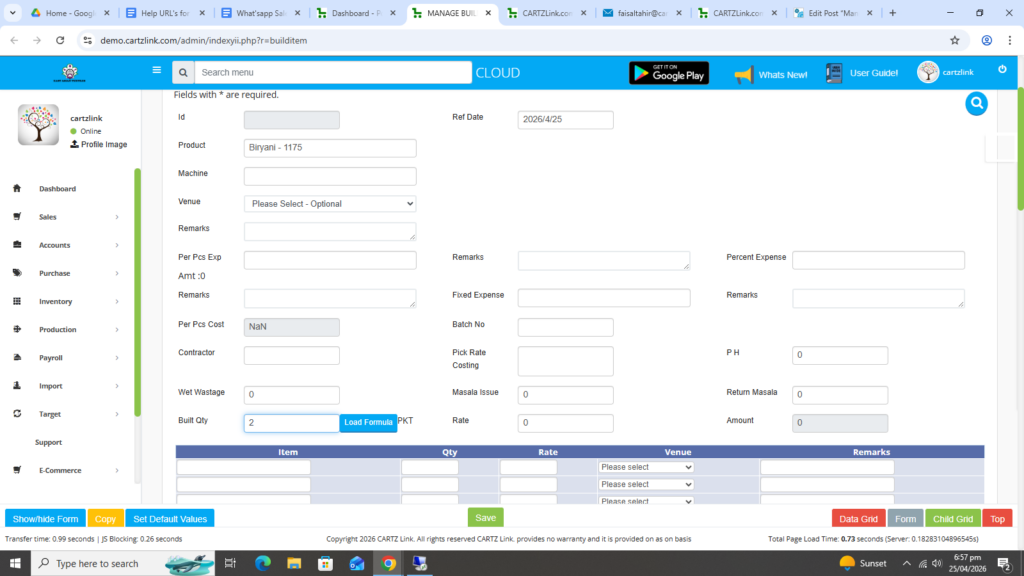
Click on Blue Load Formula Button.
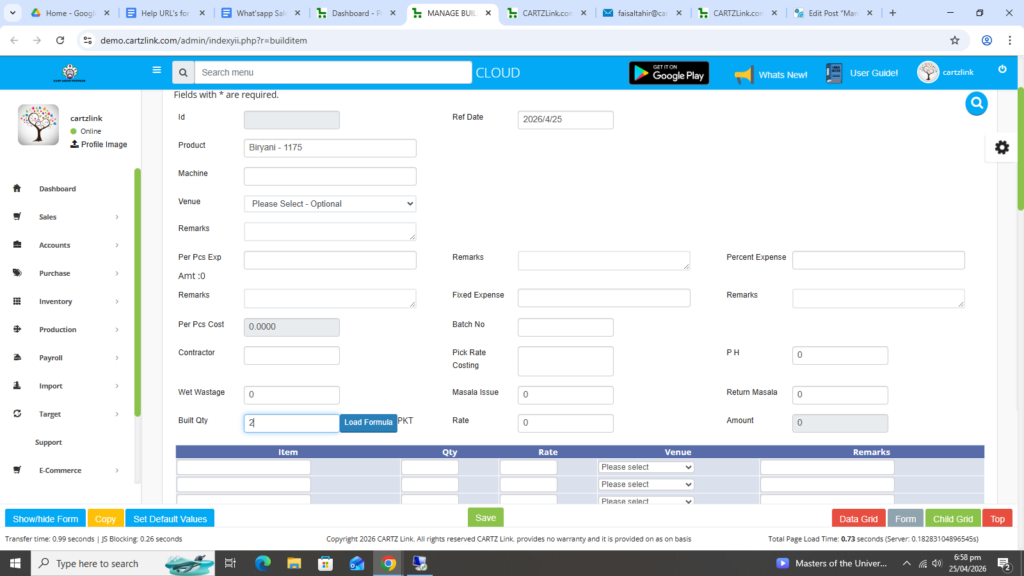
The required Quantity and the Ingredients against the Product will appear automatically.
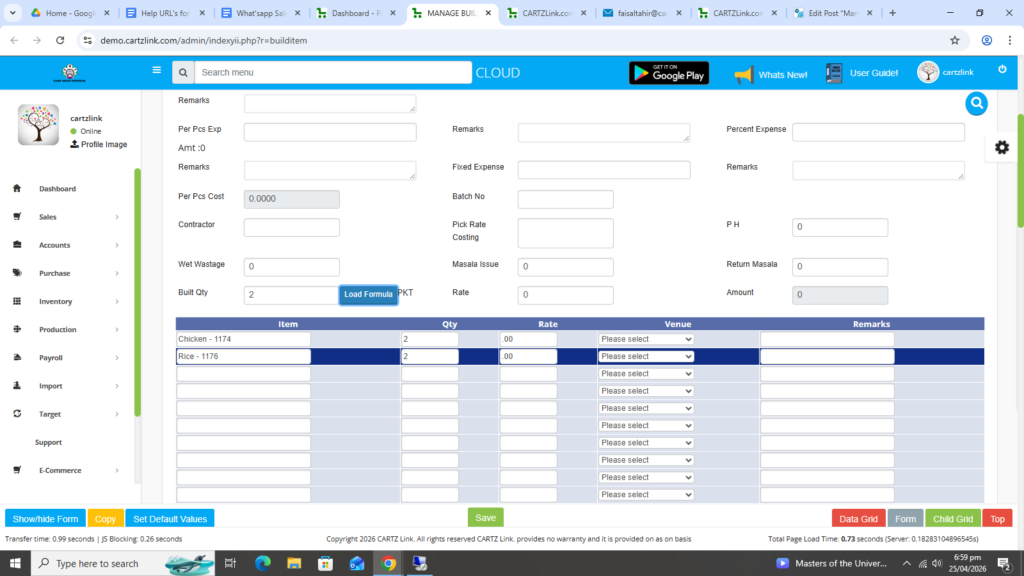
Enter rates against each ingredient.
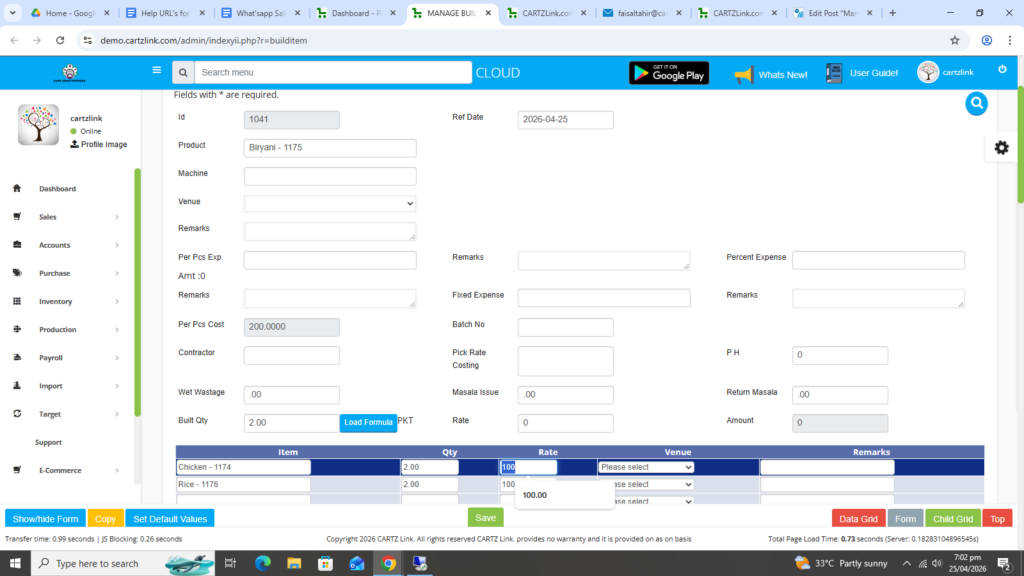
This will automatically calculate the per piece Cost which is currently shown as Nil.
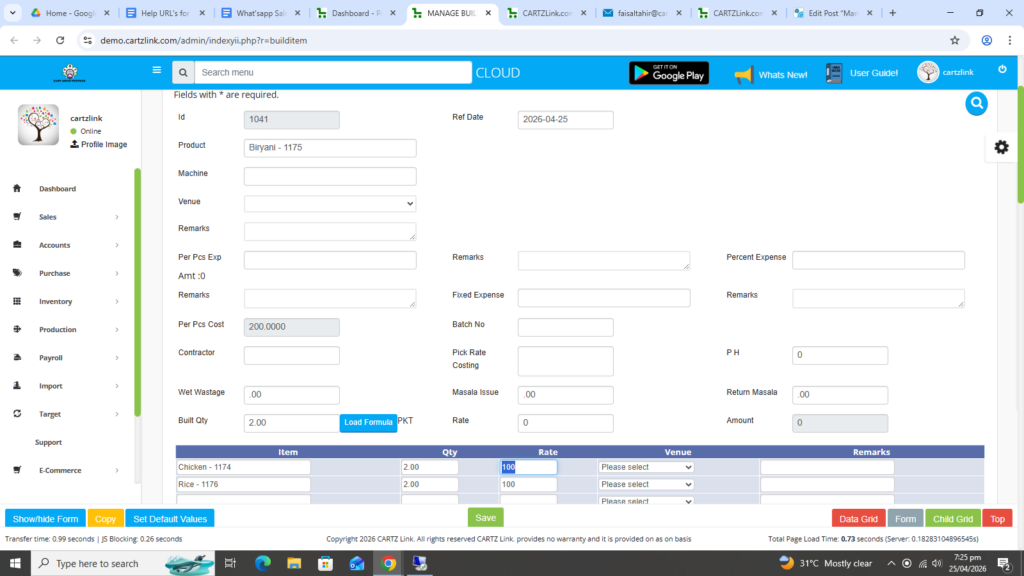
Now click on Green Save Button at the bottom.
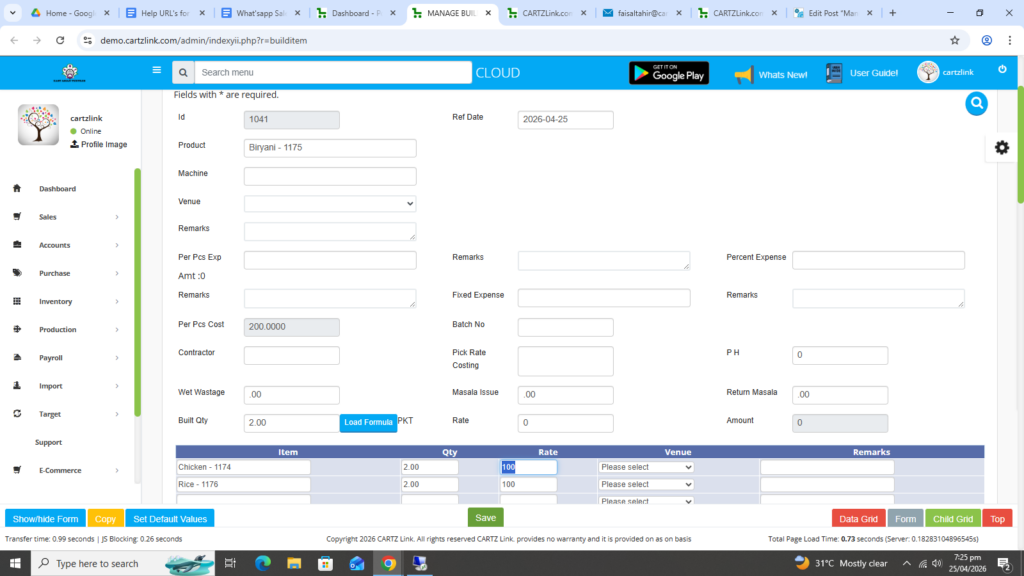
Your record has been created and Saved.
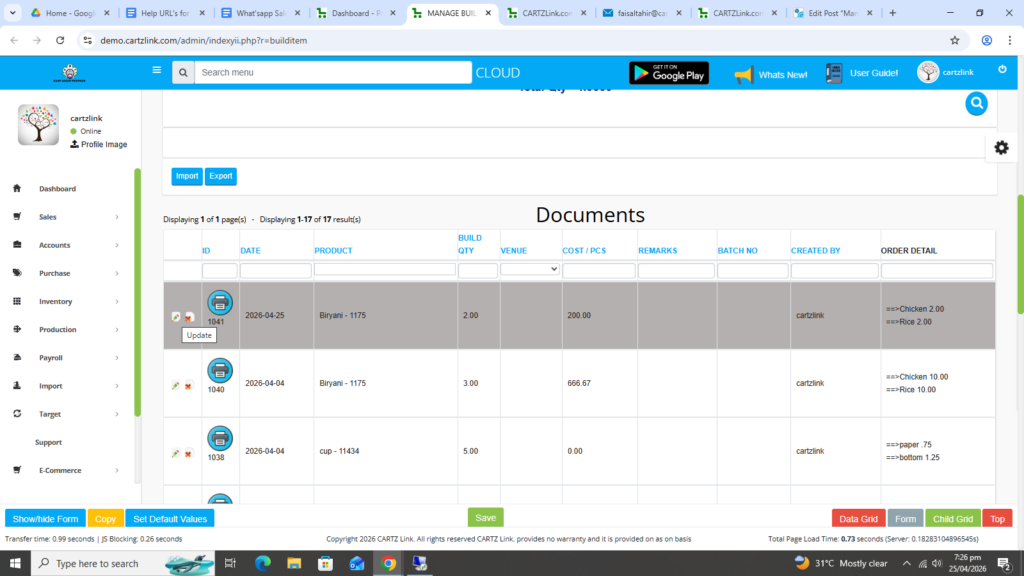
This record can be edited also by clicking on the update button.
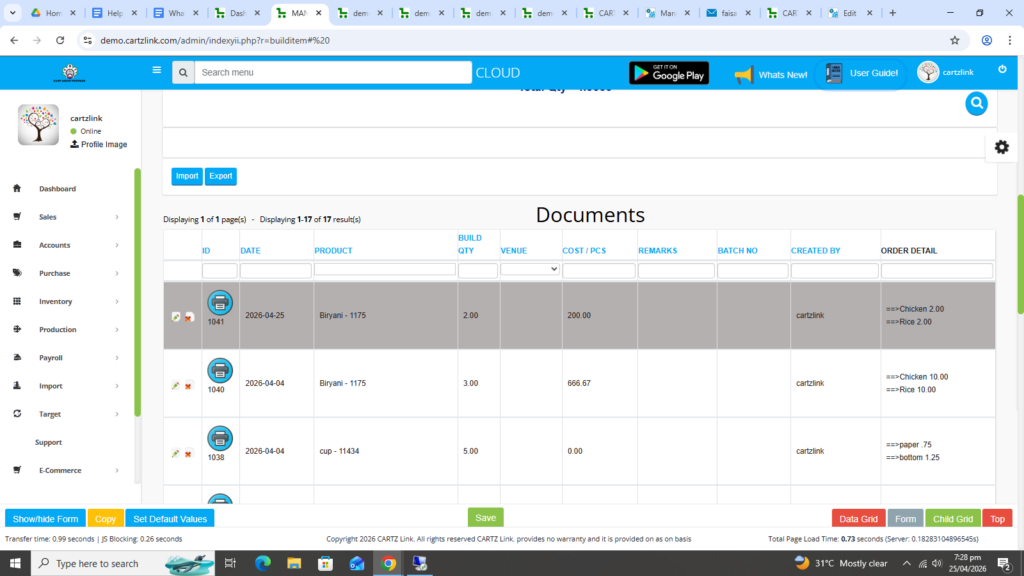
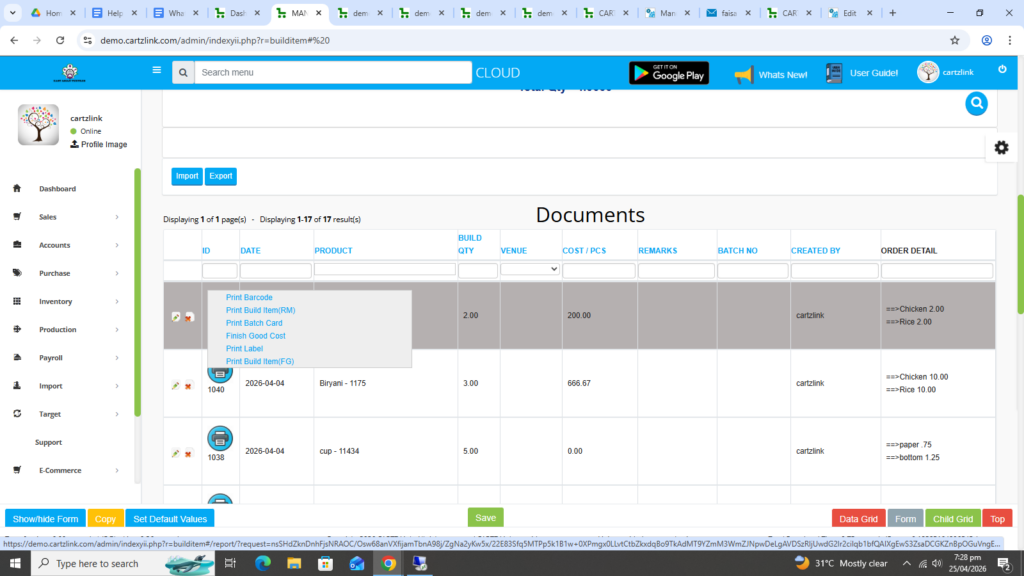
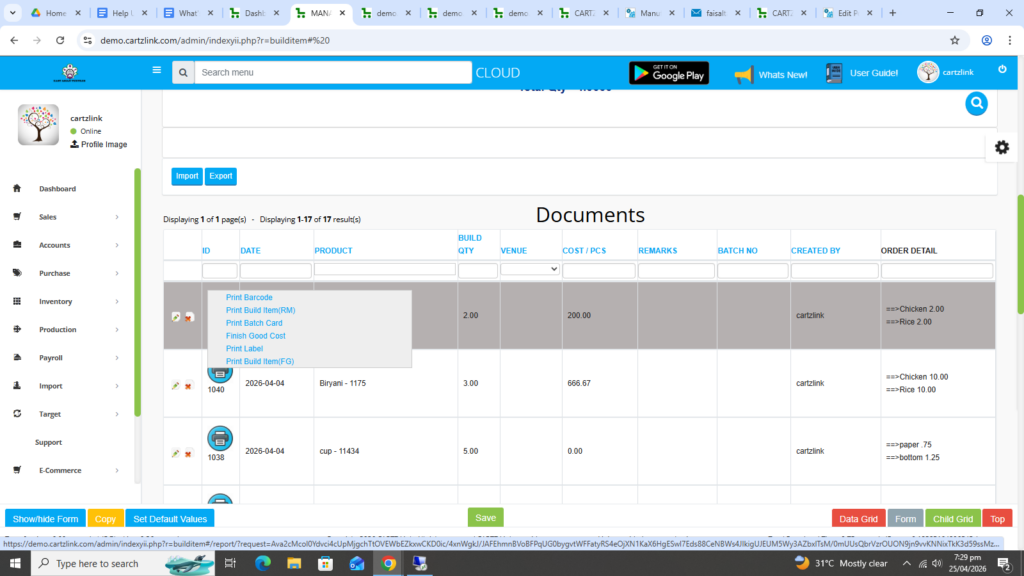
Various printing options are also available. Just click on the Printer Icon.
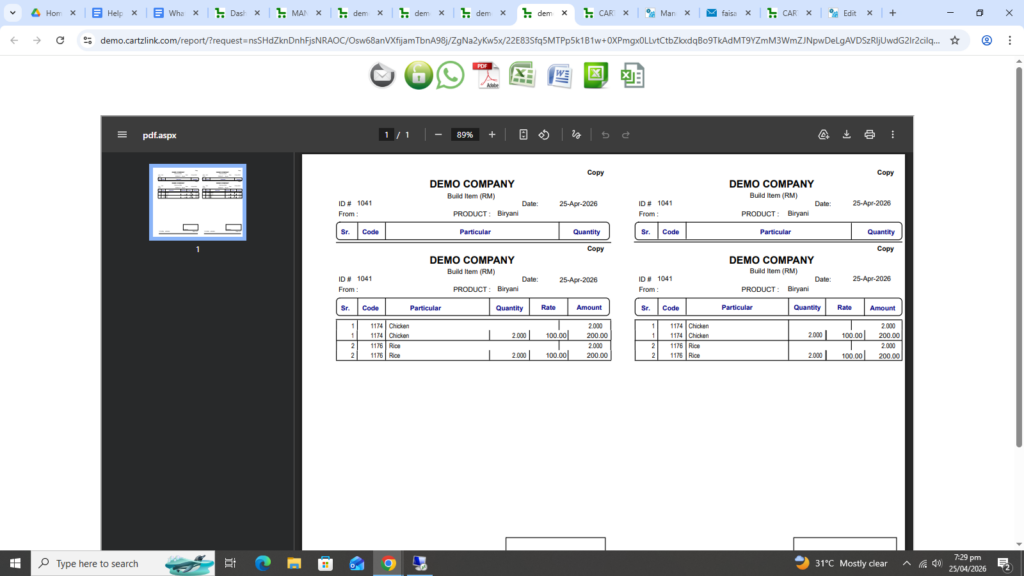
Click on Print Build Item (RM).
Another window will open with Print / Save options.
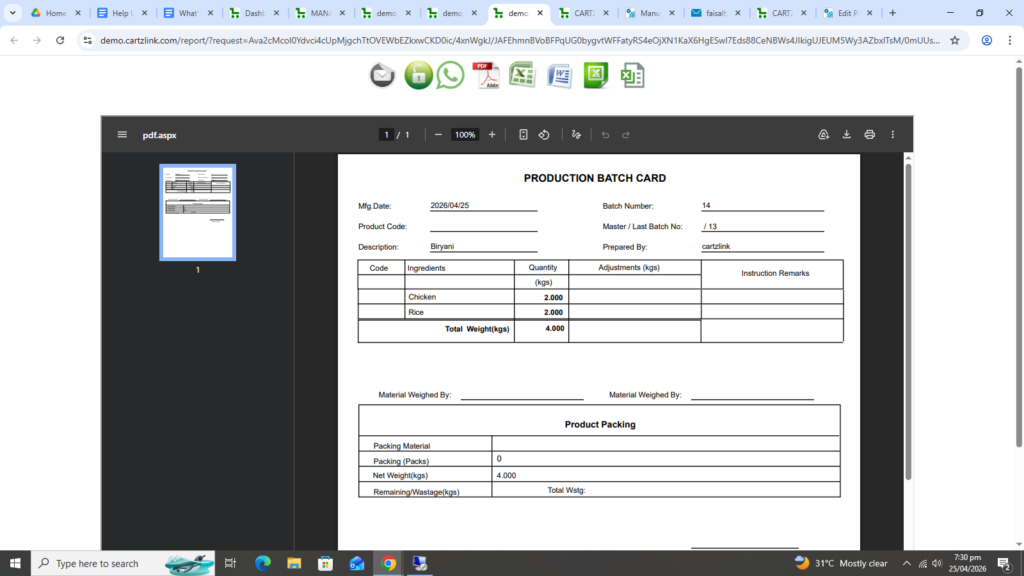
Click on Print Batch Card.
Production Batch Card will appear in another window with Print / Save options.
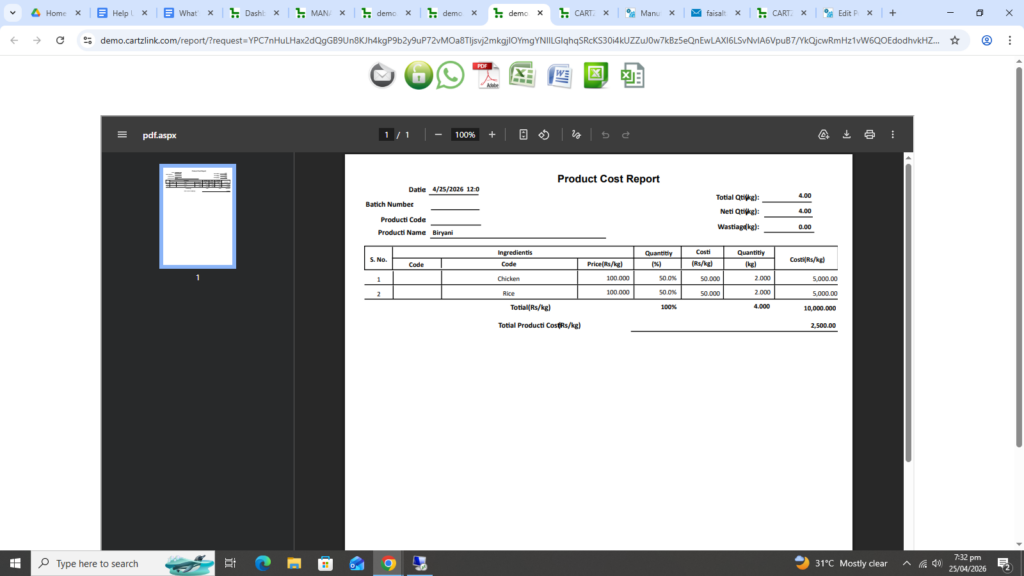
Click on Finish Good Cost.
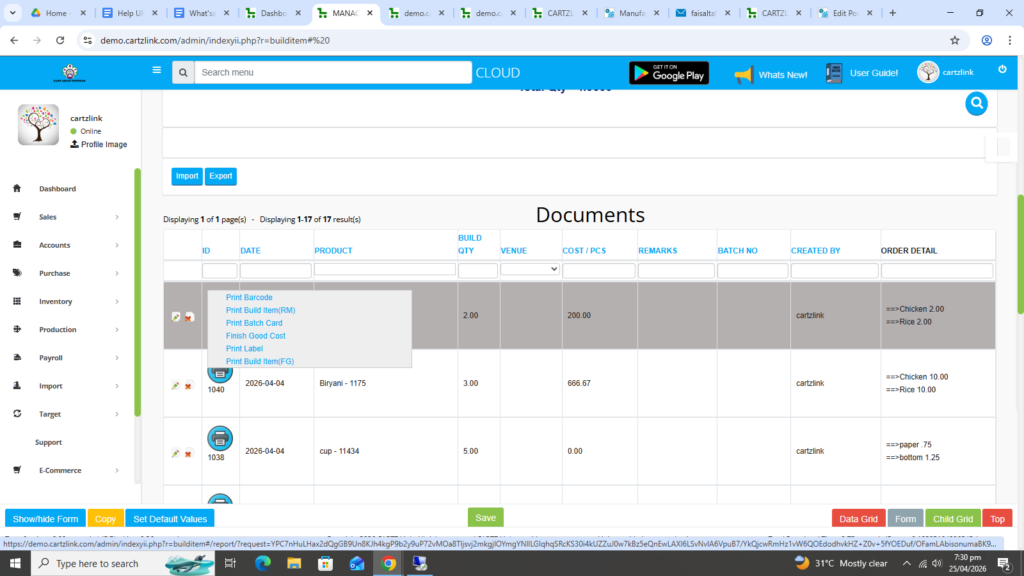
Another window will open with Print / Save options for Product Cost Report.
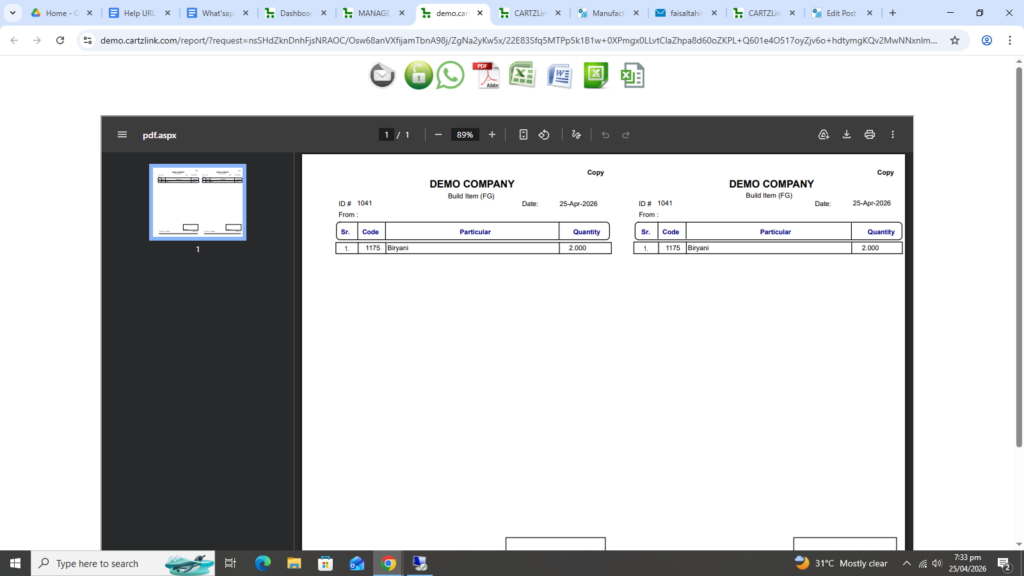
Click on Print Build Item (FG).
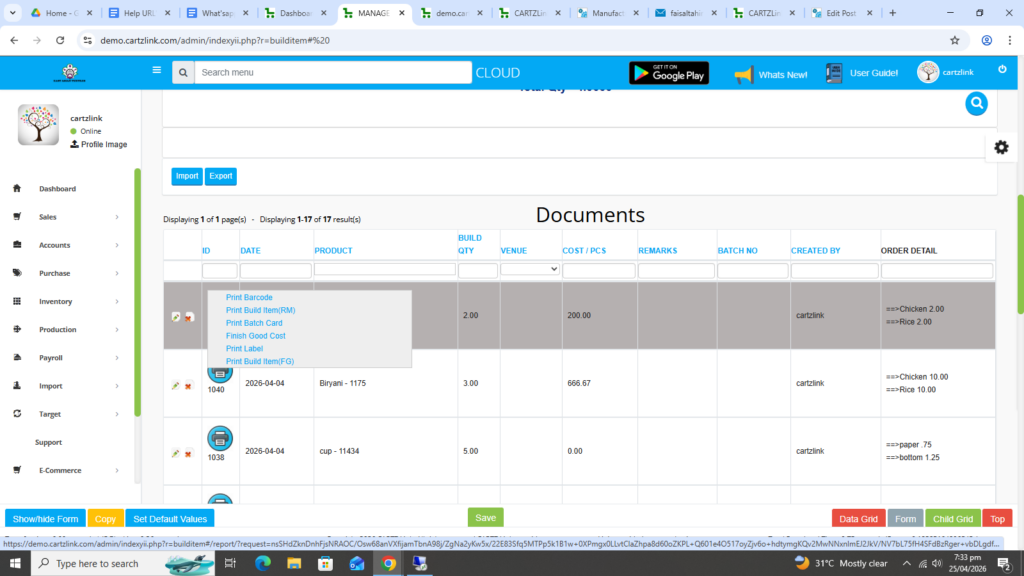
Another window will open with Print / Save options.