Design Wise Listing:
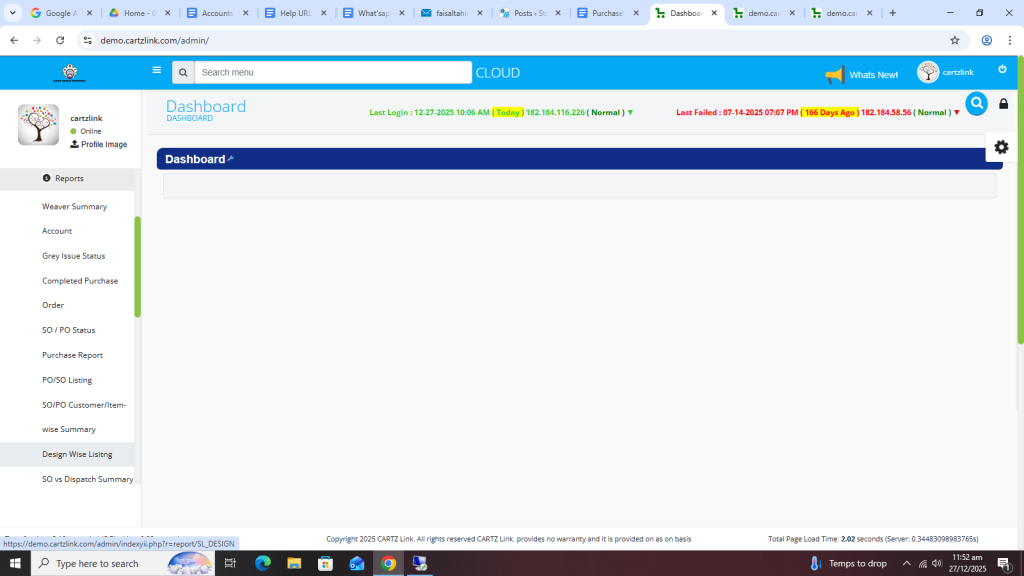
First click on Purchase, now click on Reports and then click on Design Wise Listing.
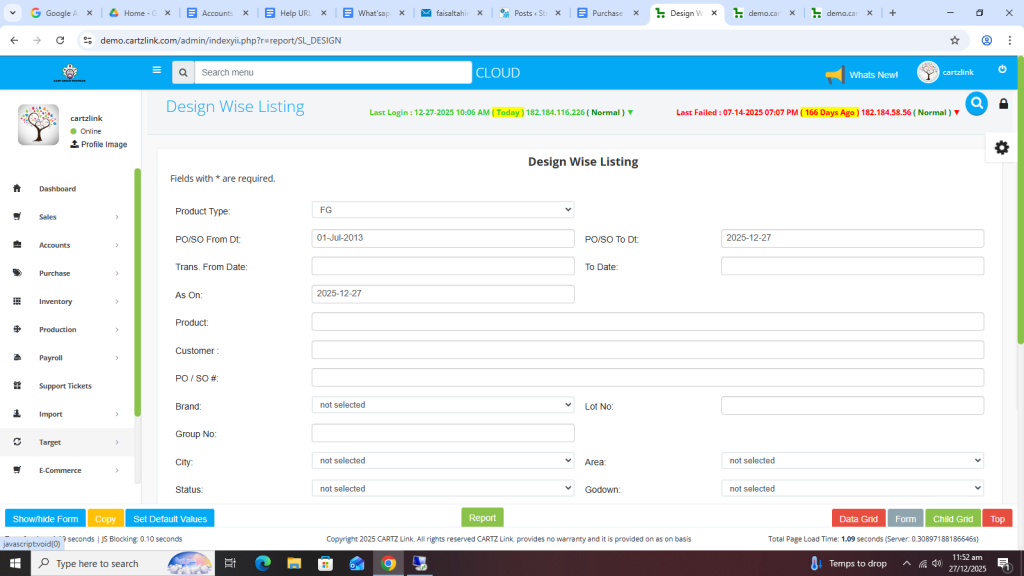
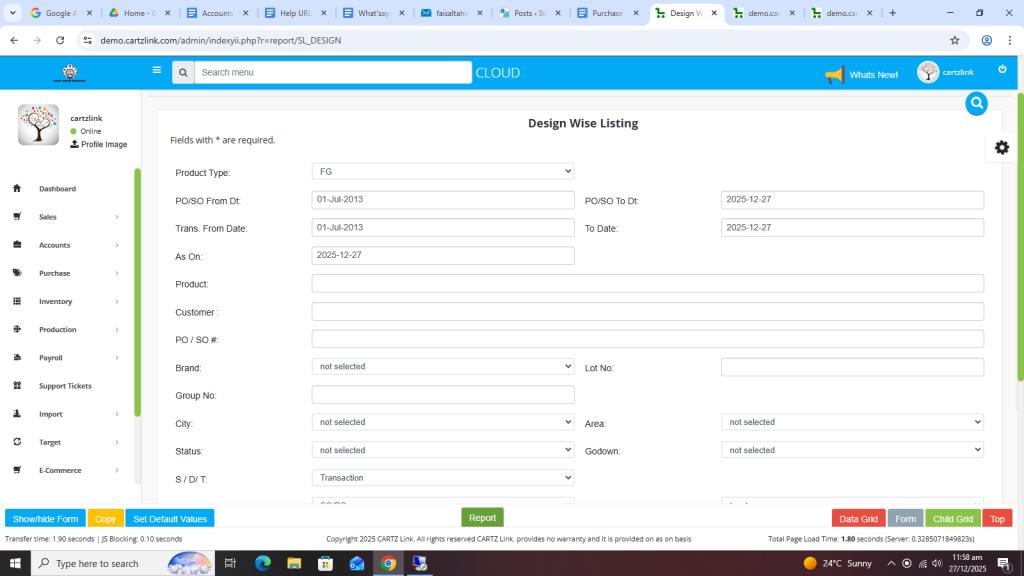
The following page will open as shown in the screen shot below.
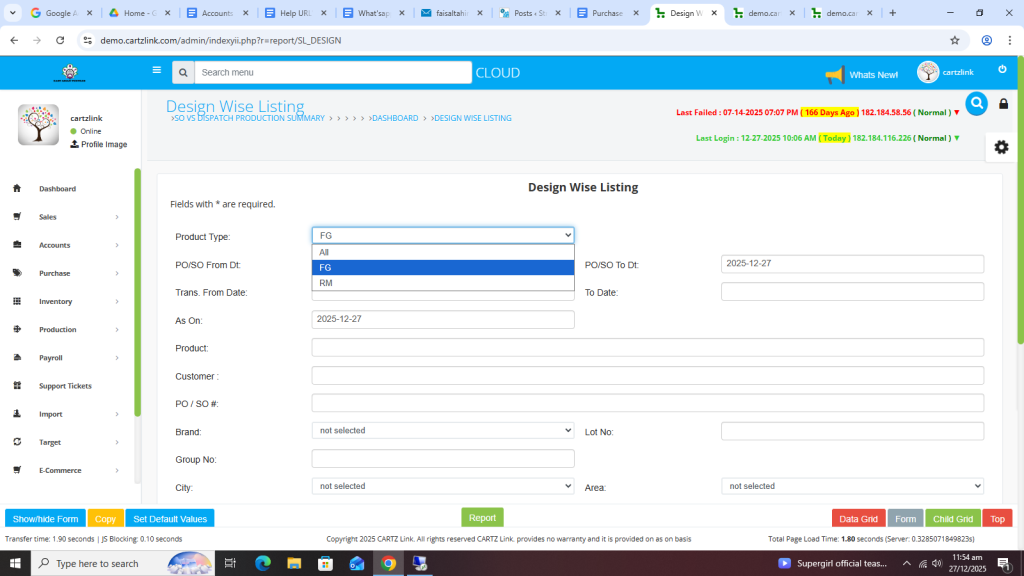
First select Product Type for report.
Now select PO/SO From Date.
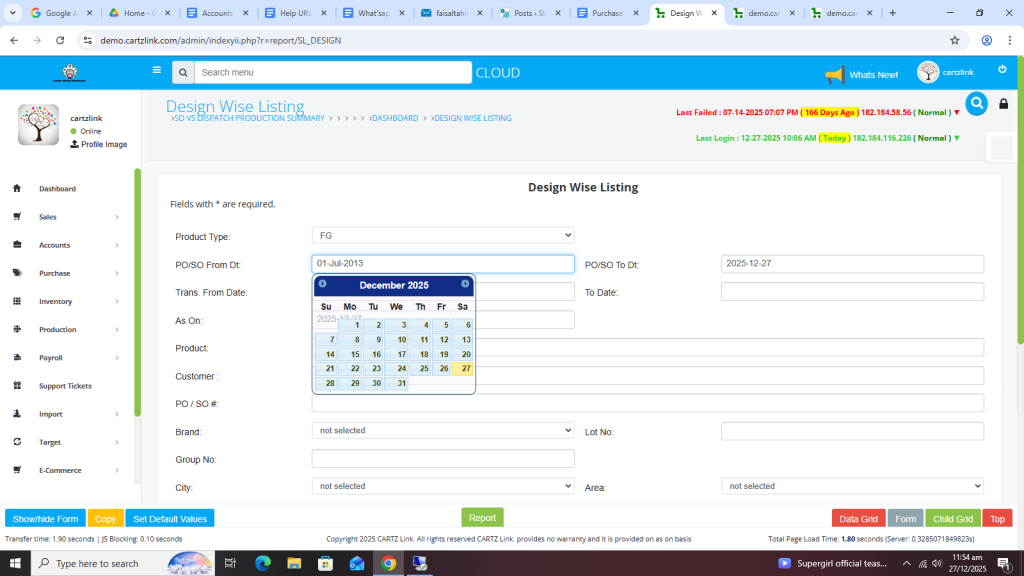
Also select PO/SO To Date.
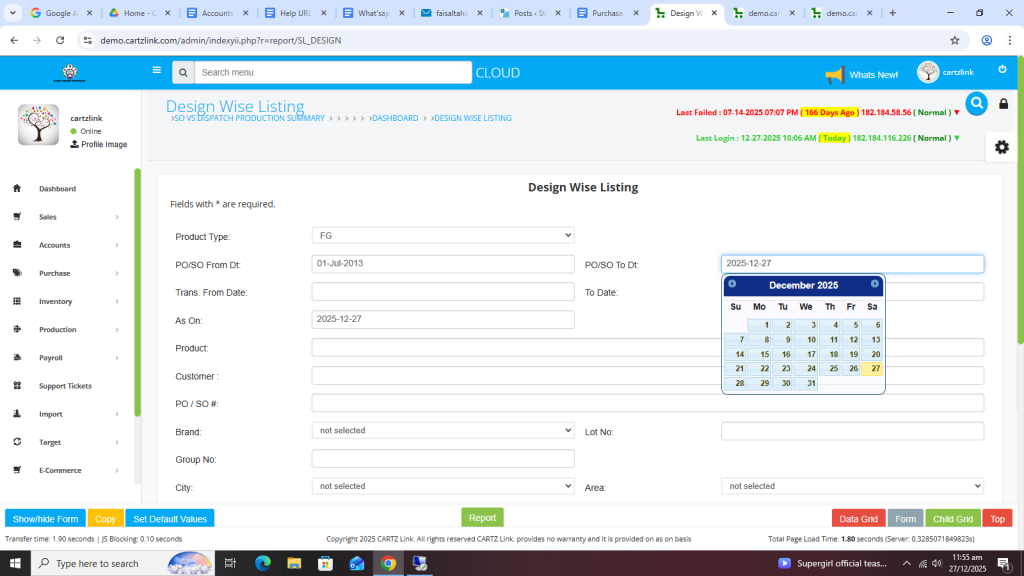
Similarly, select Transaction From Date.
Now select Transaction To Date.
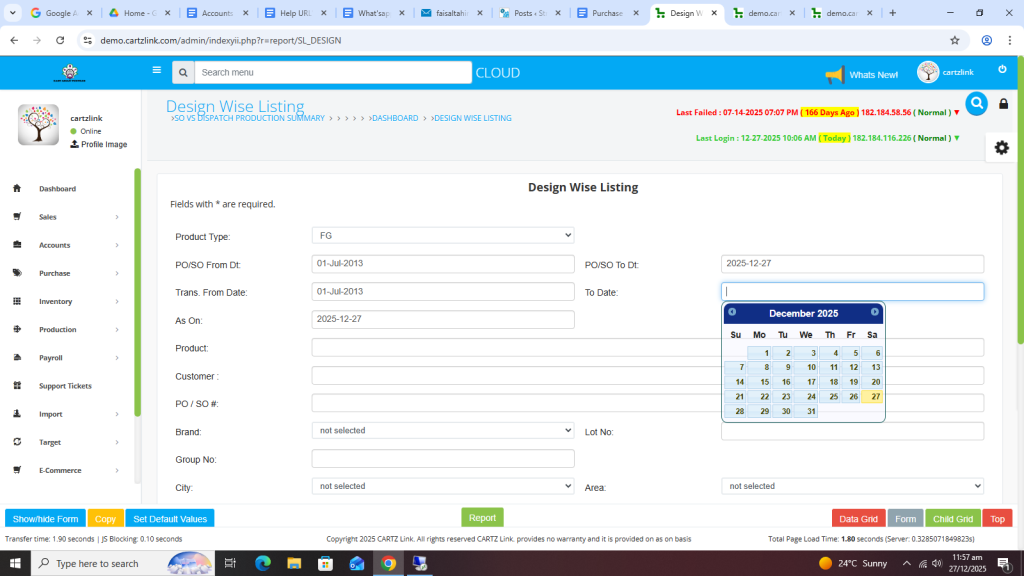
You have the additional options for selection of Products and Customers.
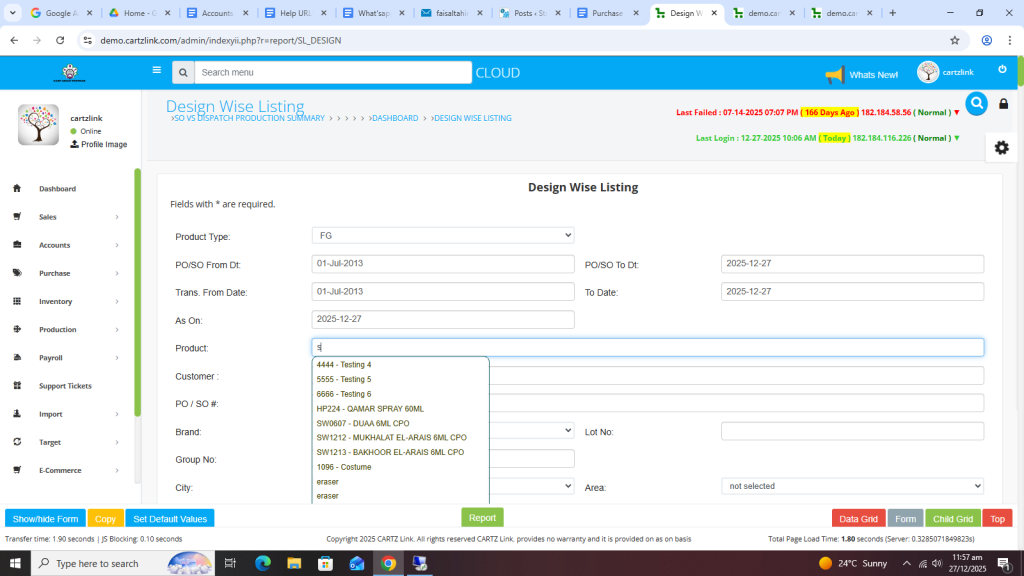
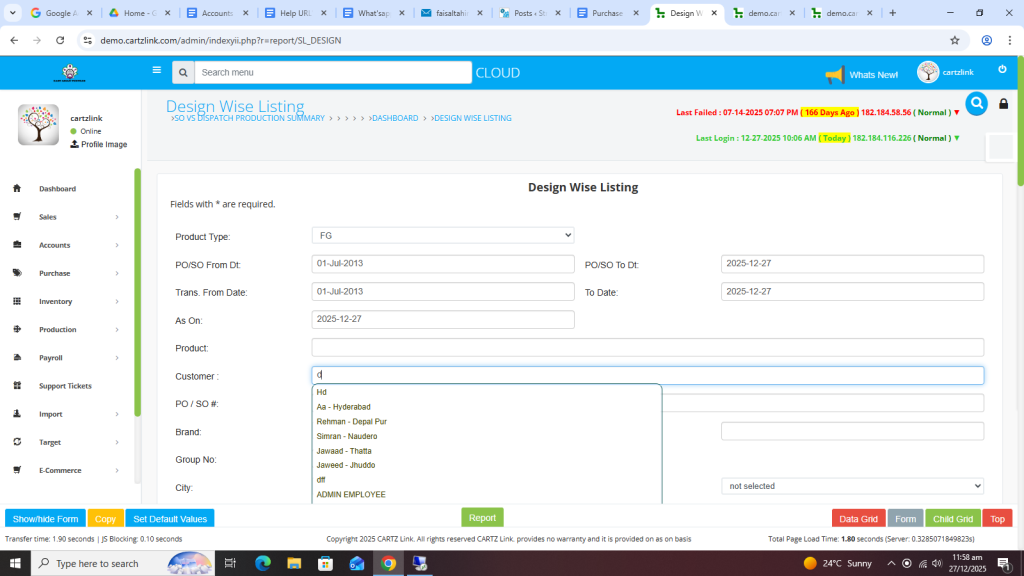
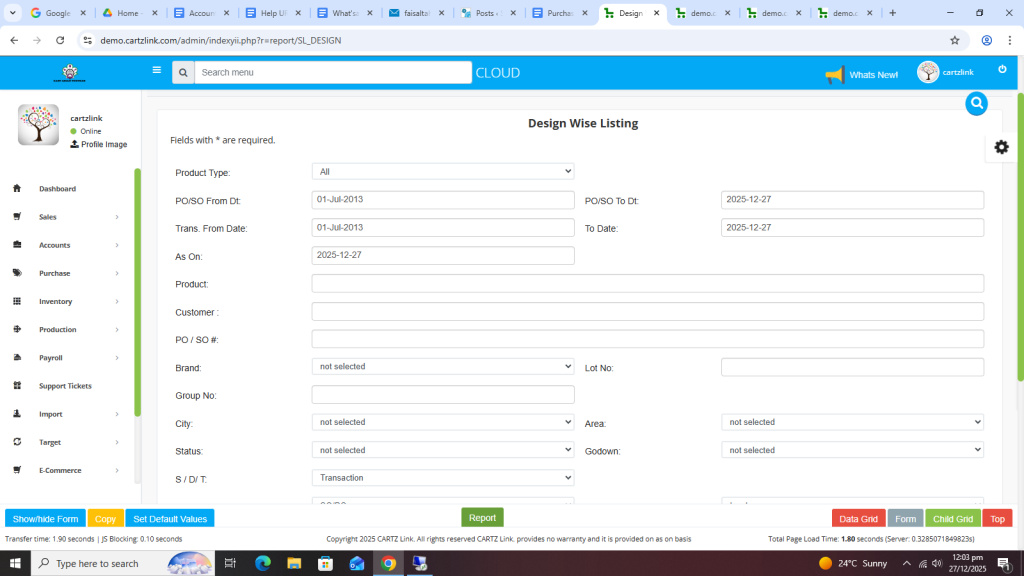
Once all information is selected, click on the Green Report button at the bottom.
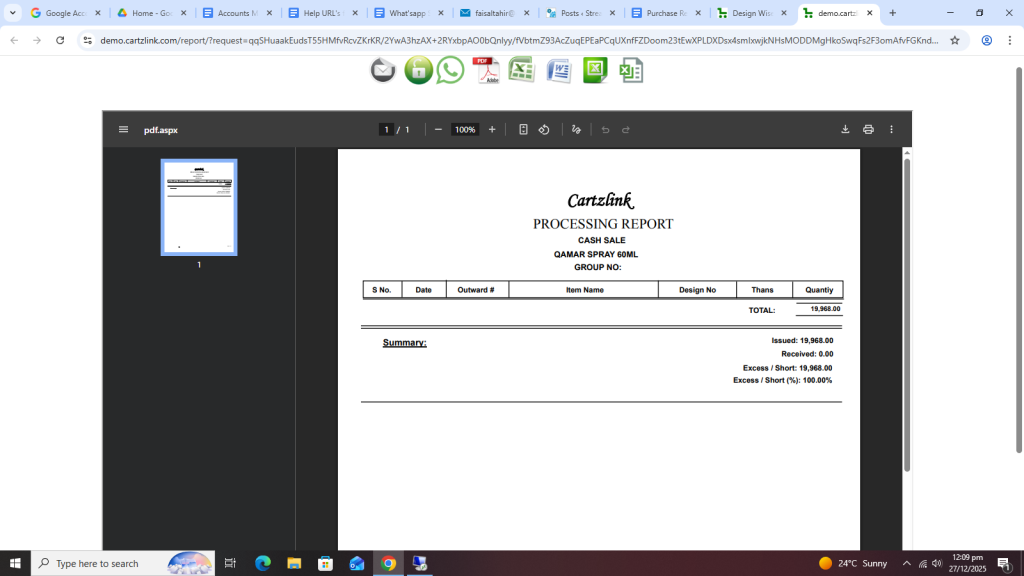
Your desired report will open in a new window with Print / Save options available.
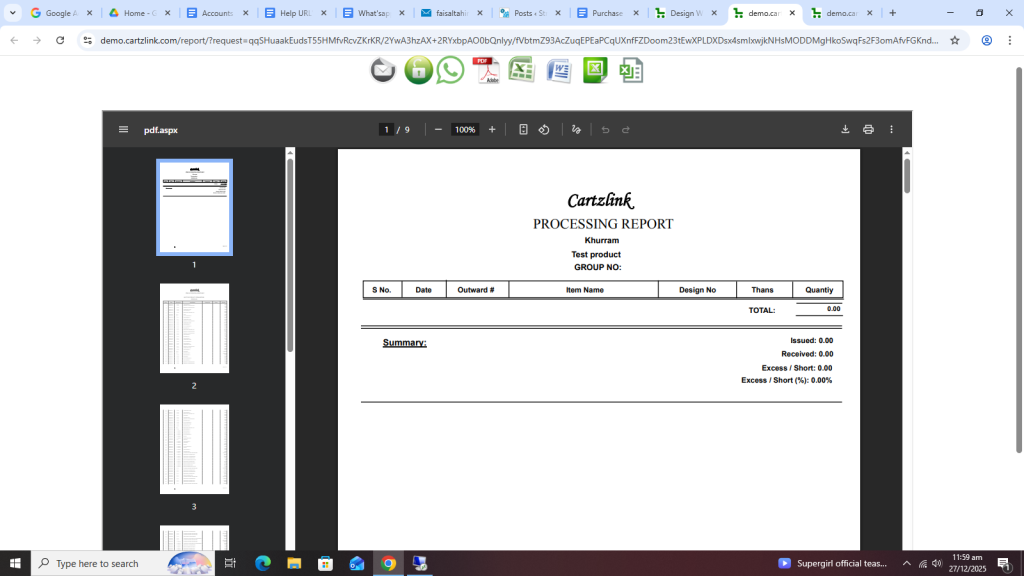
Similarly, if you want to check this report with another product type then go to the previous page and change Product Type.
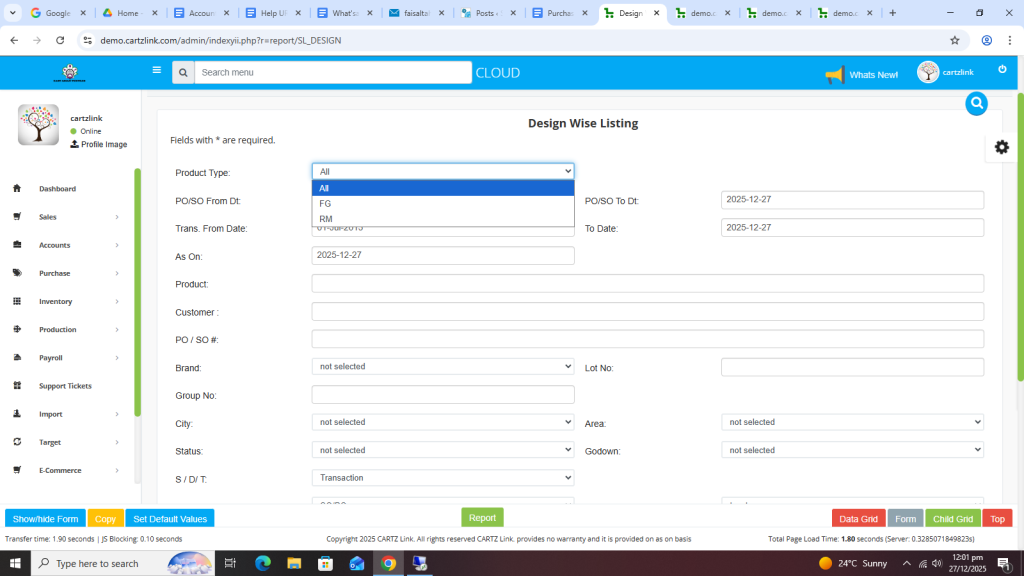
Again select the desired dates.
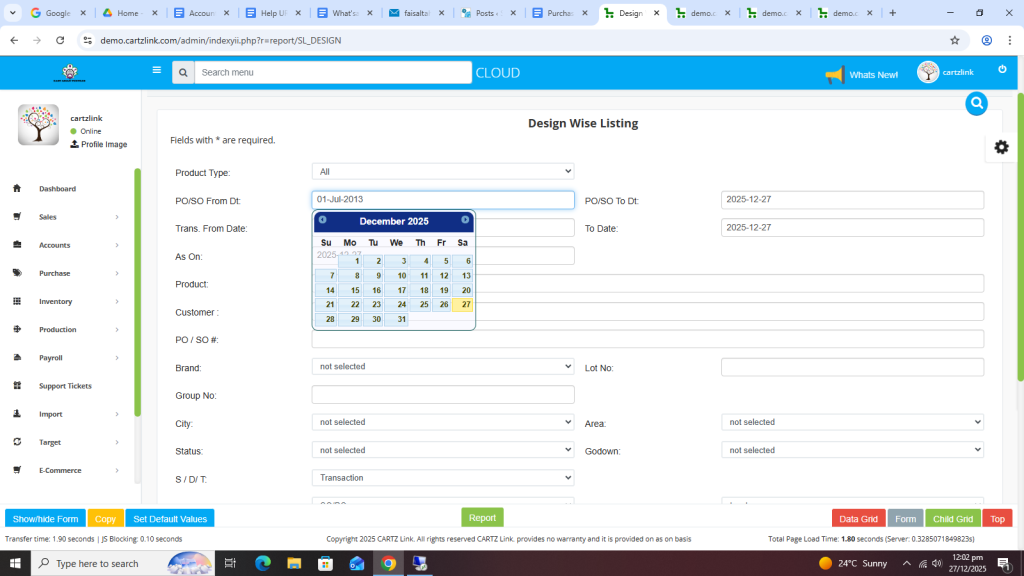
Now click on the Green Report button at the bottom.
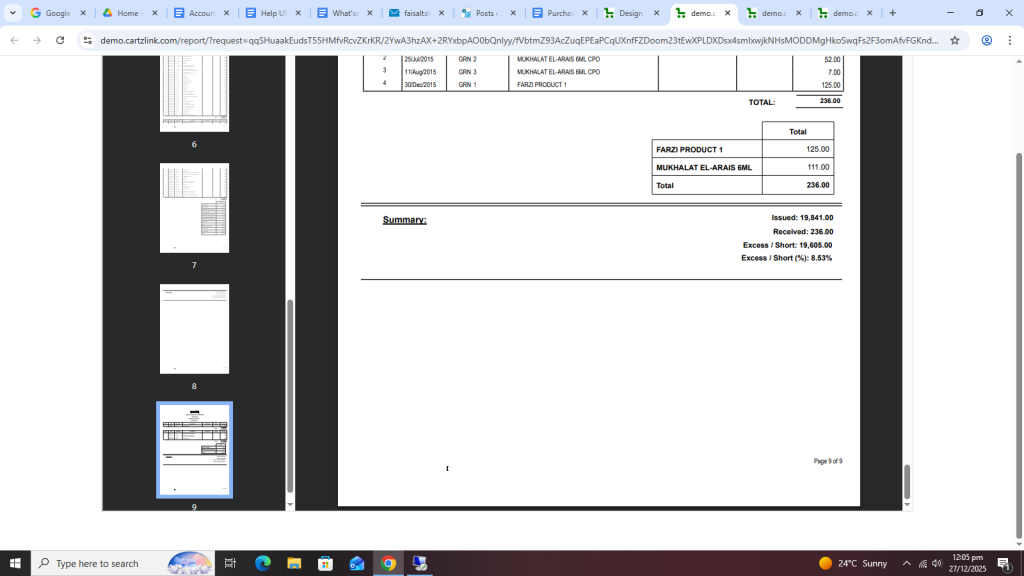
Your desired report for ALL Product Type will appear in a new window with Save / Print options available.
Also if the report is required against Product Type RM then again go to the previous page and select RM in product type.
Now select the Date range.
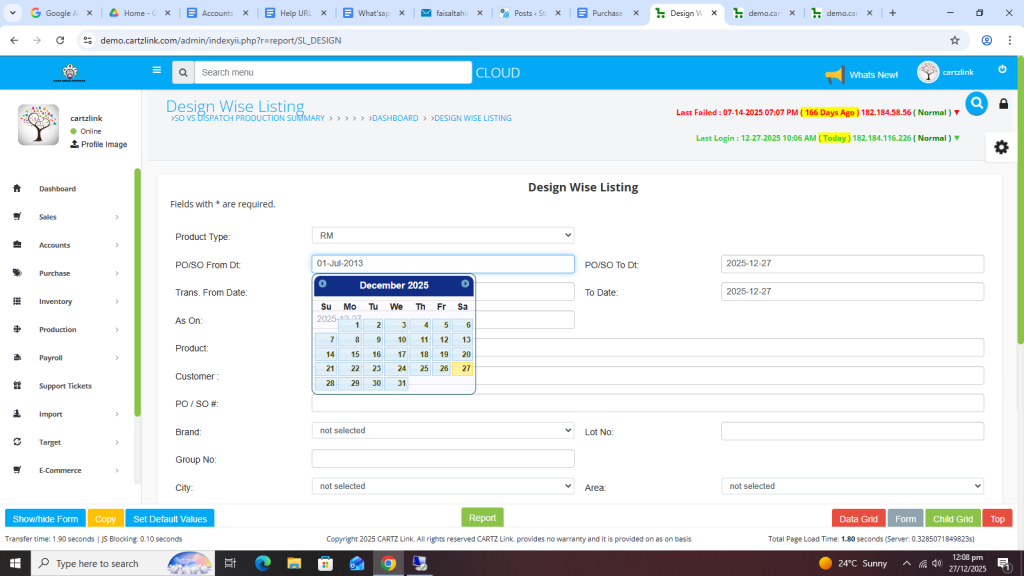
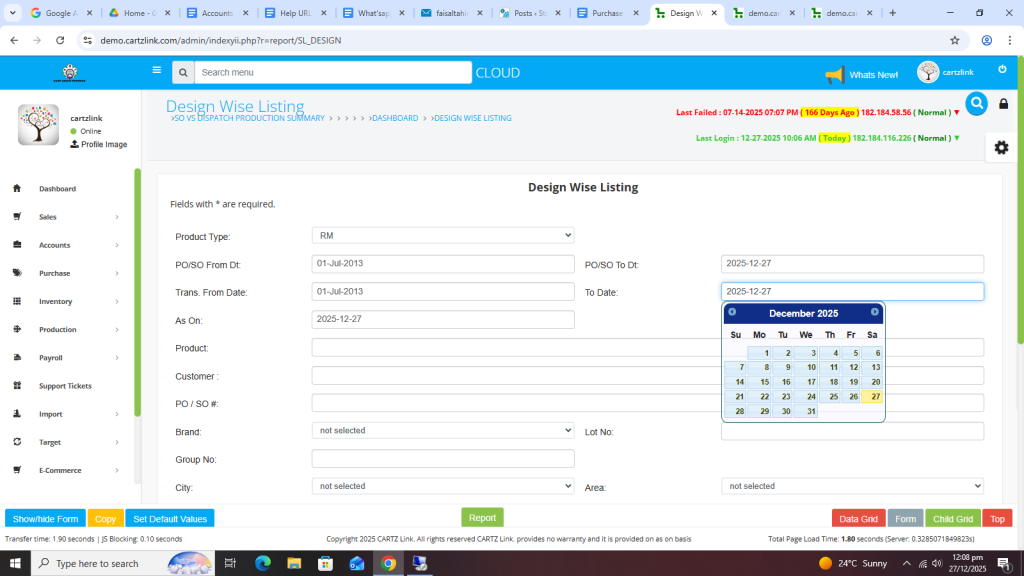
Click on the Green Report button at the bottom.
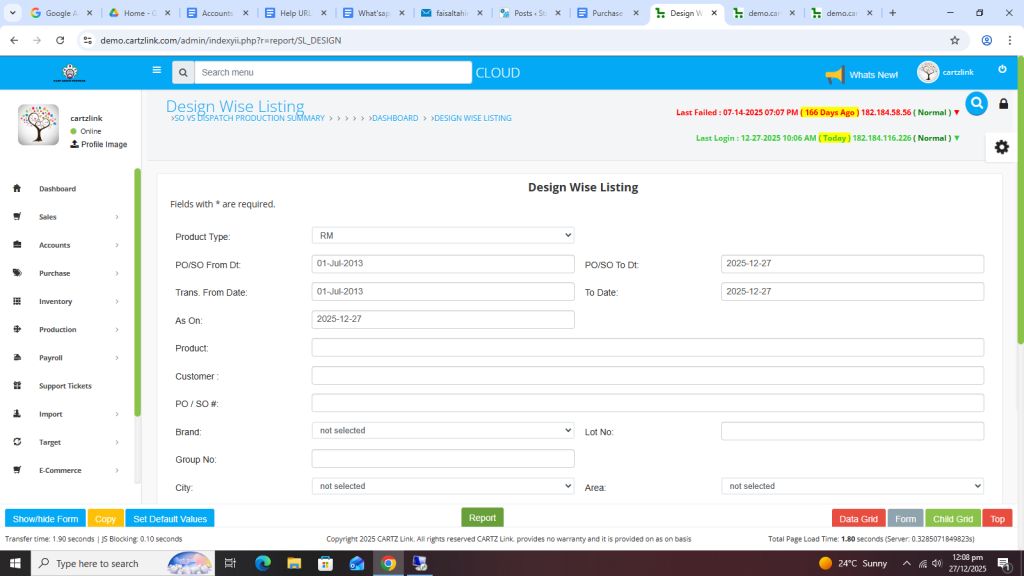
Your desired report for RM Product Type will appear in a new window with Save / Print options available.