Introducing Passkey Authentication 🔐
We’re excited to introduce Passkey Authentication on Cartzlink CRM, providing a faster, simpler, and more secure way to sign in to your account.
With Passkeys, you can sign in using your device’s built-in authentication method, such as fingerprint, Face ID, device PIN, or screen lock — without having to enter your password every time.
🔐 What Can You Do with Passkeys?
Add and Manage Passkeys
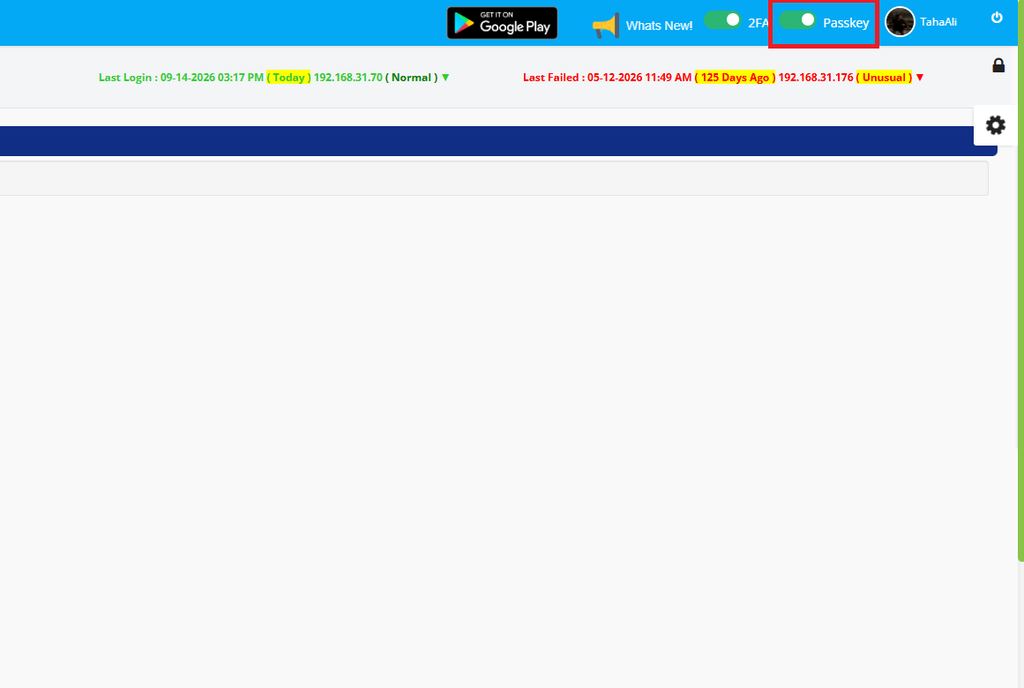
Users can add Passkeys directly from their Passkey Settings In the Top Navbar and manage the Passkeys associated with their account.
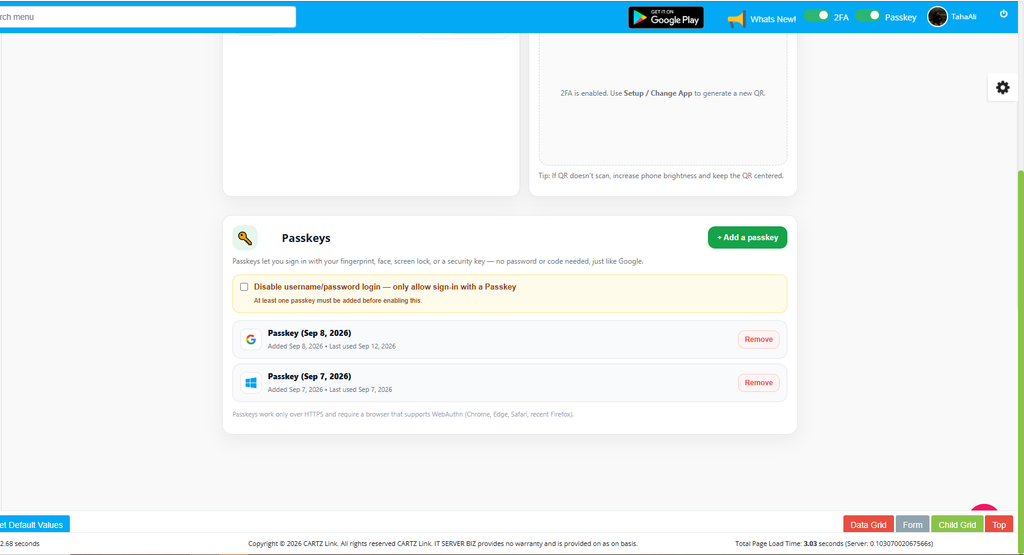
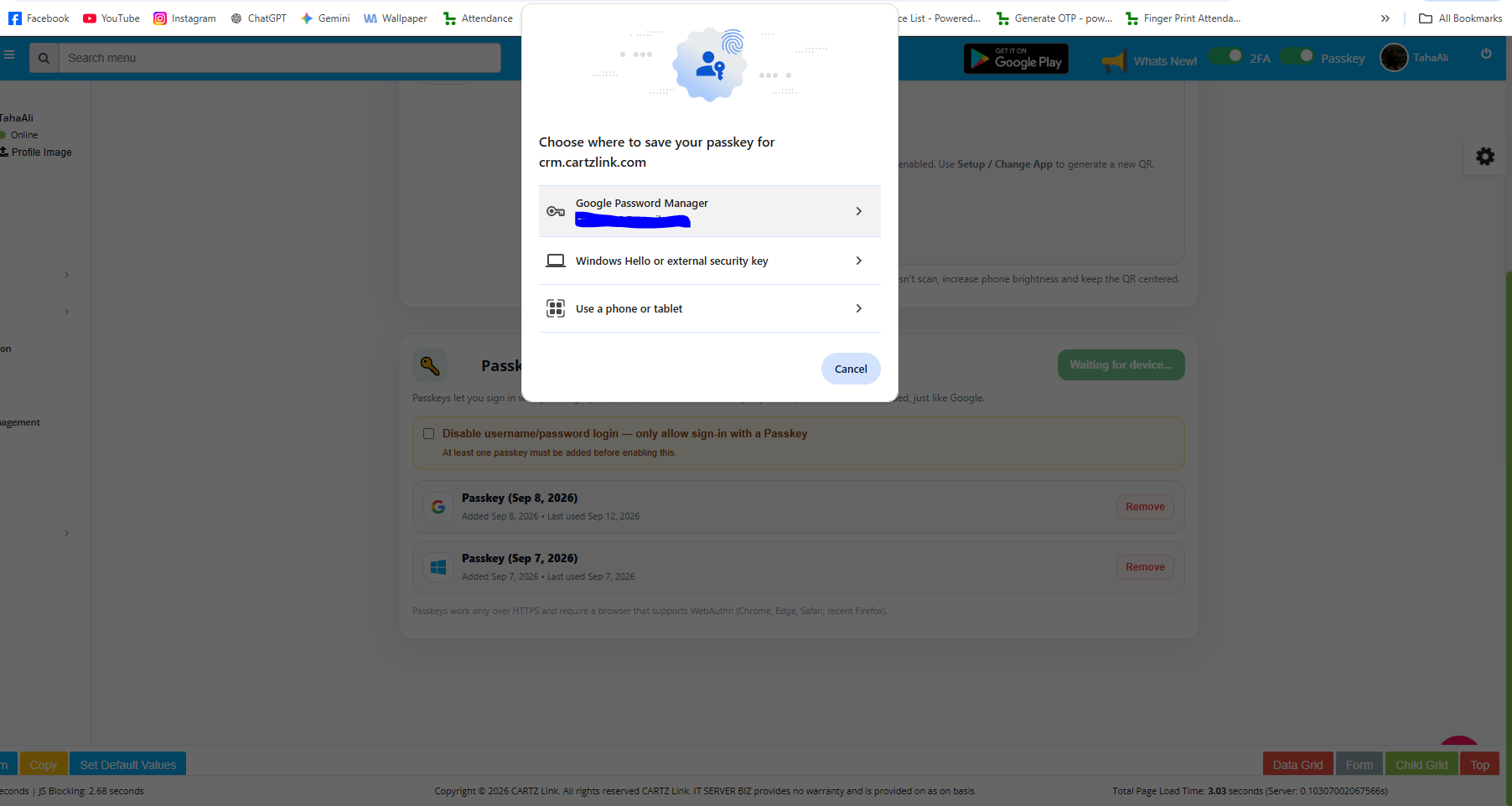
From the Passkeys section, click Add Passkey and follow the on-screen instructions to register your device.
Sign In with a Passkey
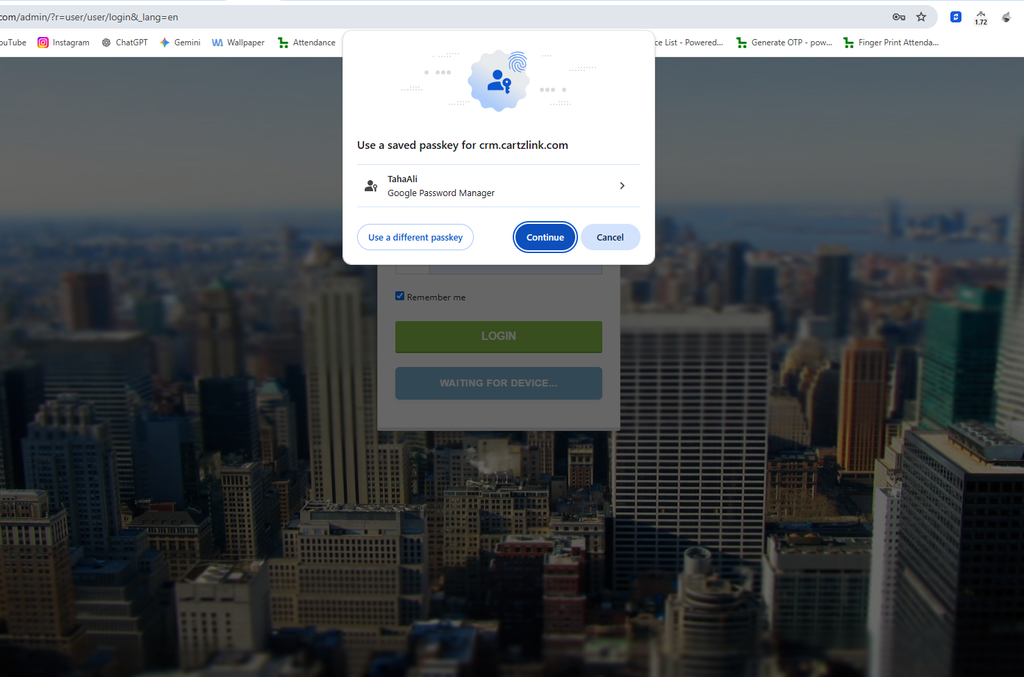
Once a Passkey has been registered, you can use it when logging in to Cartzlink CRM.
Depending on your device, authentication can be completed using:
- Fingerprint
- Face ID
- Device PIN
- Screen Lock
🛡️ Passkey & 2FA
Passkey authentication is integrated with the existing Two-Factor Authentication (2FA) flow.
When you successfully authenticate using a Passkey, a separate 2FA code is not required.
This provides a secure login experience while reducing the number of steps required during sign-in.
⚡ Remember Me Support
Existing Remember Me functionality is also supported with Passkey login, allowing users to continue using the familiar login experience.
🔒 Passkey-Only Login
For users who want an additional layer of account security, Cartzlink CRM provides the option to Disable Username/Password Login.
When enabled, the account can be accessed only through registered Passkeys.
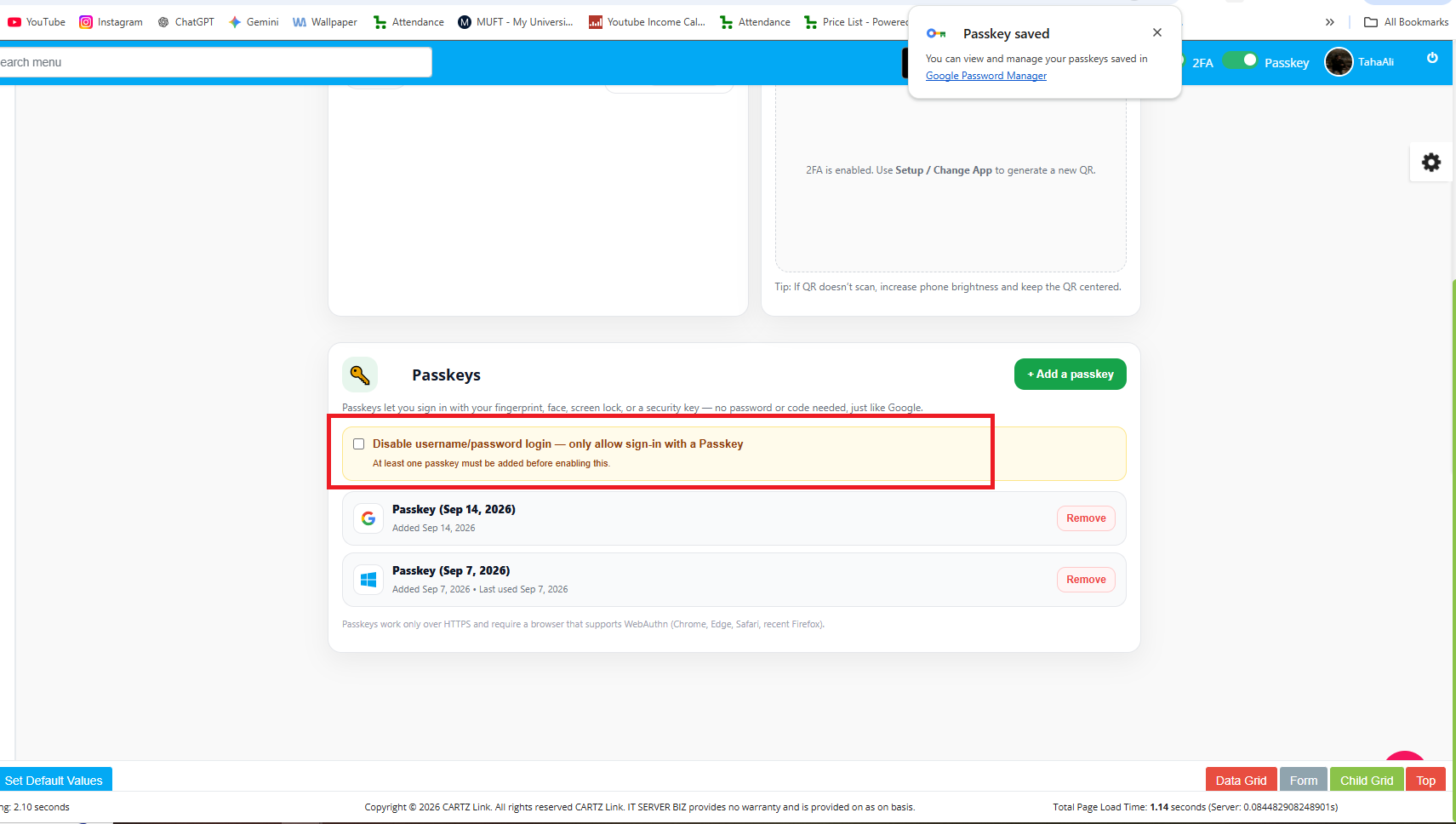
Important:
- At least one Passkey must be registered before Passkey-only login can be enabled.
- Password verification is required when enabling or disabling Passkey-only login.
- Password verification is also required before removing a Passkey.
- If Username/Password Login is disabled and only one Passkey remains, the last Passkey cannot be removed until Username/Password Login is enabled again.
📱 Cross-Device Passkey Authentication
Passkeys can also be used across devices.
For example, you can authenticate on your desktop using a nearby compatible mobile device through Bluetooth.
If the Nearby Device option does not appear during Passkey login on your desktop, make sure Bluetooth is available and enabled on the desktop and that your mobile device is compatible.
🔐 Secure Passkey Management
Passkey ownership and Passkey count are validated against the logged-in user and database, providing additional protection beyond frontend checks.
This ensures that Passkeys can only be managed by the appropriate account and that important account-security rules are enforced server-side.
🚀 Get Started
Go to:
Account Settings → Passkeys
Add your Passkey and experience a faster and more secure way to access Cartzlink CRM.
Try Passkey Authentication today!